
2. INSTALLATION, STARTUP, AND INTERFACE TOUR
This chapter shows how to install, start, and set up communications for CME 2. Perform the steps outlined below. Details follow in the chapter.
1 Verify that the system on which you will install CME 2 meets the Host Computer Requirements
NOTE: Vista users see Special Notes for Vista Users
2 Install CME 2 Software
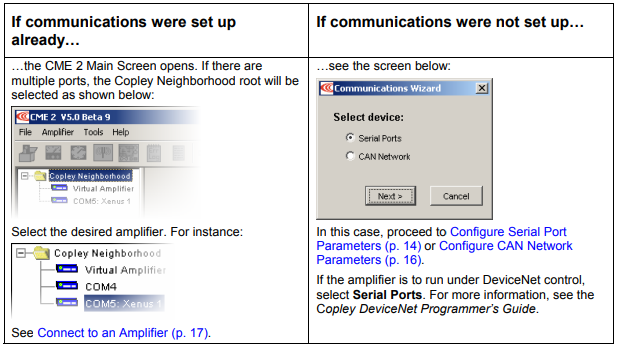
3 Start CME 2
4 Configure Serial Port Parameters (p. 14) or Configure CAN Network Parameters (To set up for DeviceNet control, see the Copley Controls Copley DeviceNet Programmer’s Guide.)
The chapter also includes CME 2 Interface Tour and describes how to Connect to an Amplifier in CME 2 (p. 17) and Rename an Amplifier
2.1: Install CME 2 Software
Optionally download software from the Web
1 Choose or create a folder where you will download the software installation file.
2 In an internet browser, navigate to: http://www.copleycontrols.com/Motion/Downloads/index.html
3 Under Software Releases, click on CME 2.
4 When prompted, save the CME2.zip file to the folder chosen or created in Step 1. The folder should now contain a file named CME2.zip.
5 Extract the contents of the zip file to the same location. The folder should now contain the files CME2.zip and Setup.exe.
6 If desired, delete CME2.zip to save disk space.
Install CME 2 Software
1 If installing from a CD, insert the CD (Copley Controls part number CME2). Normally, inserting the CD causes the installation script to launch, and a CME 2 Installation screen appears. If so, skip to Step 3.
2 If the software installation file is on a hard drive, navigate to the folder and then doubleclick on Setup.exe OR if you inserted the CD and the CME 2 Installation screen did not appear, navigate to the
root directory of the installation CD and then double-click on Setup.exe.
3 Respond to the prompts on the CME 2 Installation screens to complete the installation. We recommend accepting all default installation values.
NOTE: Vista users see Special Notes for Vista Users (p. 8).
2.2: Start CME 2 Software
1  Double-click the CME 2 shortcut icon on the Windows desktop to start CME 2.
2
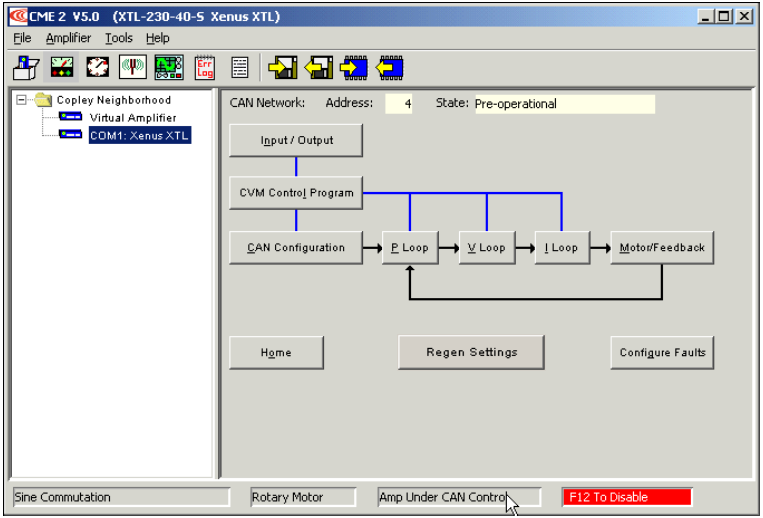
After an amplifier has been selected, the CME 2 Main Screen looks similar to this:
If the Basic Setup options have not been chosen, the Basic Setup screen opens.