
3. Network Settings
To make sure that the Software can run smoothly so that data can be transmitted stably, you need to configure the network before running it.
3.1 For SC2000 E Series and SC3000 Series
Steps
1. On your PC, open Control Panel, click Network and Internet → Network and Sharing Center → Change Adapter Settings, select the corresponding network port, and click Properties to enter the property settings page.
2. Double-click Internet Protocol Version 4 to set the IP address of your PC. It is recommended to set a static IP address for the network port so as to accelerate device search and connection. See the figure below for details.
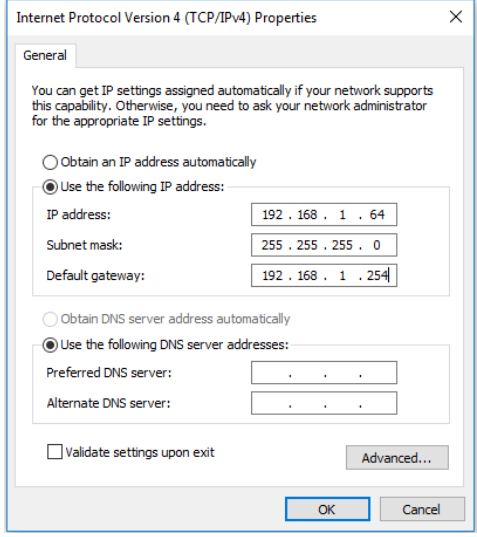
Figure 3-1 IP Settings
3. Click Settings, select Link Speed or Advanced, set Speed and Duplex to Auto-negotiation or 100 Mbps full duplex to ensure that the network speed is above 100 Mbps.
3.2 For SC5000 and SC7000 Series Cameras
To make sure that the Software and cameras can run smoothly so that data can be transmitted stably, you need to configure the network before running it
Steps
1. On your PC, open the Control Panel, click Network and Internet → Network and Sharing Center → Change Adapter Settings, select the corresponding network port, and click Properties to enter the property settings page.
2. Double-click Internet Protocol Version 4 to set the IP address of your PC. It is recommended to set a static IP address for the network port so as to accelerate device search and connection. See the figure below for details.
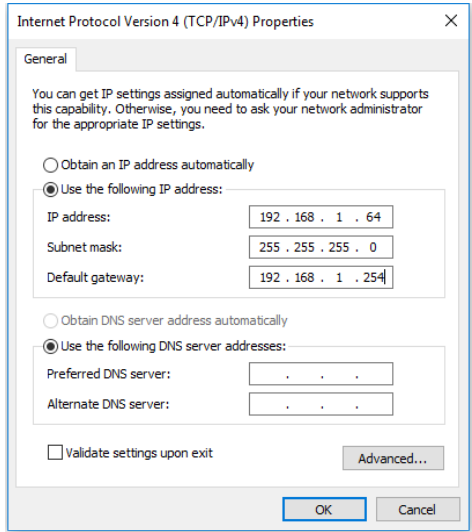
Figure 3-2 IP Settings
3. Click Settings, select Advanced. Set Jumbo Packet as 9014 Bytes