14. Options
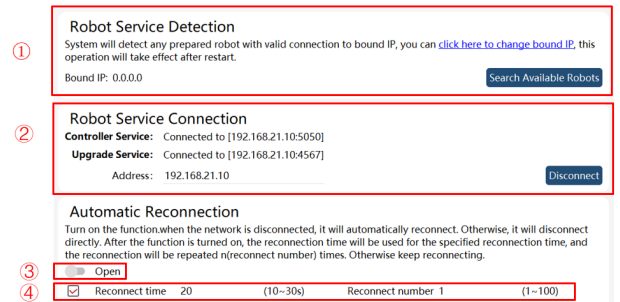
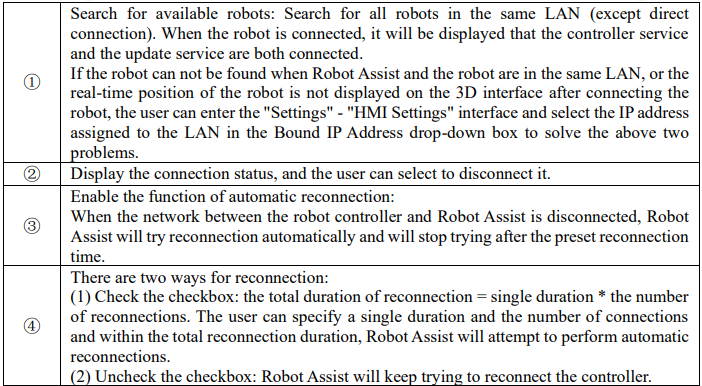
The options page mainly involves robot connection, software upgrade, import and export, and feature demonstration.
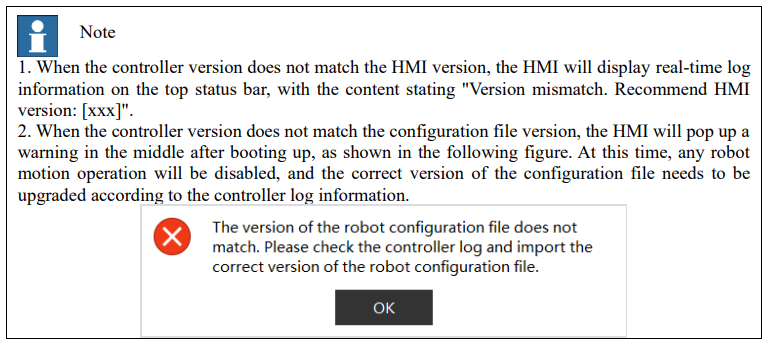
14.1 Connect
14.2 About ROKAE
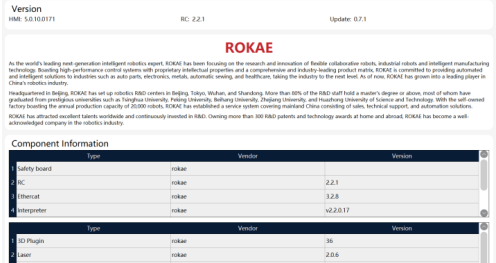
It introduces software version, component information, and company profile.
14.3 Software upgrade
14.3.1 Controller upgrade
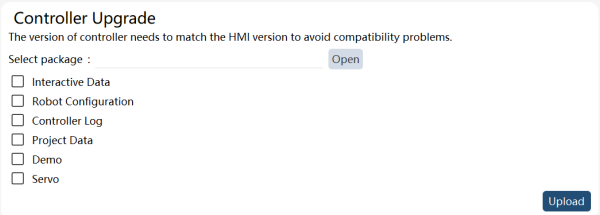
Through the controller upgrade function, it is possible to: (1) upgrade the controller software version and (2) restore data.
Upgrade controller version: Select the upgrade package, click "Upload", and the interface will prompt "Uploaded successfully". Follow the pop-up prompt to restart the controller.
Restore data: Select the data package to be restored, check the data to be restored, and click "Upload".
Follow the pop-up prompt to restart the controller.
14.3.2 Controller backup
This function can achieve data backup of the controller. Check the data for backup, click "Open" to select the backup directory, and then click "Export". The exported file is an encrypted file in RPA format.
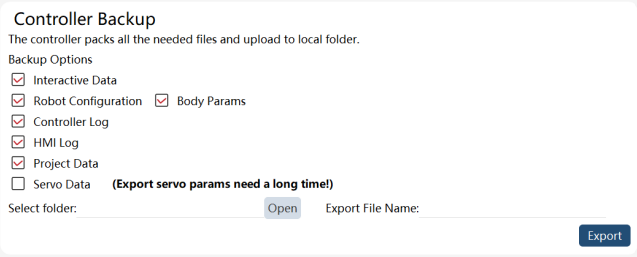
Robot configuration: controller settings - system configuration; calibration - zero point voltage value of torque sensor; body parameters - overload coefficient; motion parameters - parameters and safety control; etc.
Native parameters: calibration — encoder values, angle calibration settings, and base frame; dynamic settings — (third order) friction coefficient; body parameters — RD parameters, reduction ratio, etc.
Interactive data: dynamic settings - feedforward and constraint switch; motion parameters - stopping distance, Search, and minimum radius of turning zone, Conf, force control parameters, xPanel configuration, quick adjustment, teach pendant mode, communication, and safety.
Controller logs: version information files, user configuration files, controller logs, and project logs. Only the logs generated in the last three days can be exported, and more logs can be exported in the log module on the export page.
HMI logs: syslog, mirror version description file, and version information file of the teach pendant.
System logs: IPC syslogs, interfaces files, and rc.local files.
14.3.3 HMI upgrade
Only for xPad2, and it aims to upgrade the teach pendant HMI software. Click "Open", select the HMI software upgrade package in the USB drive directory, and click "Upgrade" to start the HMI upgrade process. After the HMI upgrade is completed, the HMI software will start automatically and the HMI upgrade is finished.

14.3.4 Restart robot
It aims to restart the IPC system, and the upgrade service connection needs to be established for this operation.

14.3.5 Erase configuration
It aims to erase custom configurations, robot configurations, body parameters, project data, etc. For instructions on the above data, please refer to the "Controller Backup" section. Performing this function will still retain the relevant operation logs of the control system. Please use it with caution.
Check the content to be erased, click "Erase Configuration", and manually restart the robot to take effect.
Note: The upgrade service connection needs to be established for this operation.

14.3.6 Erase all configurations
It aims to restore the control system to its factory default state. This function will reset configuration
files, project data, and interactive data within the control system but still retain relevant logs. Please use it with caution.
Note: The upgrade service connection needs to be established for this operation.

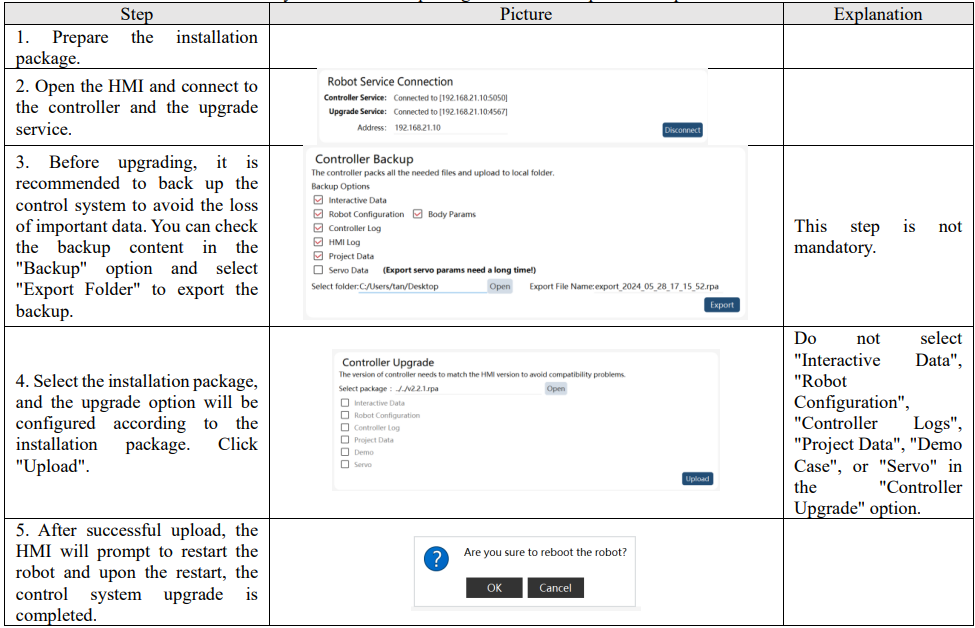
14.3.7 Example of control system upgrade
When the user wants to upgrade the control system, contact ROKAE to obtain the new version of the control system installation package. Refer to the operation steps below:
14.4 Export
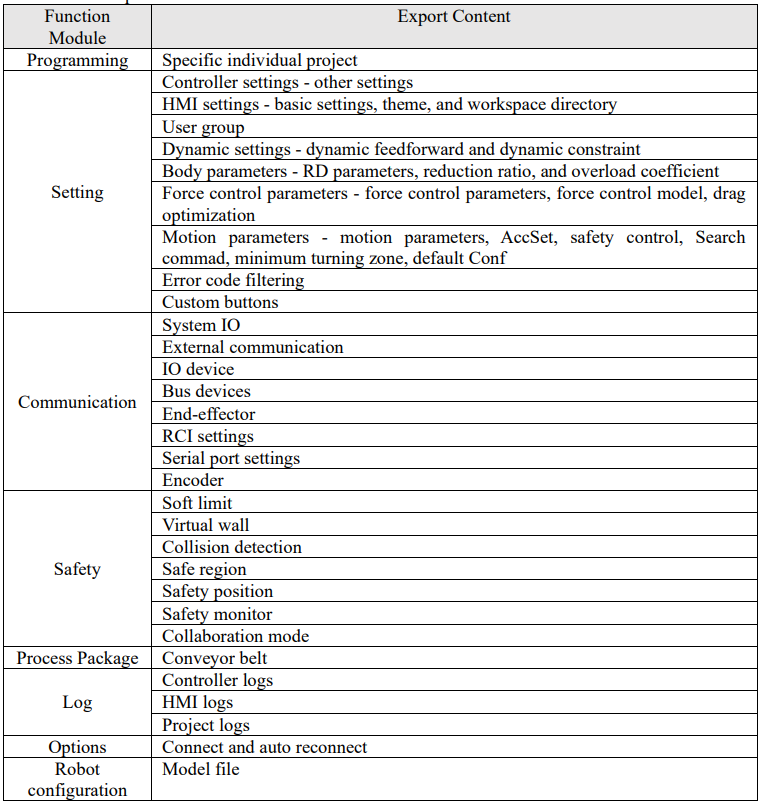
The export function can be used to back up controller related settings.
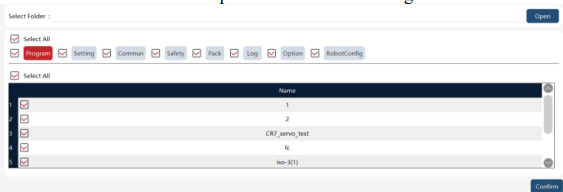
As shown in the figure, select the target folder, select the content to be exported, and click "OK".
The available export contents are as follows:
14.5 Import
The import function can import controller settings.
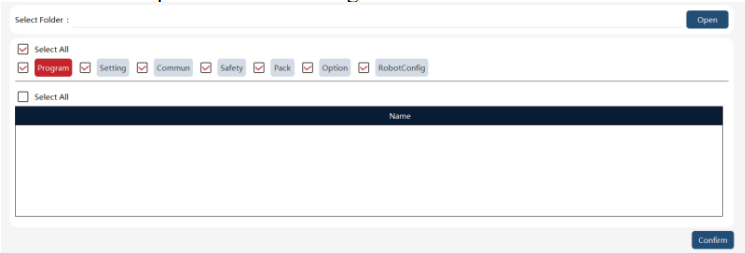
Select the zip package you want to import, and after opening the package, the configuration items contained in the zip package will be automatically checked while the configuration items that are not contained will be grayed out.
The user can choose specific import content as the case may be. Note: After importing, the control system needs to be restarted to take effect.
14.6 File manager
It is intended to quickly open several folders involved in the Robot Assist software.
Note: This function is available only for PC HMI software.
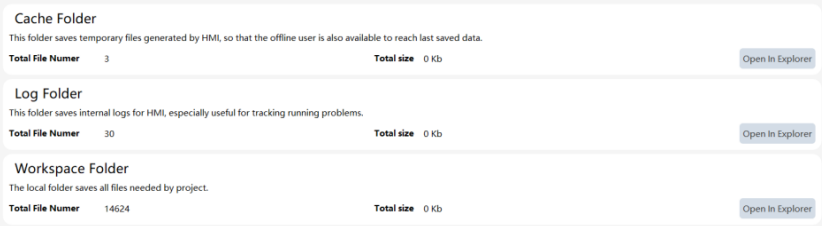
Cache folder: Store the cache of Robot Assist.
Log folder: Store Robot Assist logs. The logs in the folder are consistent with the internal logs on the diagnostic interface. You can click here to enter the folder for log copying.
Workplace folder: Store robot project files.
14.7 Demos
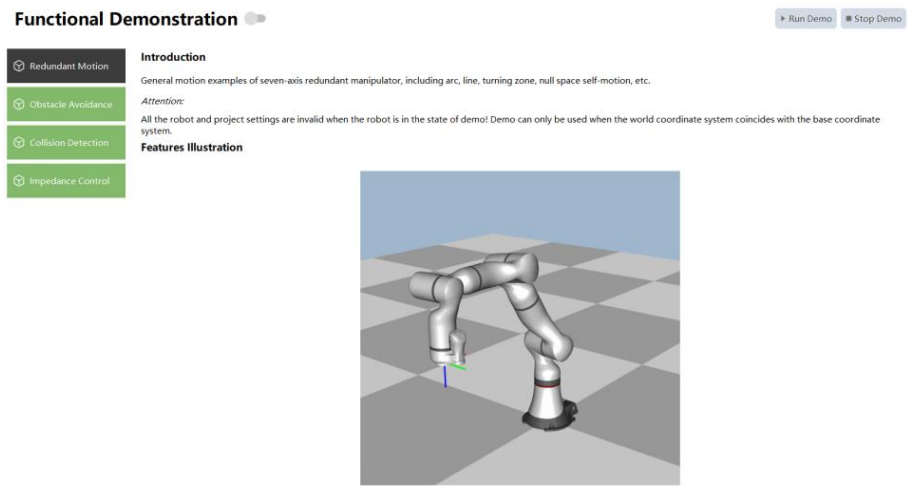
14.7.1 Seven-axis redundant motion
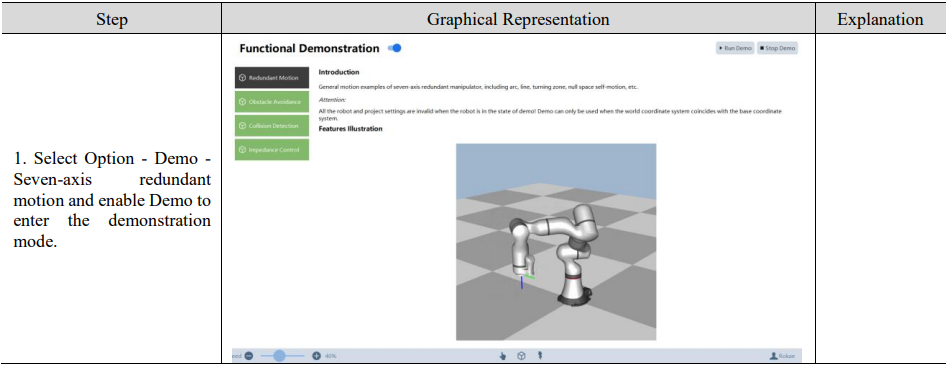
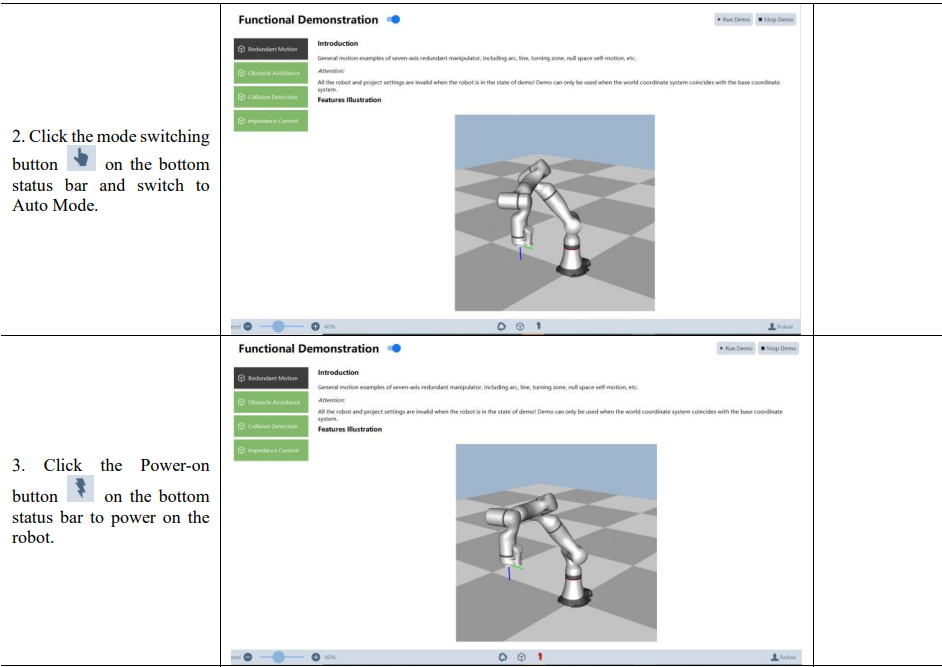
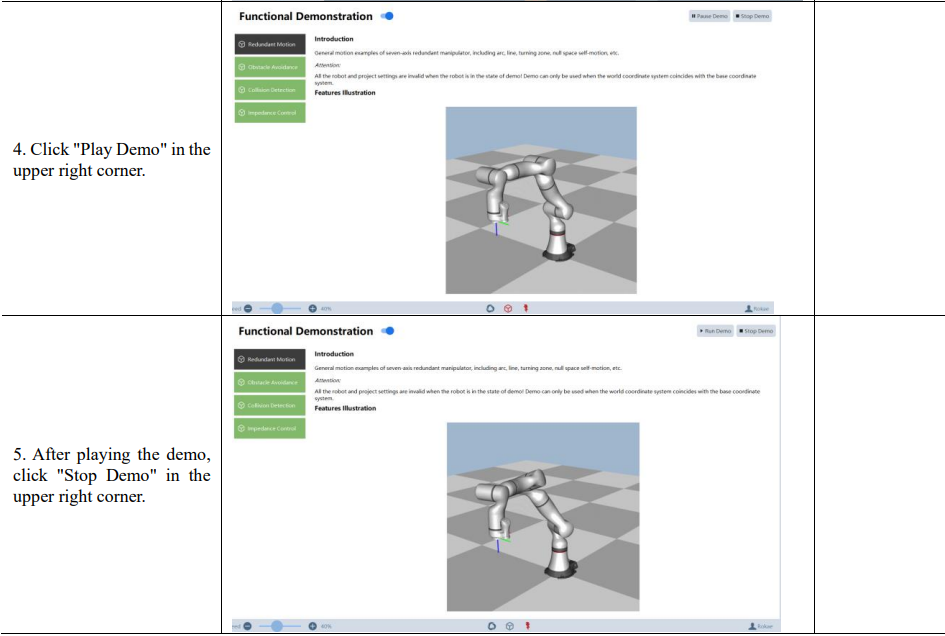
It is used for the demonstration of seven-axis redundant motion, including circular motion, linear motion, turning, and null-space motion, and it supports xMate ER PRO.
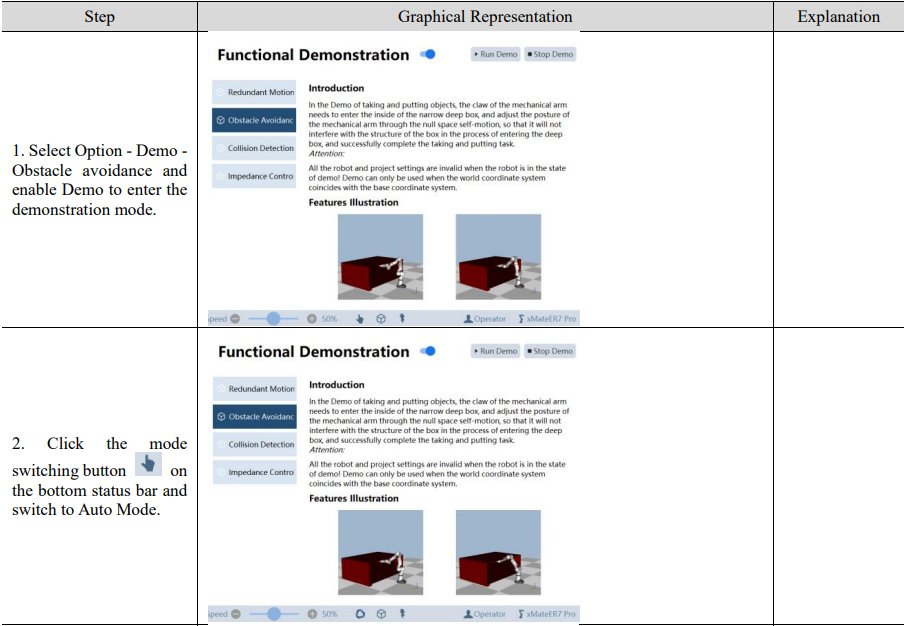
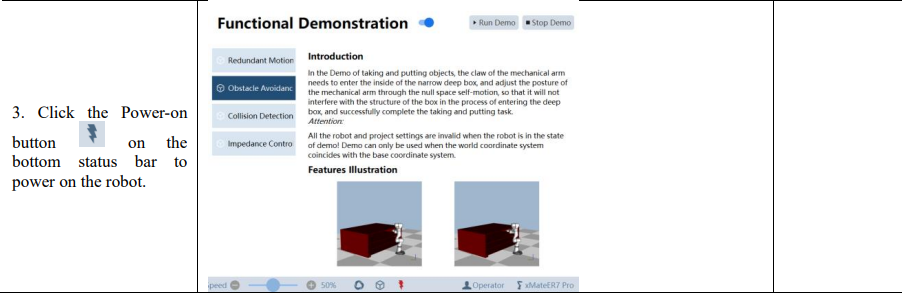
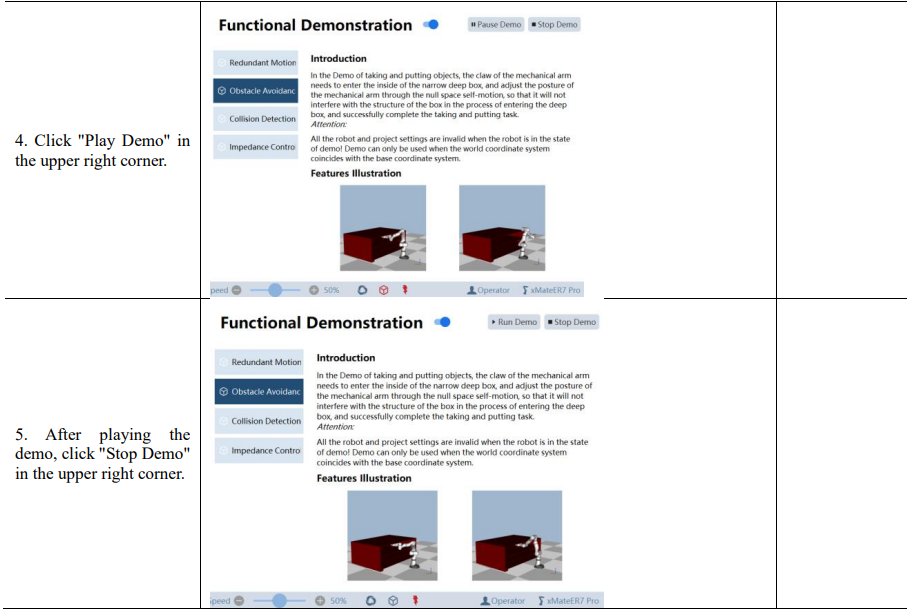
14.7.2 Obstacle avoidance
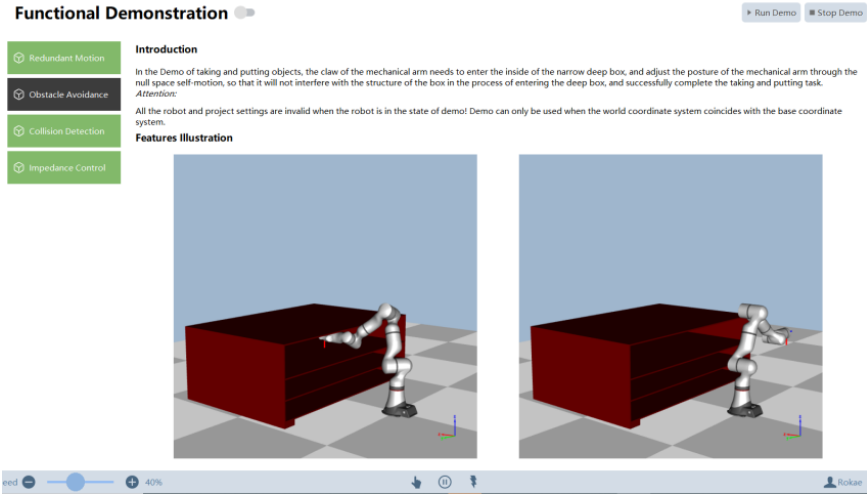
When the demonstration manipulator enters a narrow and deep box, it will not interfere with the box structure by adjusting its orientation through null-space self-motion, which enables the robot to perform the pickup and delivery task successfully.
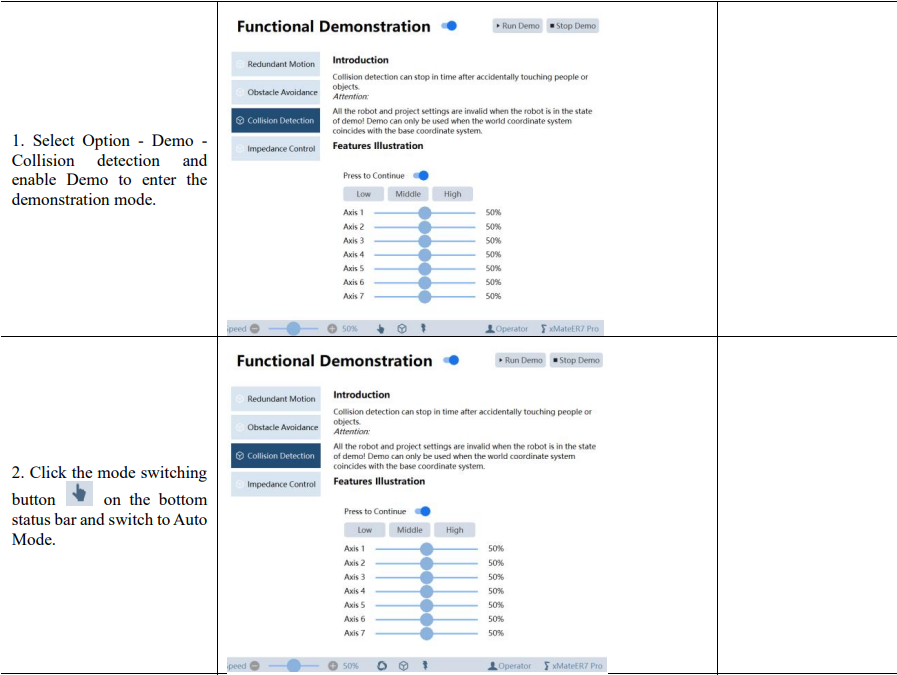
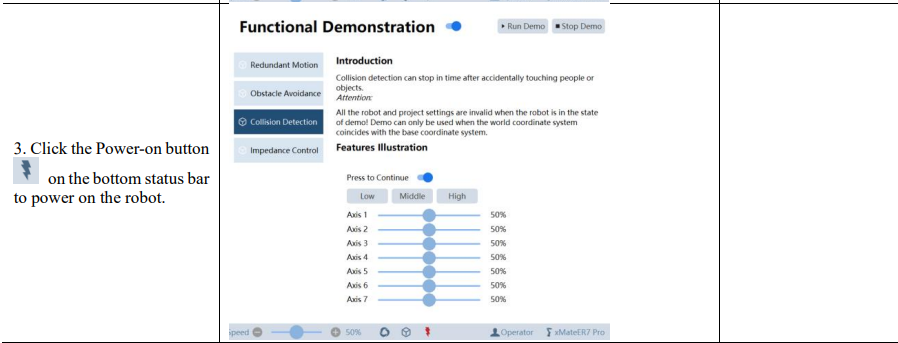
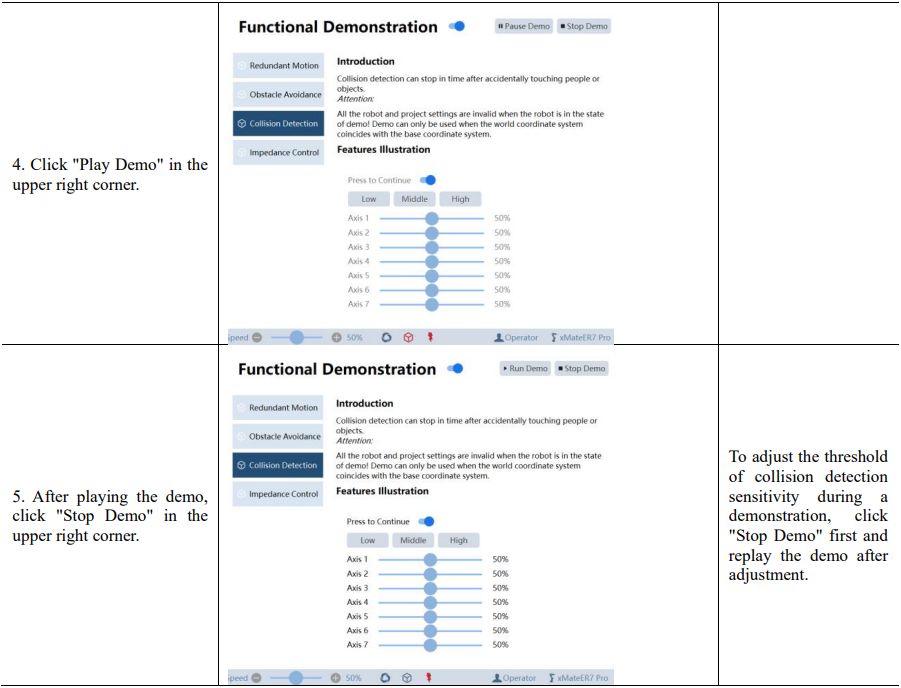
14.7.3 Collision detection
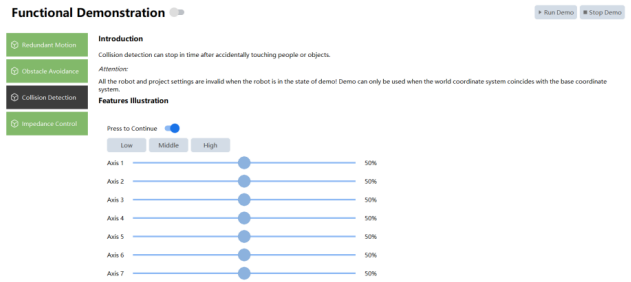
It aims to demonstrate the function of collision detection.
Collision detection sensitivity settings: Support the single-axis setting and the high, medium, or low setting.
When the robot detects a collision, it stops softly. The press to continue is unavailable in version 3.0 collision detection.
When using the demo collision detection function, the collision protection* is temporarily turned off if the collision protection* function is turned on.

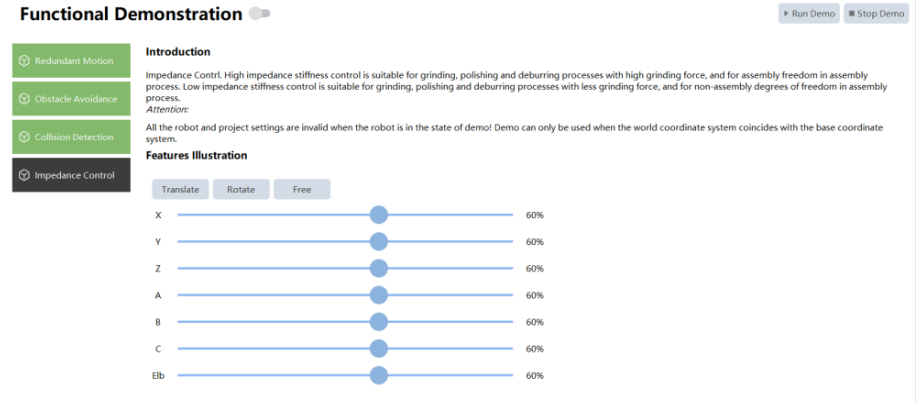
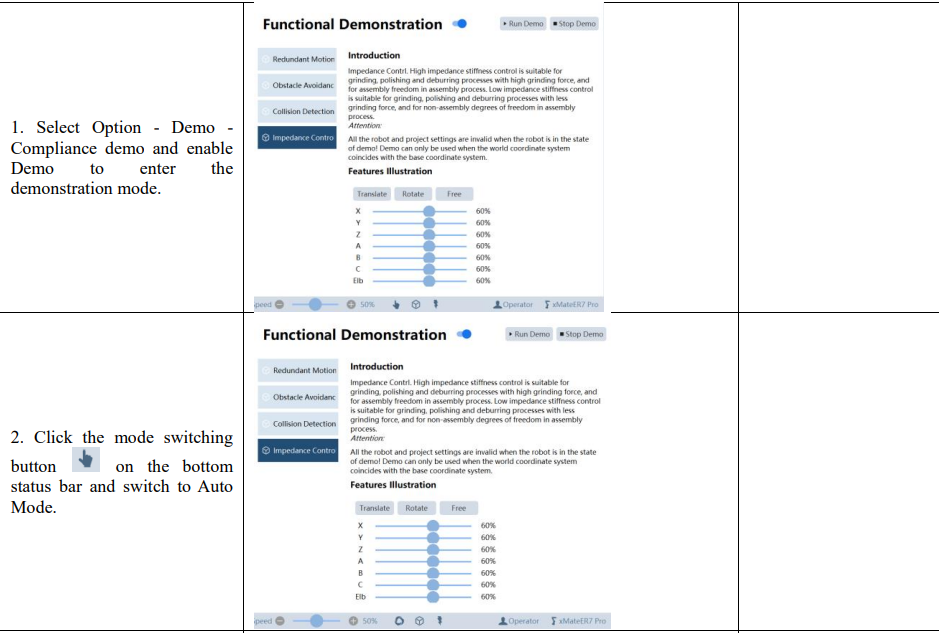
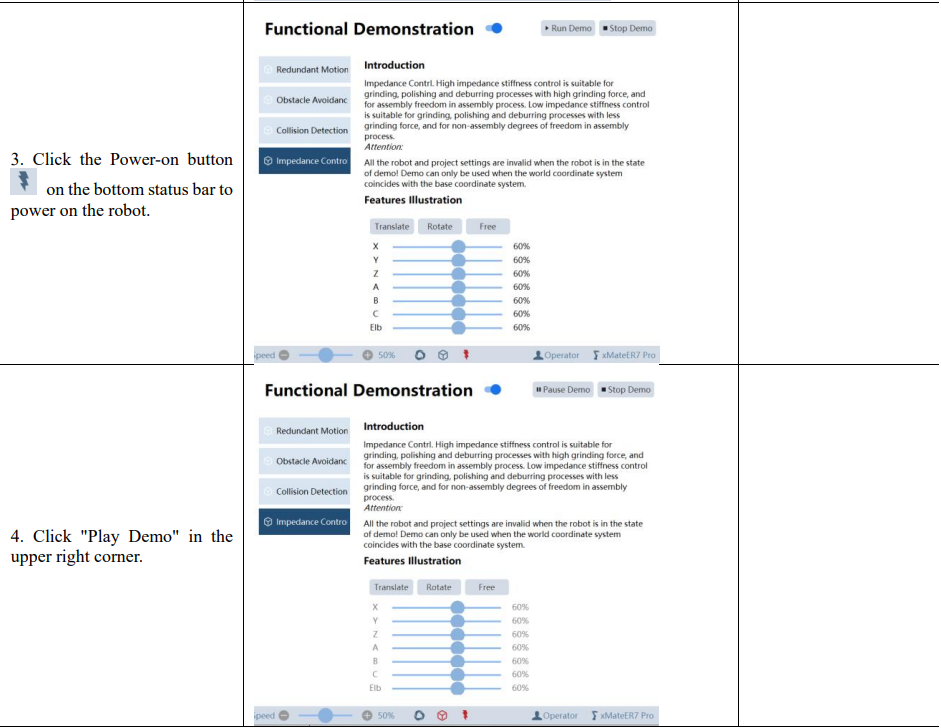
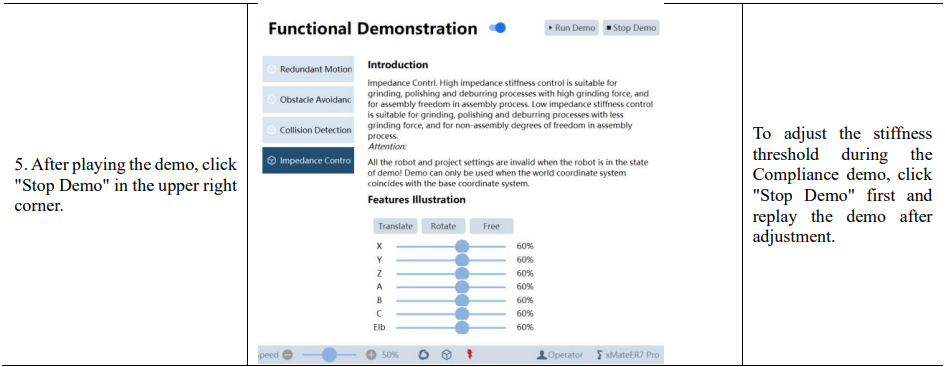
14.7.4 Compliance demo
It aims to display the compliance control effect of xMate under different stiffness and spatial conditions.