
101. How to display keyboard window correctly?
When you update a project file or open it on another computer, you may find that the popup numerical/text keyboard becomes blank with no keys. This FAQ explains how to restore your keyboard.
Step 1. In EasyBuilder, create a new project file by clicking [File] » [New] on the toolbar. Select the same model as the original project, and then select [Use template].
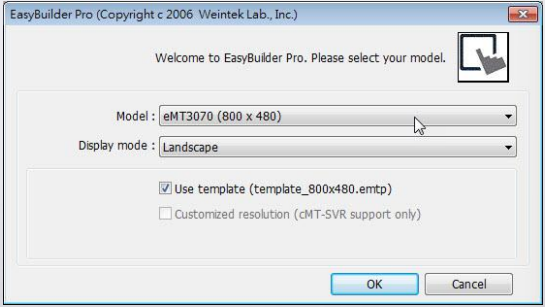
Step 2. Click [File] » [Save] to save the new project, the file name could be: EMTP1.emtp, and then close it.
Step 3. Open the original project, click [Edit] » [Window Process] » [Window Copy].
Step 4. Select the project created in Step 2 as the source project, select [Copy window] check box, and select window no. 50~65 as the source. (Window no. 50~65 are usually keyboard windows in the
template project). Select the window number of the keyboard window in the current project as the destination, and then click [Copy].
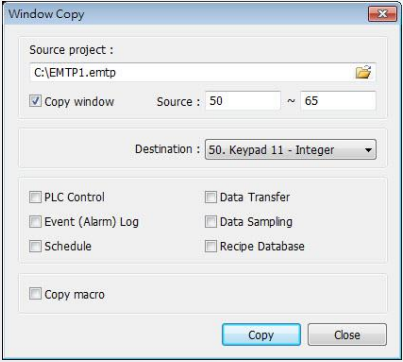
Step 5. Now you’ll find that all keyboards are restored.
Note:
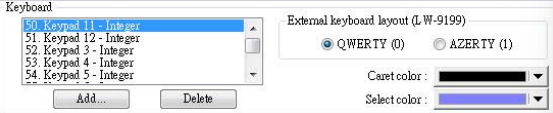
1. If the keyboard window number cannot be found in Numeric or ASCII object settings, please go to the toolbar and find [Edit] » [System Parameter Settings] » [General] » [Keyboard], and then click [Add] to add the window number into the list.
2. For step 1-2, you can use template files with the same resolution in \project. For example, if your project resolution is 800x480, then in step 4, you can use template project file called “template_800x480.emtp”.