
14. MT6000/8000 Series HMI Upload/Download password Setup
MT6000/8000 series HMI provide reliable password protection. The factory initially set password to six 1’s (111111). Users can setup their own password, as follows:
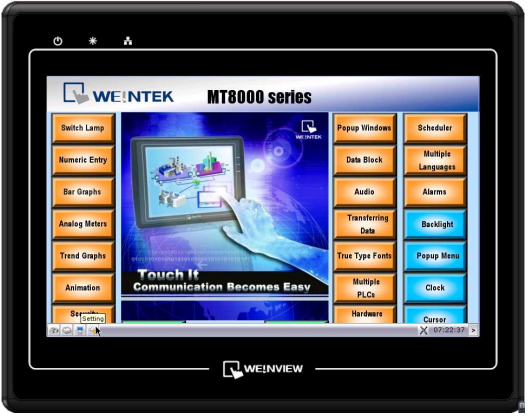
1. Click the “<” icon on the down-right corner, and the status bar will appear. Click “Setting” icon, a popup window shows up and ask user to enter the password. As shown below:
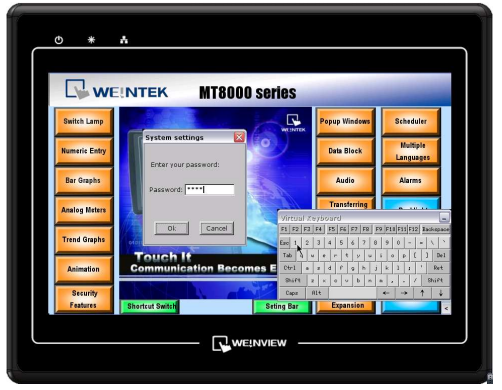
2. Enter password. The factory initial password is “111111”. Click “OK” and the “System Settings” window shows up.
3. Switch to “Security” tab, there four kinds of password can be changed as shown in the following picture:
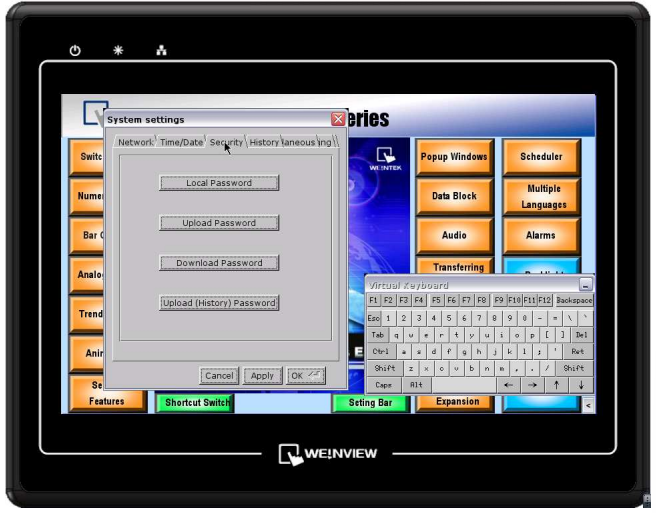
Local Password
Password that is needed while entering “System Settings”;
Upload Password
Password that is needed while uploading program;
Download Password
Password that is needed while downloading program;
Upload (History) Password
Password that is needed while uploading data and event log file;
4. Click “Upload Password” will show the dialog below. Enter the new password twice. Comparing two passwords, if they are the same, a “Password match” message will show up. On the contrary, a “Password NOT match !” message will show up. Click “OK” to complete.
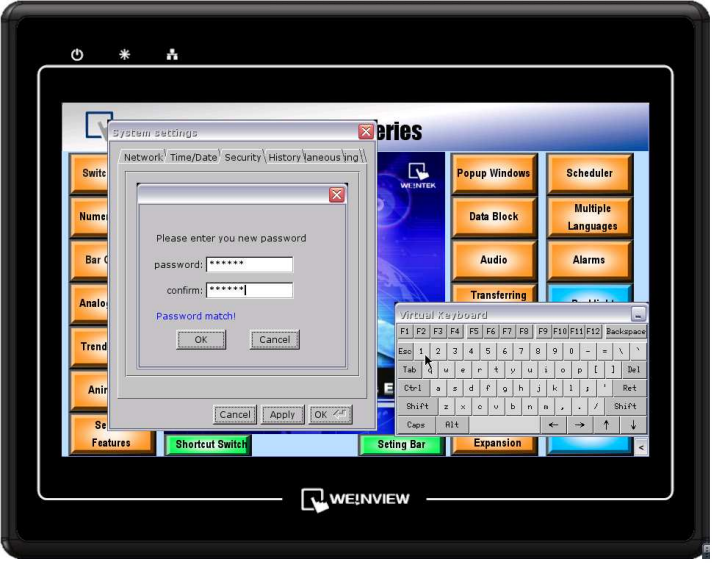
Click “Apply” to activate the new password. Next time the user wants to upload project, he needs to enter the new password.
The four kinds of password follow the same process above to be modified. Make sure to enter the correct password to operate the MT6000/MT8000 HMI. The EasyBuilder Pro should setup the same password as the HMI for uploading/downloading program.