21. How to Download Project to HMI via Ethernet?
This FAQ explains how to download project file to HMI via Ethernet, and it can be applied to eMT, iE, mTV, and iP series.
Step 1. Connect Ethernet cable to HMI and PC. Check which type of Ethernet connection is used, DHCP or static IP. If the DHCP server is unavailable, please set static IP for usage.
Step 2. Go to HMI’s toolbar which is in the lower-right corner of the screen, and then tap  to find HMI’s IP address. If there is no IP address, tap
 .
.
Step 3. After tapping , the System Settings window shows, and there are two options in Network tab. If you select “Obtain an IP Address Automatically”, HMI will automatically detect the IP address. You can select “IP address get from below” to designate an HMI IP address.
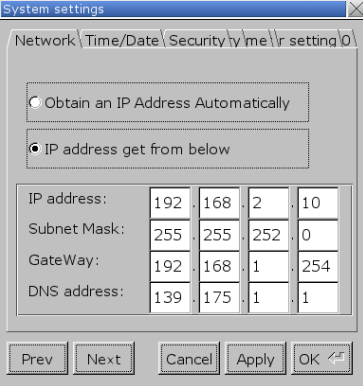
Note: If you select “Obtain an IP Address Automatically”, please tap [Apply] and then tap [OK]. Now you can tap to see HMI’s IP.
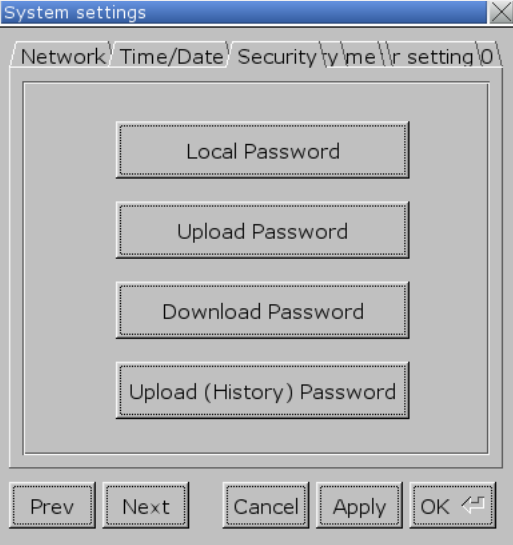
Step 4. Go to Security tab to change the Download Password. The default password is 111111.
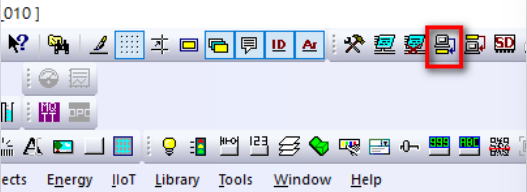
Step 5. After setting the Download Password, go to EasyBuilder Pro and click Download icon.
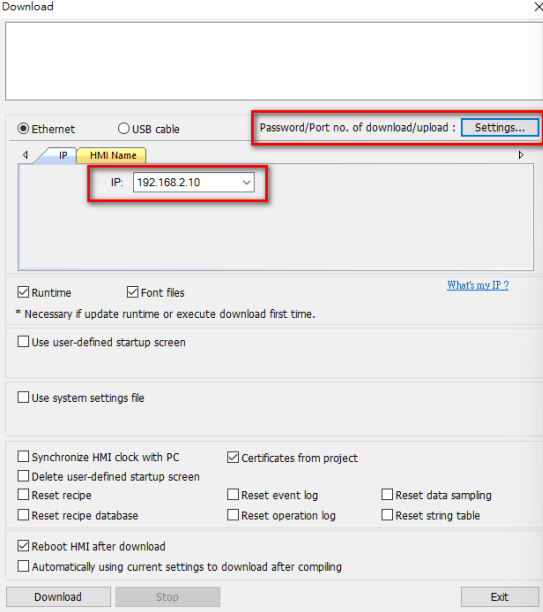
Step 6. Fill in the HMI IP address and Download Password, and then click Download button to start downloading project file to HMI.