
4. MT8000/6000 Touch Panel Adjust and System Initialization
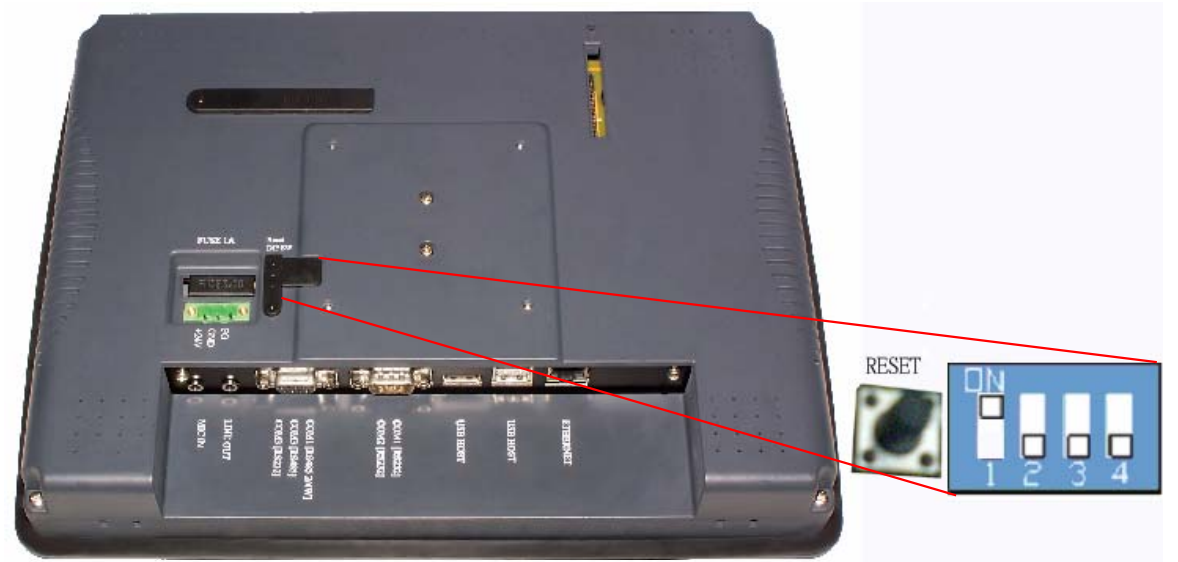
Picture 1
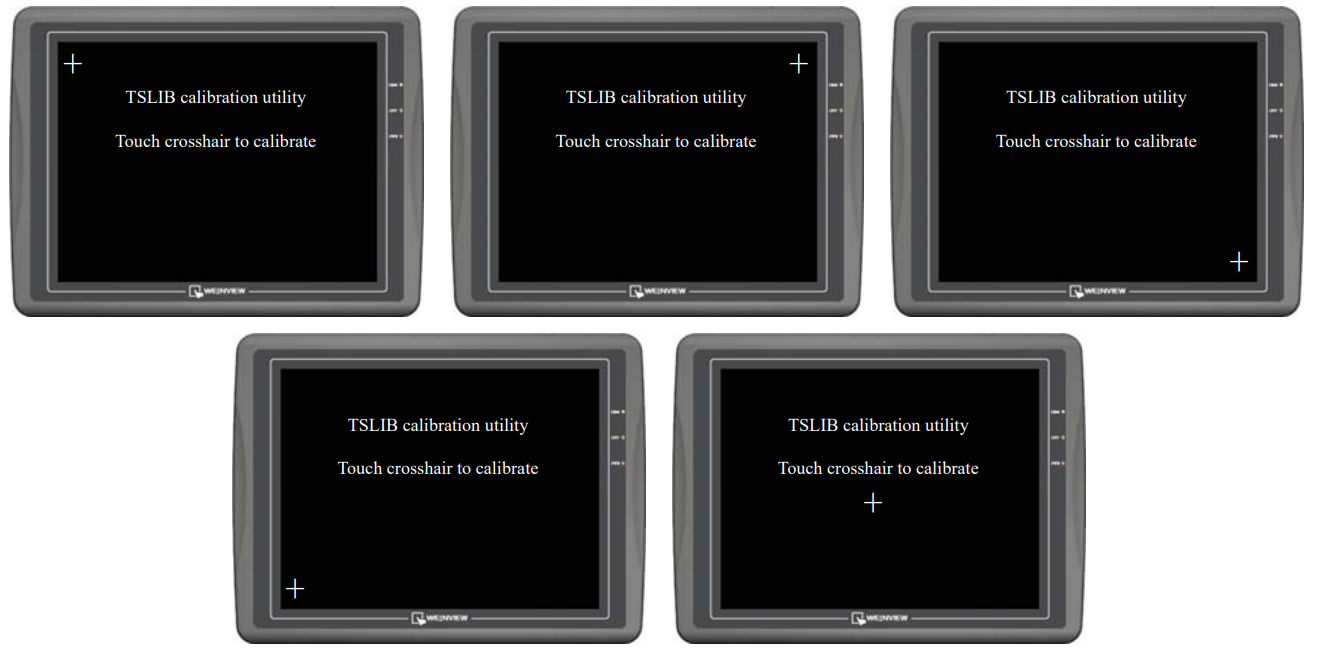
2. Touch panel calibration screen is shown as follows. Put the HMI screen perpendicularly to your line-of-sight, and point your finger at the center of the cross icon displayed on the screen. The cross icon will appear in five positions on the screen: upper-left corner, upper-right corner, lower-right corner, lower-left corner and the center, as shown in (picture 2).
Picture 2
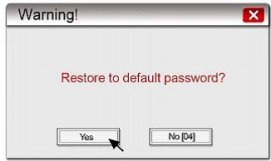
3. The HMI will automatically restart after finishing calibration. Afterwards, a warning message will appear (as shown in picture 3).
Picture 3
4.The warning message shows “Restore to default password?” Users can select “Yes” to restore password or select “No” to discard. If there is no response from the user within 10 seconds, the warning message will automatically be closed.
Notice: If no further operation other than calibration process to make, click “No”.
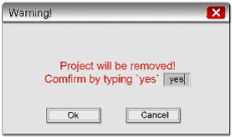
5. Click “Yes” button. A popup window would show up (as shown in picture 4)
Picture 4
6. The popup window will check out again if user really wants to restore the password and will ask the user to enter “yes” and click “OK” button to confirm it. If user doesn’t want to restore password, click “Cancel”;
7. The password of factory default setting is 111111 for MT8000/6000 series. After initialization process, the project files and data stored in the touch panel HMI will be completely erased.
8. The upload and download password need to be reset in order to transfer project files
correctly after initialization (as shown in picture 5).
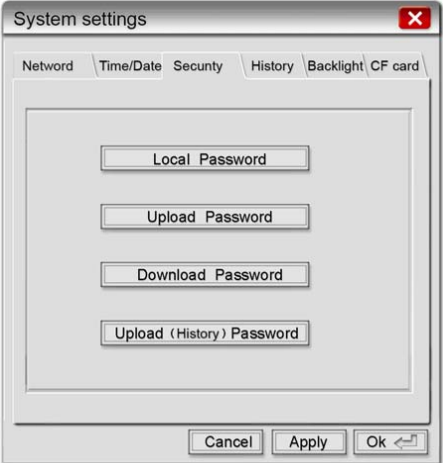
Picture 5