48. EasyBuilderPro Alignment
How to use alignment in EasyBuilder Pro?
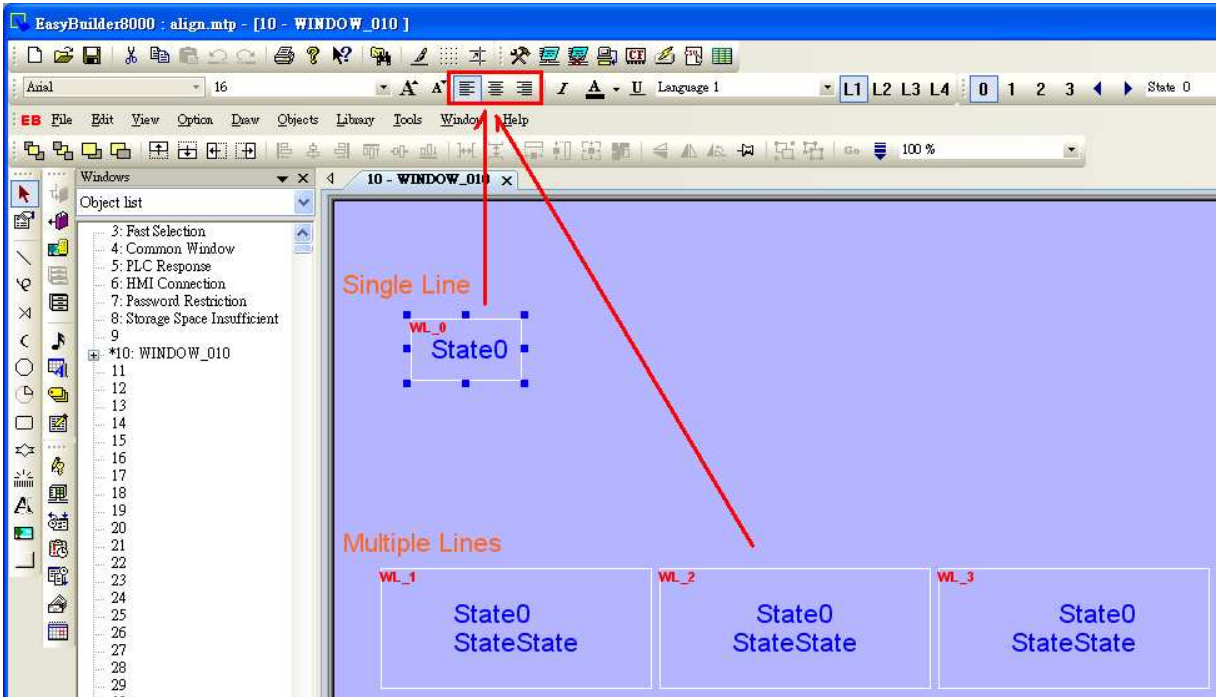
In EasyBuilder Pro, there are two different ways to align the text on the object, one is to click the icons on the toolbar and the other is to set on object setting dialog.
By clicking the icons on toolbar (Left Alignment | Center Alignment | Right
Alignment), the text, no matter single-lined or multi-lined, will be seen as one
single label and will align to the outline of the object.
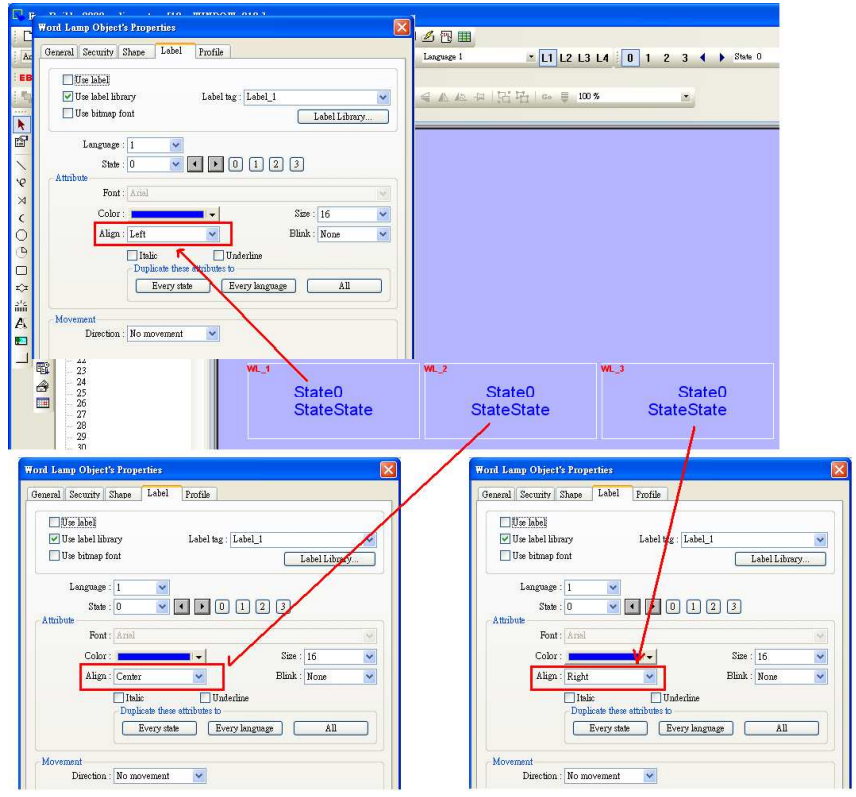
By setting Label>>Align on object setting dialog, the multiple lines of the text will align in the way set. This is a line by line alignment.
The line by line alignment of the multi-lined text can be done using Label>>Attribute selection on object setting dialog.
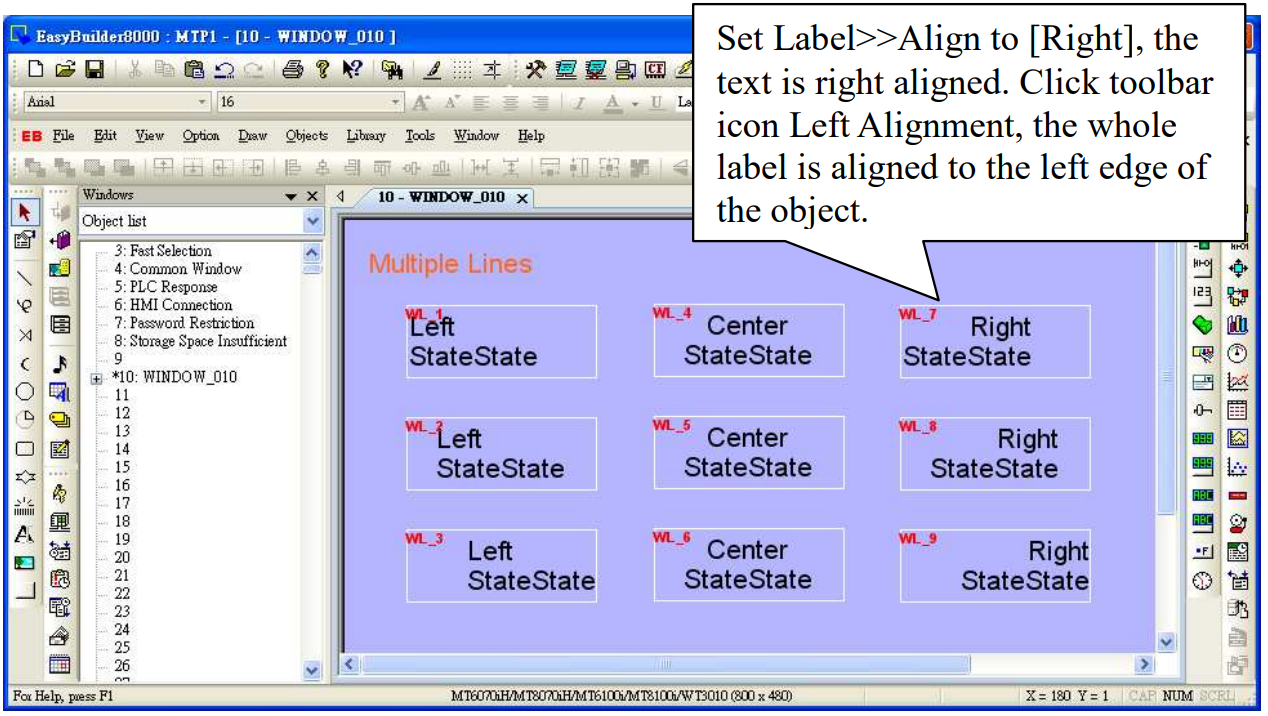
If an object is set to [Left] for [Align], when clicking [Left Alignment] on toolbar, the multi-lined text will be aligned along the left edge of the object.
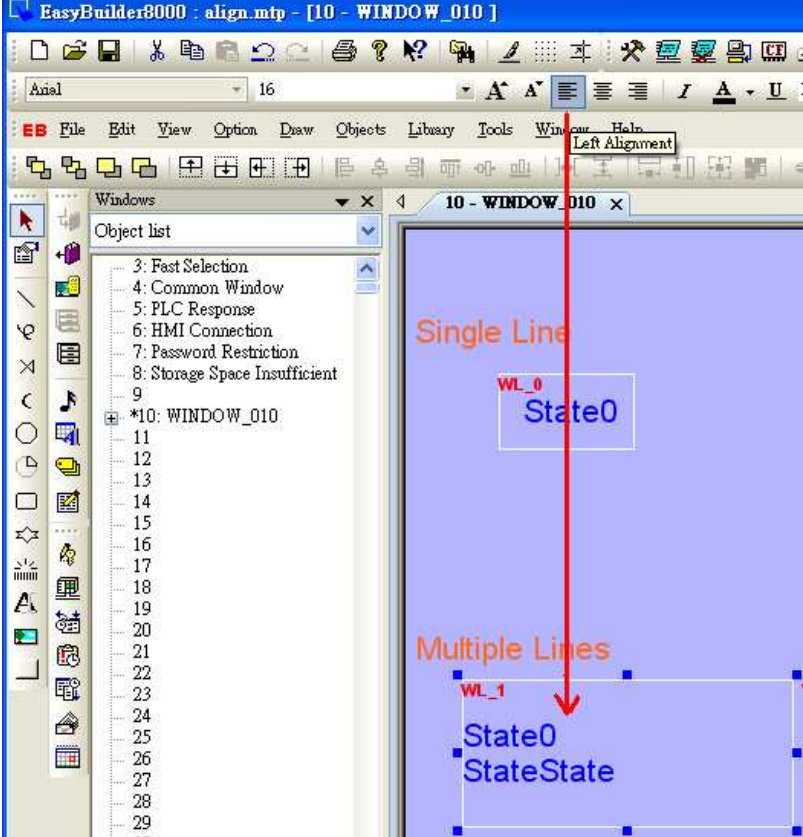
The way above is same for [Align Center] and [Align Right]. The multi-lined text will display according to the setting of Label>>Attribute>>Align.
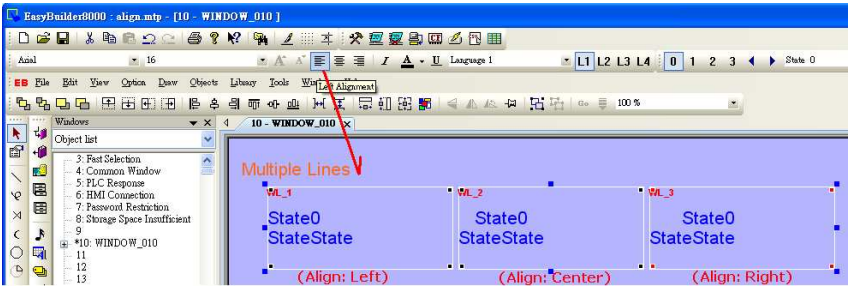
The illustration below shows when [Left Alignment] icon is clicked, the text content are still displayed in the way they are set in object setting.
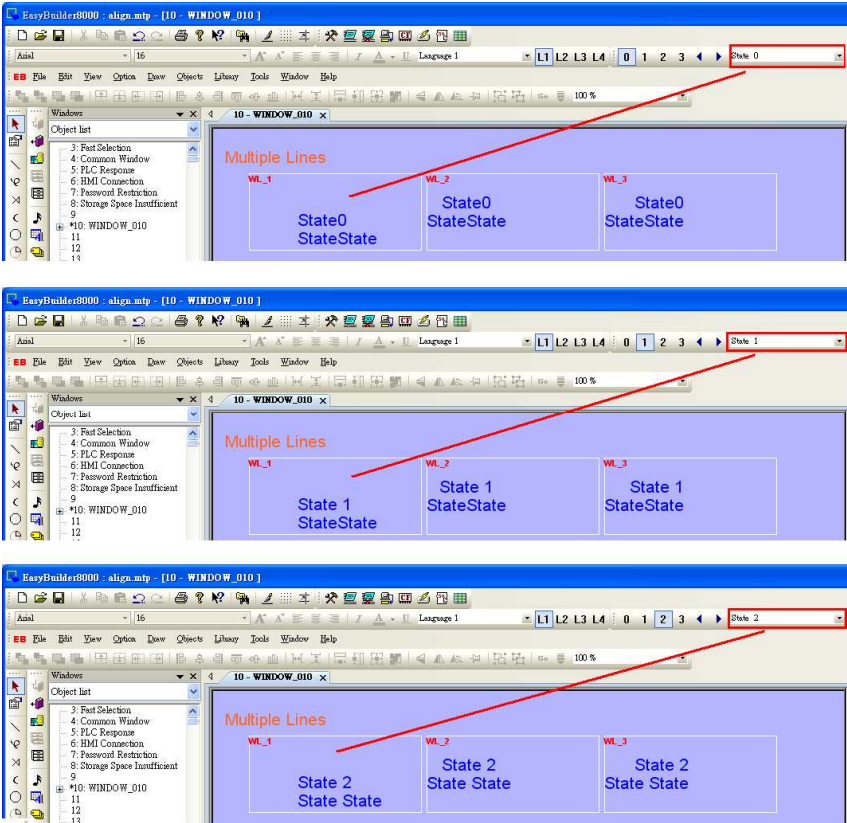
If object text is set with multiple states, tick [Tracking], in this way when moving text in one state, the texts of other states will also be moved in the same way
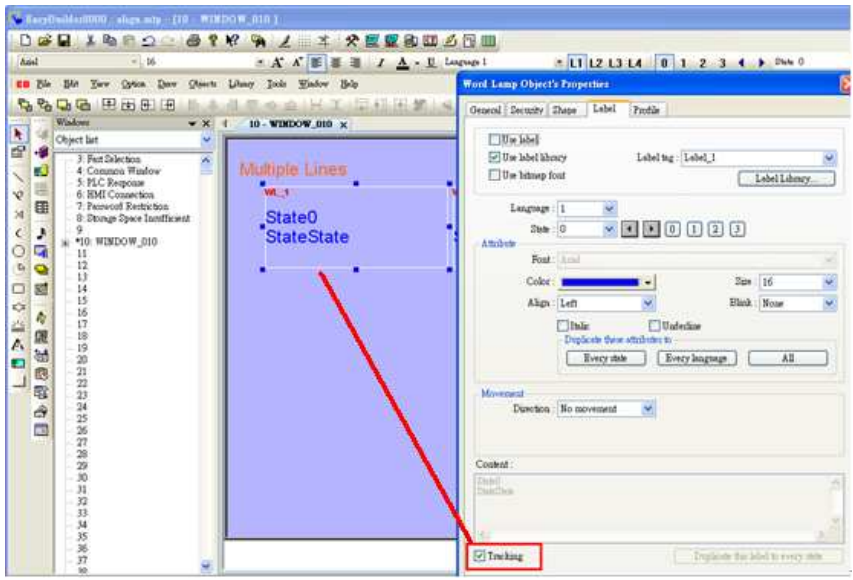
Move object text in state 0; check the other states to see if the texts in those states all move the same way as in state 0. If [Tracking] is not selected, only text in one state will be moved.