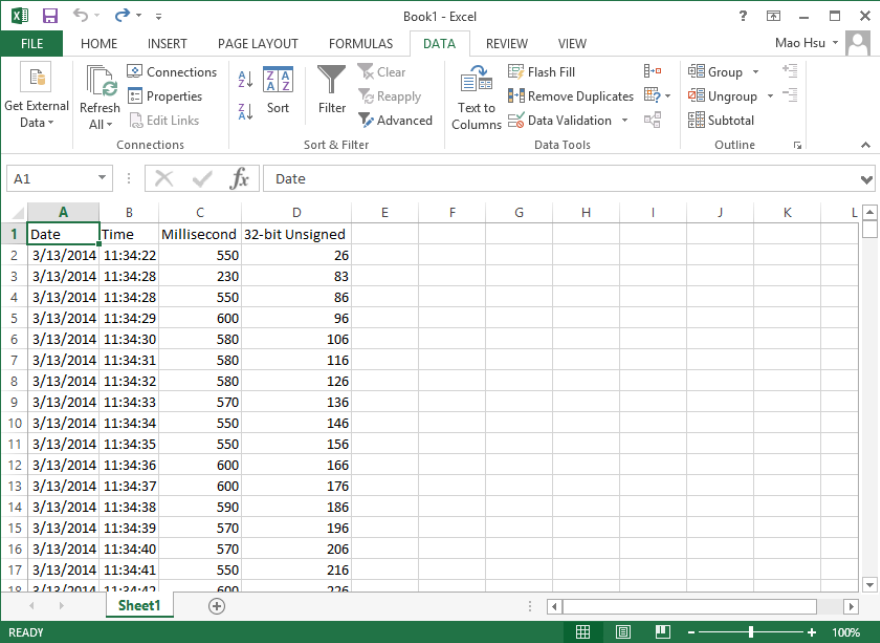
58. How to Backup Data to Server and Update in Excel?
To update data backup in remote backup server to an Excel file, please follow the steps below.
For details of Backup object settings in EasyPrinter and EasyBuilder, see Chapter 26 EasyPrinter and Chapter 13.24 Backup.
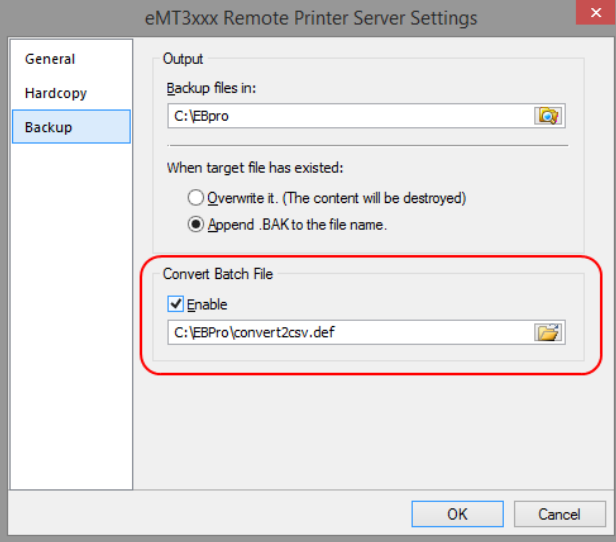
Step 1. In EasyPrinter, under Convert Batch File select [Enable] check box. This enables converting file backup into Excel file.
This enables converting file backup into Excel file.
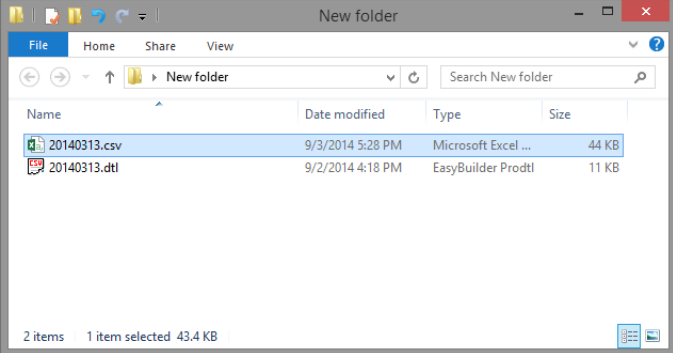
Step 2. When backup file to server, a .csv file is generated.
Step 3. Create a new Excel file.
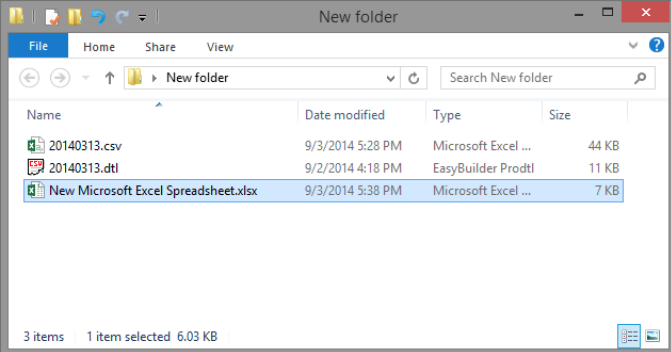
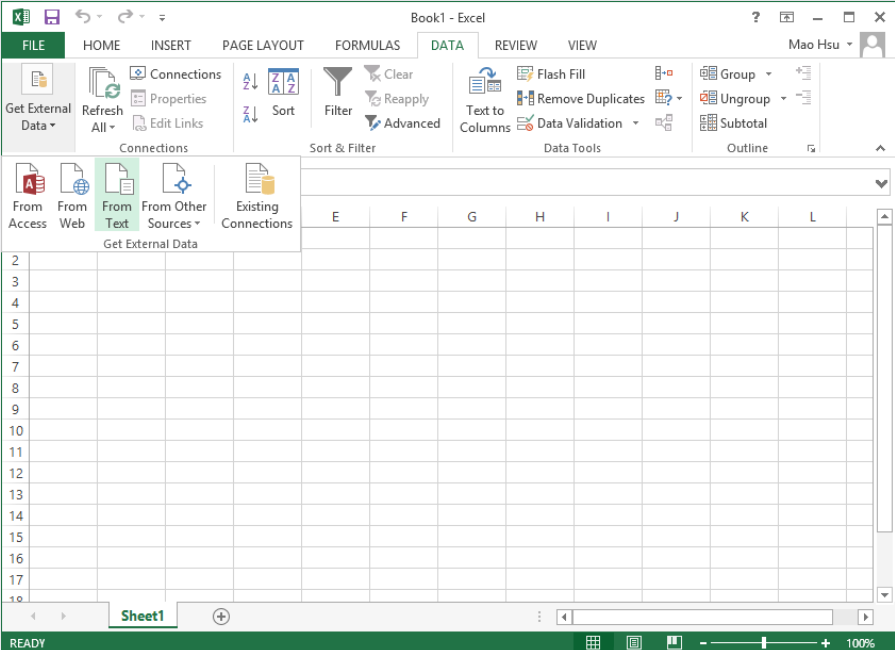
Step 4. Open the created Excel file, import the content in the .csv file by clicking [Data] \ [Get External Data] \ [From Text].
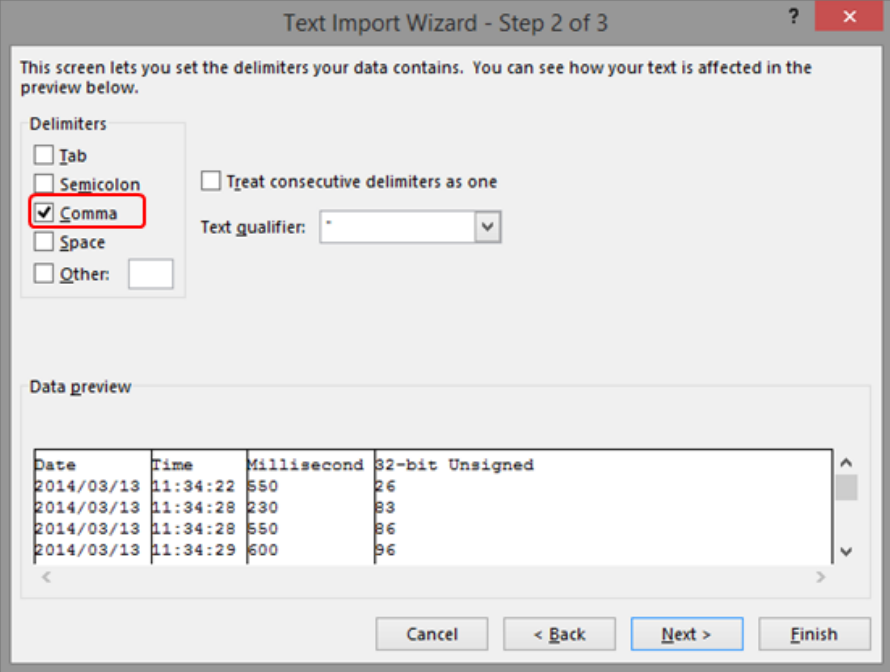
Step 5. During import, select [Comma] to be the delimiters
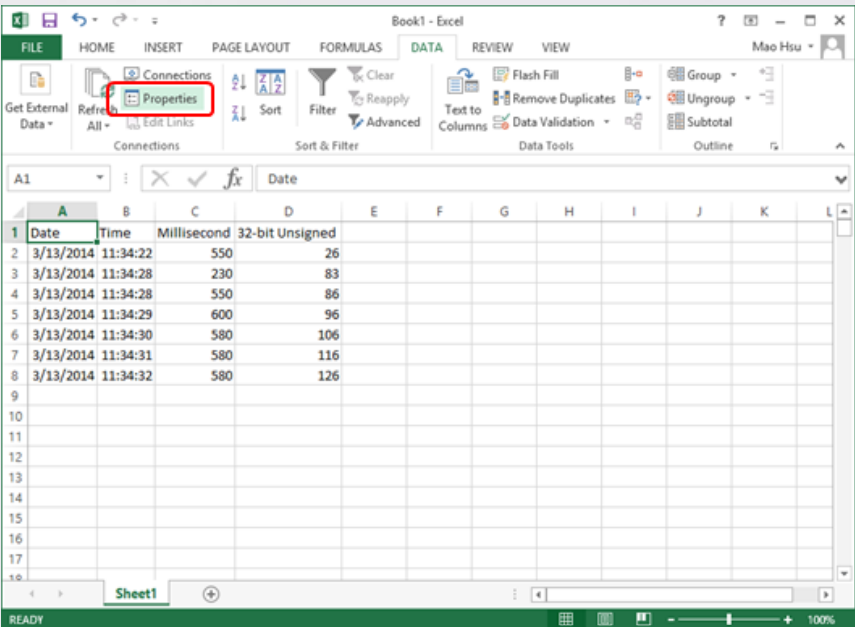
Step 6. When finished, the content in the .csv file can be viewed in Excel. Click [Data] and set [Properties].
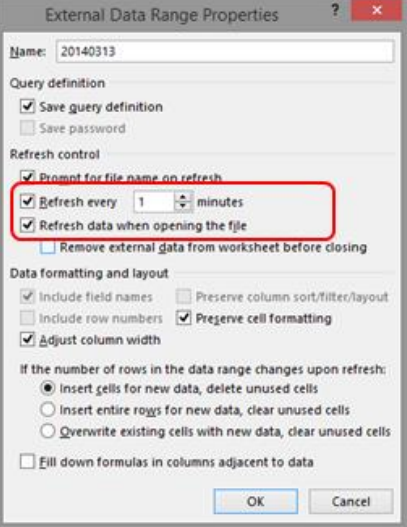
Step 7. Set the time interval to refresh the Excel file, and select [Refresh data when opening the file].
Step 8. In this way, when backup file to server, the generated .csv file is automatically imported to Excel, therefore users can always view the updated data when opening the Excel fil