
65. How to Upgrade MT8000iE OS Image?
Weintek regularly provides OS updates for HMI devices, and customers are encouraged to update their device’s OS to the latest version. For users of MT8000iE, it is possible to perform an OS upgrade with a USB drive. This document will guide the user through the steps for checking OS version as well as performing OS upgrade on MT8000iE with a USB drive.
Checking OS version
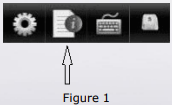
Step 1. Go to the lower right corner; first click on  , and then click on the
system information icon (Figure 1).
Step 2. Click on the “Version” tab. The OS version information will be displayed (Figure 2).
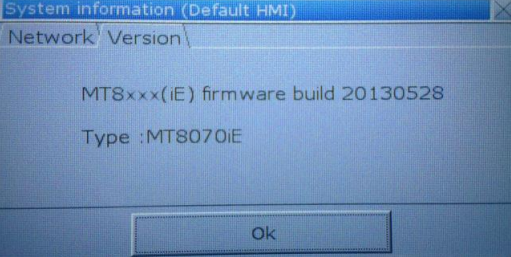 Figure 2
If the OS version is deemed outdated, follow the instructions below to perform an OS upgrade.
Performing OS Upgrade
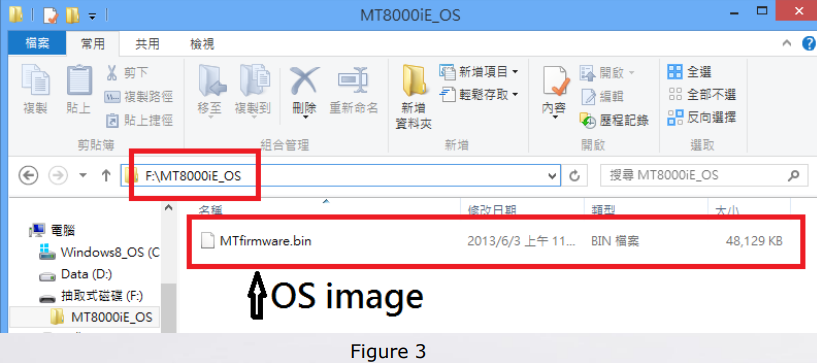
Step 1. Copy the new OS image to a designated folder in the USB drive. In this example, we create a folder named “MT8000iE_OS", and place the OS image in the folder (Figure 3). The OS image takes the form of a .bin file.
Step 2. Plug the USB drive into the USB port of the MT8000iE. If a window pops up and prompts for download/upload, click cancel to dismiss it.
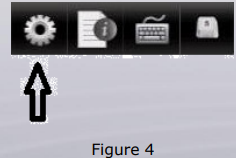
Step 3. Now go to the lower right corner. First click on  , and then click
on the system setting icon (Figure 4).
 Step 4. You will be prompted for local password. Enter the correct password to gain access to system settings. The default password is 111111.
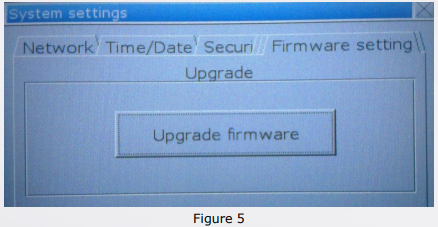
Step 5. Under the “Firmware setting” tab, click the “Upgrade firmware” button (Figure 5). A “Pick a Directory” window will pop up
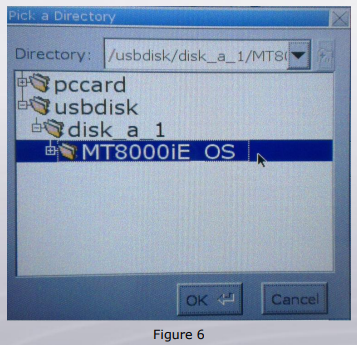
Step 7. When asked to confirm the upgrade, click OK to continue.
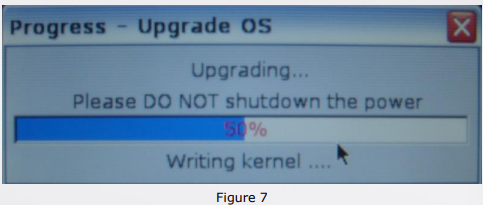
Step 8. OS upgrade will begin, which may take a short while. The progress bar indicates the progress of the OS upgrade (Figure 7).
Step 9. Following the upgrade, the system will reboot automatically. OS upgrade is now complete. Touch panel calibration is recommended at this time