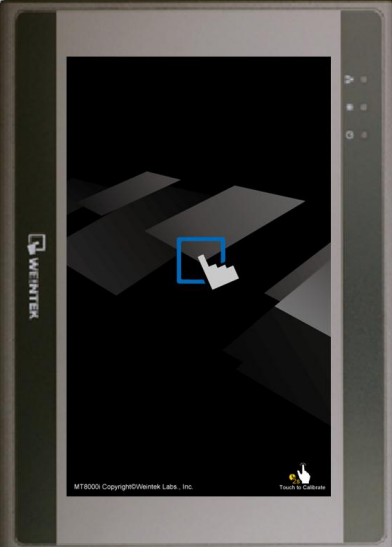
76. How to use the new touch screen calibration method for i Series models?
Starting from OS ver. 20140819, a new method to enter touch screen calibration mode is added. The user can press and hold anywhere on the LCD screen when HMI starts to enter touch screen calibration mode. And, a confirmation pop-up window is added. From the window, the user can view the result or retry calibration without rebooting HMI. The new method works well for both landscape and portrait mode.
Touch Screen Calibration Steps
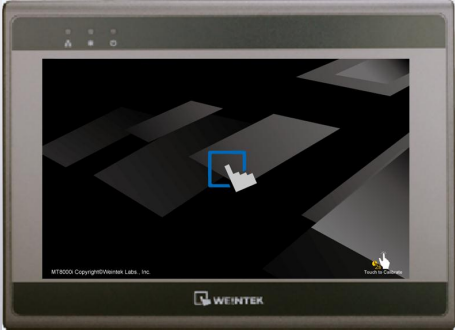
Step 1. Press and hold anywhere on the screen until the touch screen calibration starts.
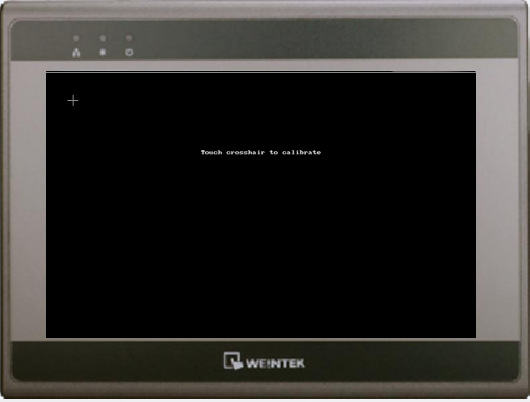
Step 2. Touch the five calibration points.
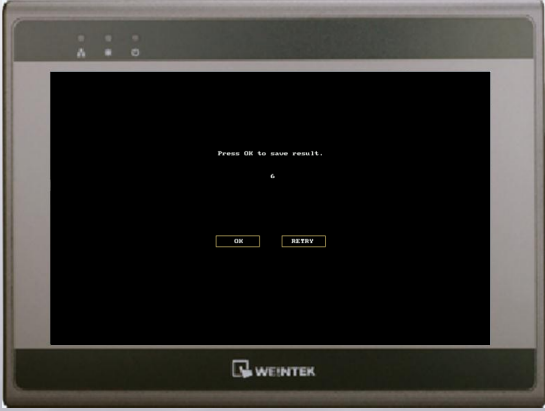
Step 3. After all the calibration points have been touched, a pop-up window is displayed and begins countdown from 10 seconds. During the 10-second countdown, the user can touch the screen to check the calibration result. If the result is incorrect, touch the [RETRY] button to restart. If the result is correct, touch the [OK] button within 10 seconds, the calibration data will be saved to the system; otherwise, the calibration will restart.
Portrait Mode Touch Screen Calibration
Please follow the same steps as the preceding part.