
99. Using EasyAccess 2.0 on Dual Ethernet Models
Dual-Ethernet-Port models are shipped with EasyAccess 2.0 activated, but how to start using EasyAccess 2.0?
Since Dual-Ethernet-Port models are shipped with EasyAccess 2.0 activated, the user can skip the activation step and start using EasyAccess 2.0 after adding the HMI to a Domain. There are two ways to add the HMI to a Domain:
1. Obtain a set of Session ID and Password, and add HMI to Domain from the website.
2. Use PC Activator to add HMI to Domain.
1. Obtain Session ID and Password, and add HMI to Domain from the website
Step 1. First, create and download an EasyBuilder project that displays Session ID (system registers LW-10821 to LW-10825, ASCII object) and Password (system registers LW-10826 to LW-10827), and allows setting LW-10820, the connection control register.
Step 2. Let HMI go online by setting LW-10820 to 1.
Step 3. Once successfully connected, HMI will display the Session ID / Password.
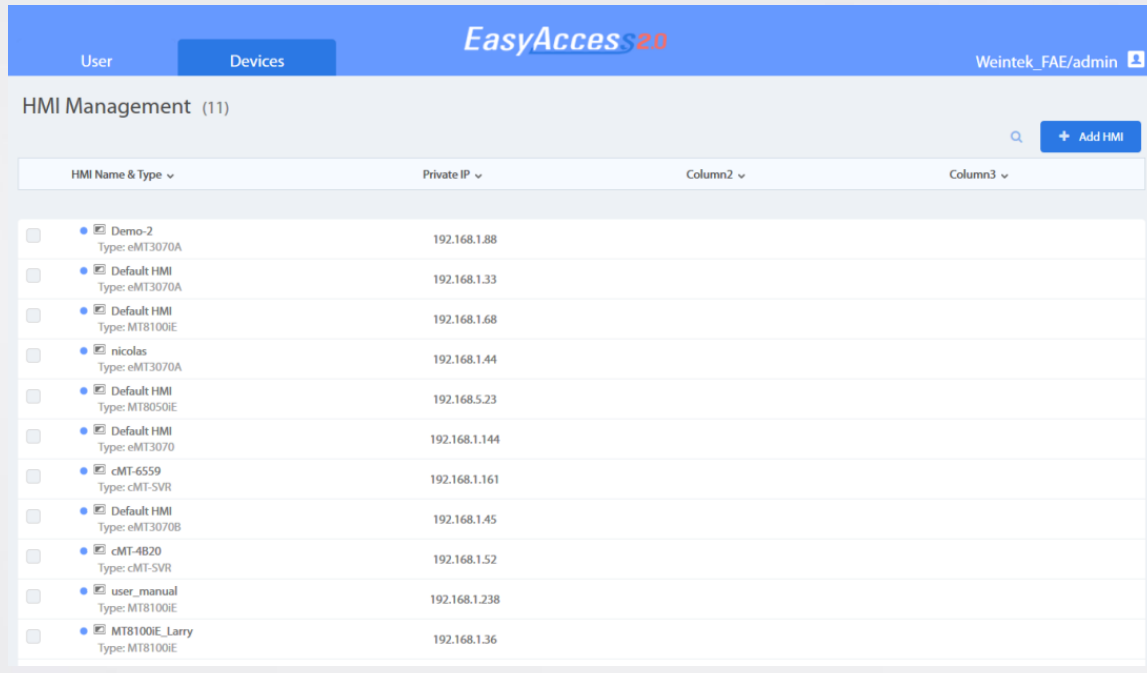
Step 4. In “Domain” page, under “Devices” tab, click “Add HMI” as shown below
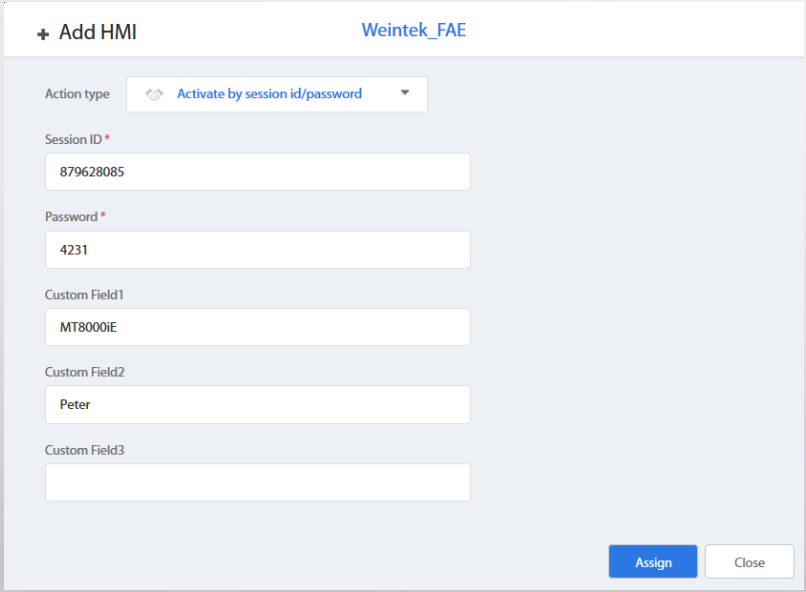
Step 5. Select “Activate by session id/password” and enter the Session ID and Password, and then click “Assign” to add the HMI to the Domain.
Step 6. Associate User with HMI, and now you can use the User account to access remote HMI by EasyAccess 2.0 !
Note 1: If you open a new project file in EasyBuilder Pro and apply the template demo project, you can find the above setup in window no. 76.
Note 2: If you do not have a domain account yet, please visit the following sites to apply for a free one.
For access of China server: use https://easyaccess.cn/domain/
For access of Global server: use https://account.ihmi.net/domain/
2. Use PC Activator
Step 1. Check if the PC and HMI are on the same network.
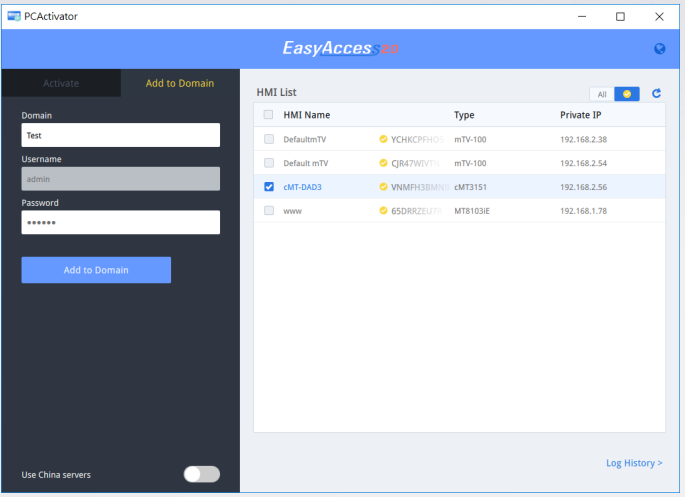
Step 2. Open PC Activator. If you are using the China server, toggle the option “Use China servers”. Go to “Add to Domain” tab and then enter domain admin’s credential.
Step 3. The HMIs on the network are shown in the HMI List on the right side. Select an HMI from the HMI List, and then click “Add to Domain” button. This procedure is specifically for adding the HMIs that are activated but not assigned to a domain. These HMIs are marked with an  icon, as shown in the following screenshot
Step 4. Associate User with HMI, and now you can use the User account to access remote HMI by EasyAccess 2.0!