
Eksport bazy receptur (.db) do pliku CSV
Streszczenie: Eksport bazy receptur (.db) z paneli eMT3000 do pliku CSV: wgranie pliku programem Utility Manager i konwersja darmowym narzędziem SQLite Database Browser ([File] » [Export] » [Table as CSV file]).
EN: How to export the eMT3000 Recipe Database (.db) to CSV using Utility Manager and SQLite Database Browser.
Dotyczy: panele HMI Weintek eMT3000; Utility Manager
Źródło: Weintek FAQ (materiały producenta), oryginalny tytuł: „Export Recipe Database (*.db) to CSV File”
The eMT3000 Series save the data in Recipe Database to (*.db) file. The *.db file created by HMI is a standard format of database, and can be converted by certain softwares. This session explains how to use the free conversion tool “SQLite Database Browser” to translate *.db into CSV file.
SQLite Database Browser Download Link: http://sourceforge.net/projects/sqlitebrowser/
Preparations
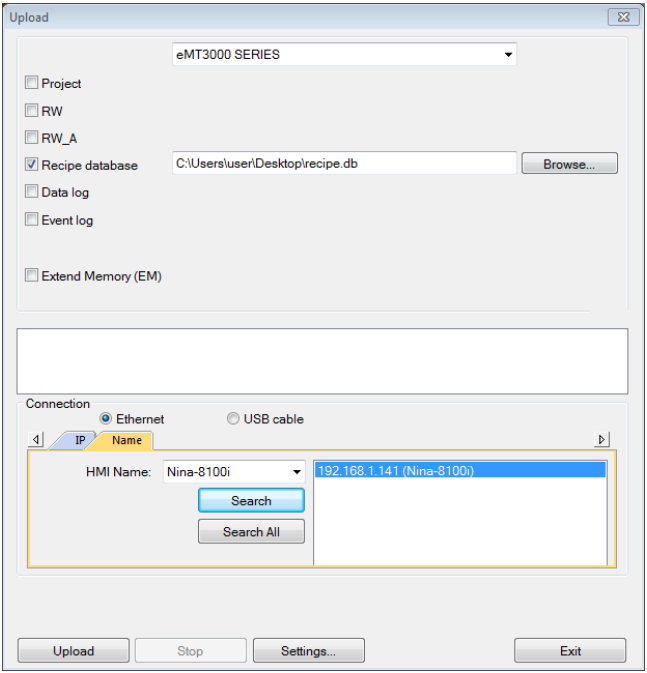
Use Utility Managerto upload Recipe Database file (*.db). Click [Utility Manger] » [Upload] » [Recipe
database]. The uploaded data has an extention name *.db.
Setting Steps
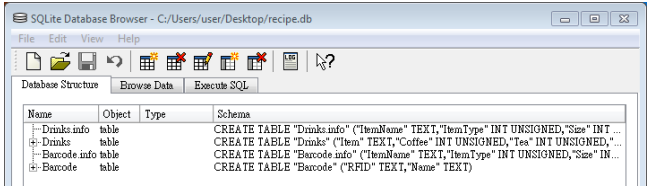
1. Click [File] » [Open Database] to open *.db file, the content of the file is shown as below
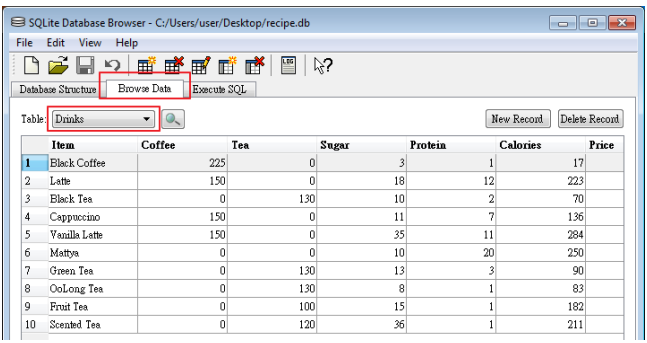
2. Click [Browse Data], select a data table to check, ex: Drinks.
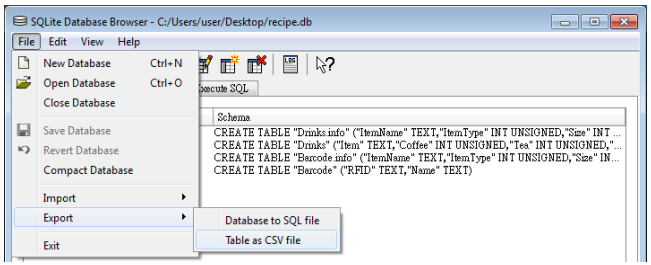
3. Click [File] » [Export] » [Table as CSV file]
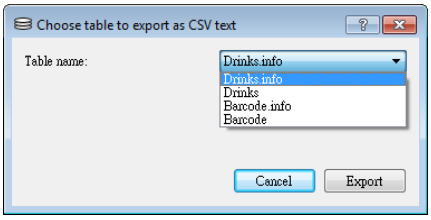
4. From the drop-down list, select the file to be exported.
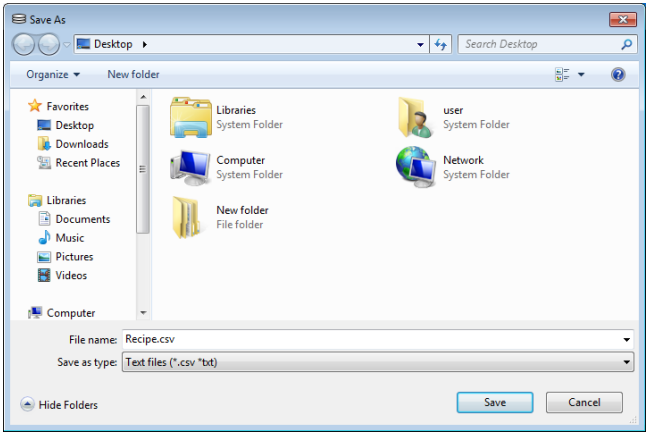
5. Please save the file with extension name *.csv or *.txt.
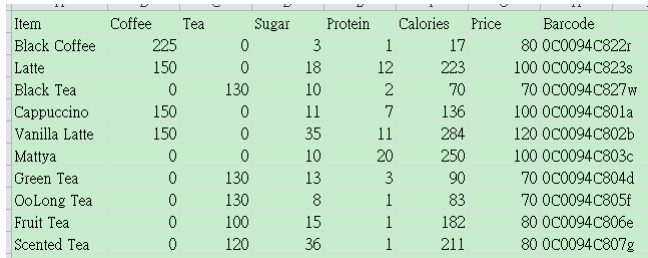
6. The exported CSV file can be opened and viewed.
Słowa kluczowe
baza receptur, Recipe Database, plik .db, SQLite, SQLite Database Browser, eksport CSV, Utility Manager, upload, eMT3000, Export Recipe Database (*.db) to CSV File