
Konwersja pliku Excel do formatu .emi (receptury)
Streszczenie: Edycja danych receptur w Excelu: zapis pliku .emi jako .csv w Recipe/Extended Memory Editor, edycja w Excelu i ponowny zapis do formatu .emi.
EN: How to edit recipe data in Excel and convert it back to .emi format using Recipe/Extended Memory Editor.
Dotyczy: Recipe/Extended Memory Editor (EasyBuilder)
Źródło: Weintek FAQ (materiały producenta), oryginalny tytuł: „How to translate excel file to *.emi format”
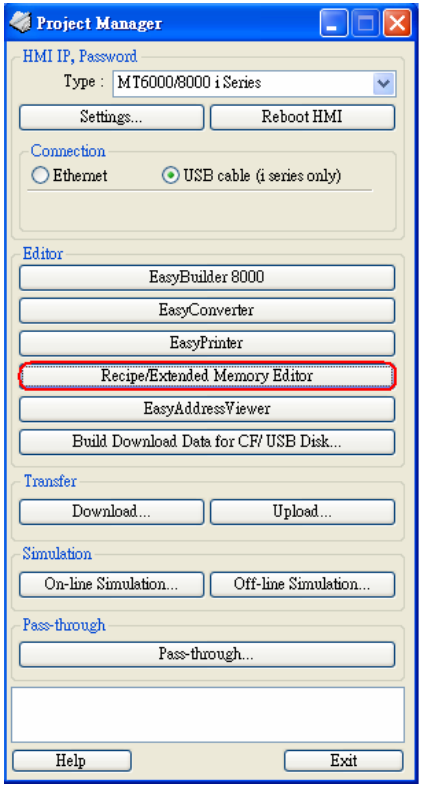
1. Open “Recipe/Extended Memory Editor”
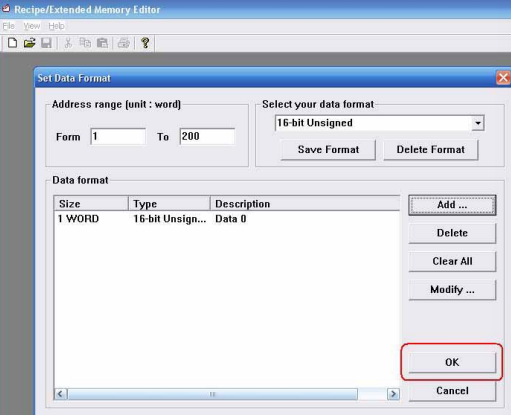
2. Open *.emi file and input the data, then press OK.
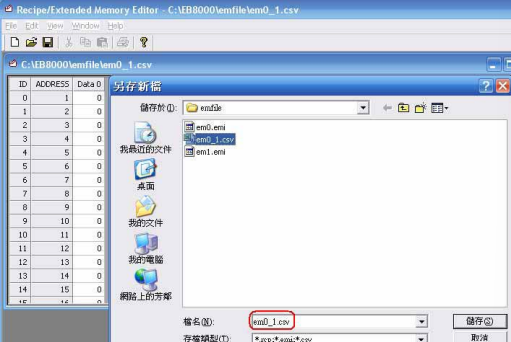
3. Save file as *.csv
4. Edit em0_1.csv by Excel
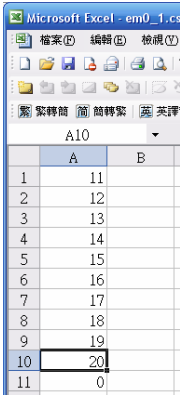
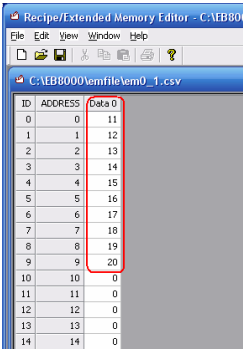
5. After editing file by excel (em0_1.csv), open the *.csv by Recipe Editor, you can see the data format has already been changed.
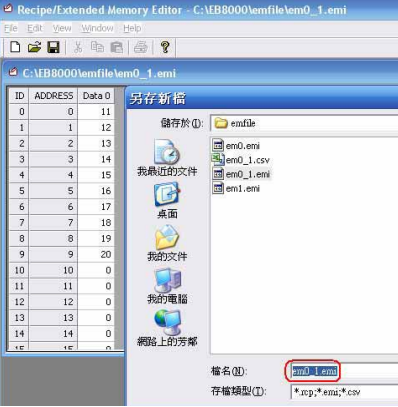
6. Use “Save as” to save a file named em0_1.emi.
Słowa kluczowe
receptury, recipe, plik .emi, plik .csv, Excel, Recipe Editor, Extended Memory Editor, em0_1, konwersja, How to translate excel file to *.emi format