
81. Set IP for new HMI
Streszczenie: Jak szybko nadać adres IP nowemu panelowi HMI Weintek, który fabrycznie ma włączone DHCP i adres 0.0.0.0, aby pobrać projekt przez Ethernet bez routera. W projekcie demonstracyjnym paneli serii iE, XE i eMT funkcja „Fix IP” ustawia adres 192.168.0.211 z maską 255.255.255.0; komputer należy ustawić na adres z tej samej podsieci (192.168.0.x, z wyjątkiem 211).
EN: How to give a new Weintek HMI (iE, XE, eMT series; factory DHCP, IP 0.0.0.0) the fixed IP 192.168.0.211 using the Fix IP function of the demo project, so a project can be downloaded over Ethernet without a router.
Dotyczy: panele HMI Weintek serii iE, XE i eMT (z fabrycznym projektem demonstracyjnym)
Źródło: Weintek FAQ (materiały producenta)
How to quickly assign an IP address of a new HMI in order to to download projects without a router?
New HMI arrives having DHCP setting, and IP address of 0.0.0.0. To enable enable network functions, it is necessary to connect the HMI to a DHCP server server (usually by means of a router) or manually enter the IP address. This This document explains how to use the pre-loaded program to assign a preset IP IP address, without having to manually assign one. With a valid IP address, projects can then be updated over Ethernet.
This feature is now built into the demo projects for the iE, XE, and eMT series.
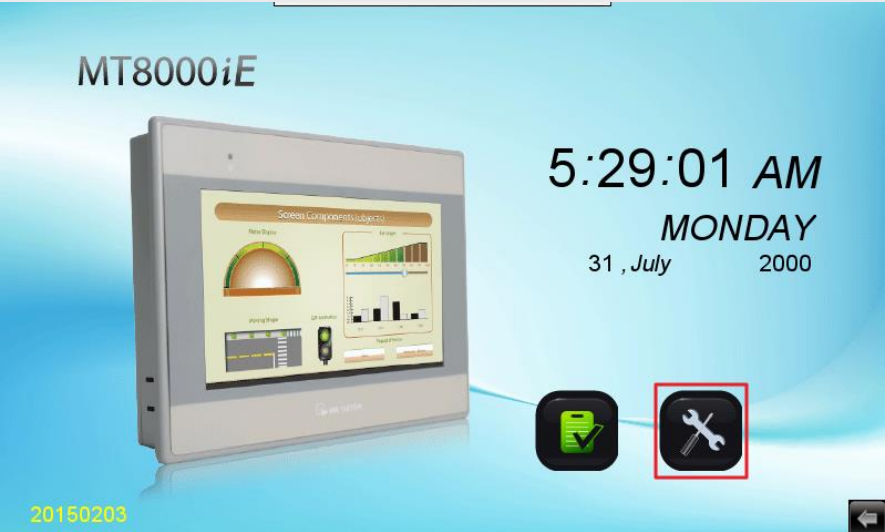
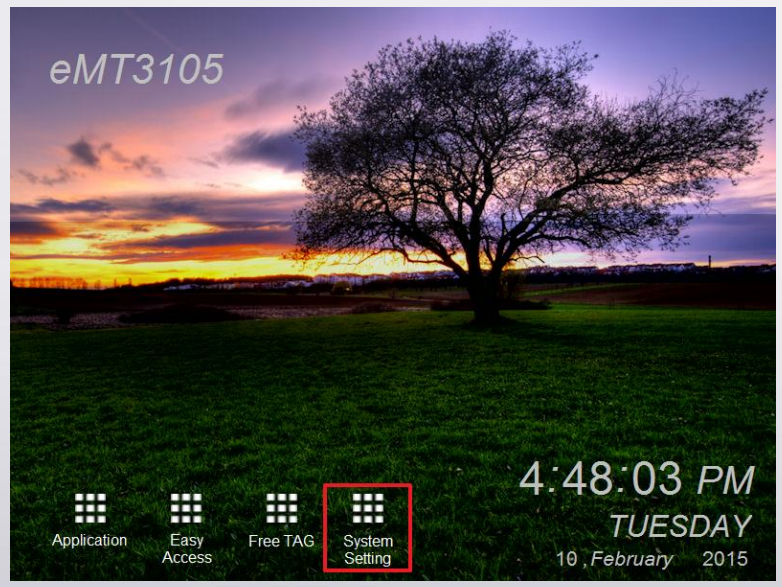
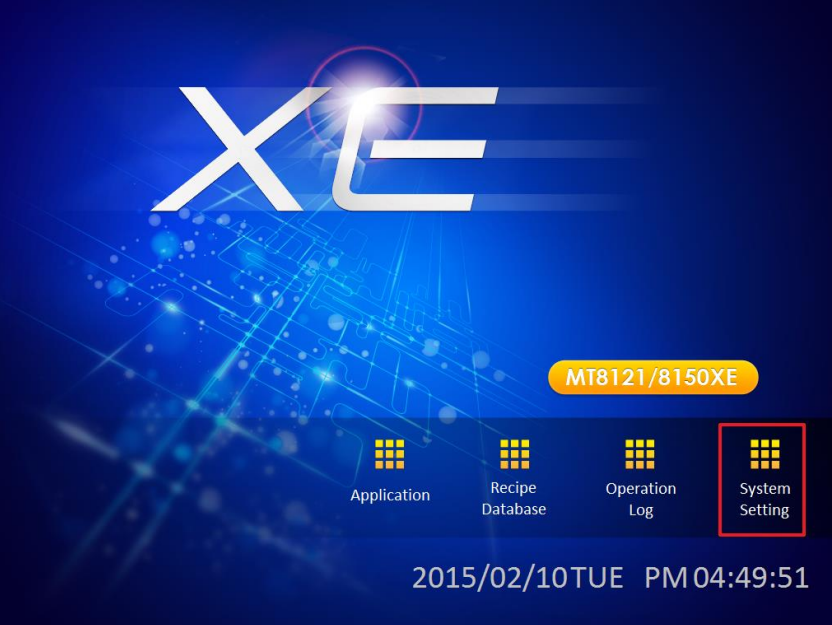
The feature is located in the system setting/testing page of the demo project. Refer to the figures below for illustration.
Step 1. Click on “setting” icon for the model.
a) iE series
b) eMT series
c) XE series
Step 2. Click the icon “COM port test” or “Modbus Server”.
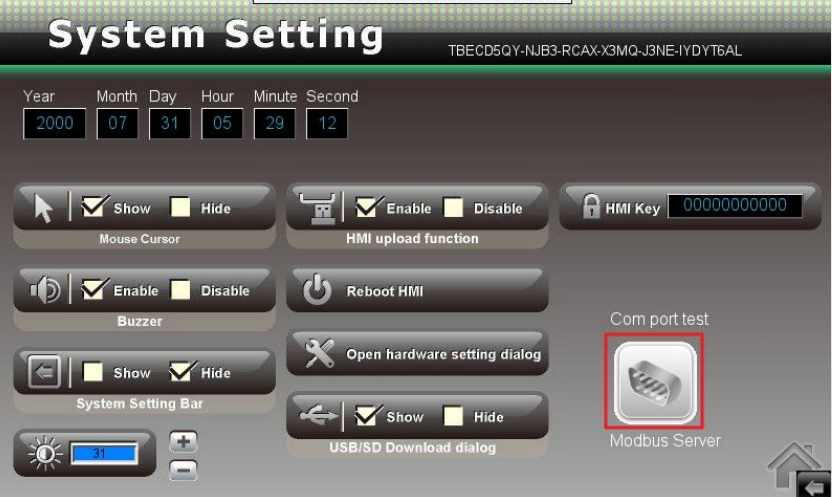
Step 3. Click “Fix IP”, and then IP: 192.168.0.211, subnet mask 255.255.255.0 will will be set.
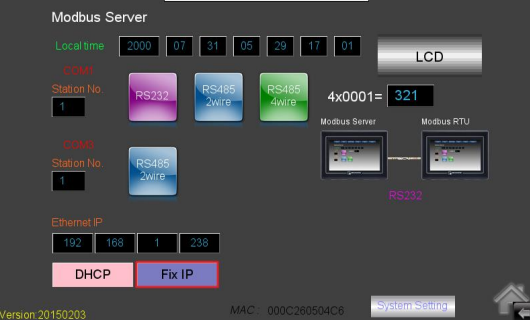
Finally, connect the computer and HMI with an Ethernet cable, and then set set the network properties the computer as:
IP: 192.168.0.XXX (XXX=0~255, except 211)
Subnet: 255.255.255.0
Now the download utility on the computer will be able to find the HMI and and download a project.
Powiązane strony
- 85. How to set HMI IP on HMI?
- 21. How to Download Project to HMI via Ethernet?
- 31. How to download project through HMI name?
- 86. Set cMT-SVR Network
Słowa kluczowe
adres IP, ustawienie IP, nowy panel HMI, stały adres IP, Fix IP, set IP, IP address, DHCP, 0.0.0.0, 192.168.0.211, maska podsieci, subnet mask, pobieranie projektu przez Ethernet, download project, bez routera, projekt demonstracyjny, demo project, Weintek, HMI, iE, XE, eMT