
Sprawdzanie klucza sprzętowego HMI (HWKey) – seria cMT
Streszczenie: Gdzie znaleźć klucz sprzętowy (Hardware Key, HWKey) potrzebny do aktywacji EasyAccess 2.0: w serii cMT na stronie ustawień w przeglądarce, w seriach eMT, iE, XE, mTV w ustawieniach systemowych panelu (hasło 111111), zakładka EasyAccess 2.0.
EN: How to find the HMI Hardware Key (HWKey) for EasyAccess 2.0 on cMT (web settings) and eMT/iE/XE/mTV (System Settings).
Dotyczy: panele HMI Weintek serii cMT, eMT, iE, XE, mTV
Źródło: Weintek FAQ (materiały producenta), oryginalny tytuł: „How to check HMI’s Hardware Key (HWkey)?”
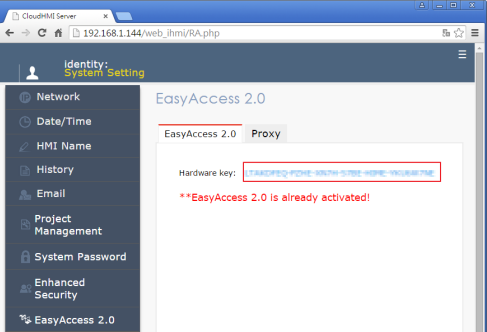
Applied Models: cMT Series
Step 1. Enter HMI’s IP address in internet browser, and then enter the password to open System Setting window.

Step 2. In EasyAccess 2.0 tab you can find the Hardware Key.
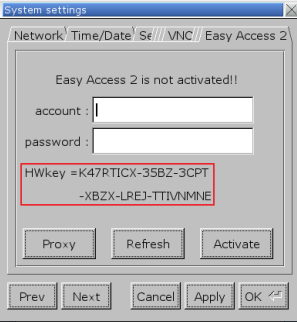
Applied Models: eMT, iE, XE, mTV Series
Step 1. Tap on the Arrow icon  in the lower-right corner of the screen.
Step 2. Tap on the Gear icon.

Step 3. Enter password (default: 111111). If the password is correct, the System Settings window will be displayed.
Step 4. Go to Easy Access 2 tab and you will find the Hardware Key
Słowa kluczowe
HWKey, Hardware Key, klucz sprzętowy, EasyAccess 2.0, aktywacja, System Settings, hasło 111111, cMT, eMT, iE, XE, mTV, How to check HMI’s Hardware Key (HWkey)?