
Wgrywanie ekranu startowego do HMI
Streszczenie: Wgranie ekranu startowego (plik BMP, nie 32-bitowy, o rozmiarze nie większym niż ekran) do HMI przez Utility Manager lub EasyBuilder Pro ([Tools] » [Download]), przez Ethernet lub USB. Obraz wyświetla się podczas uruchamiania panelu.
EN: How to download a BMP startup screen to the HMI via Utility Manager or EasyBuilder Pro (Ethernet or USB).
Dotyczy: panele HMI Weintek; Utility Manager, EasyBuilder Pro
Źródło: Weintek FAQ (materiały producenta), oryginalny tytuł: „How to Download Startup Screen to HMI”
After the BMP picture file used as startup screen is downloaded to HMI, the HMI will reboot. The picture will show on HMI during boot-up before entering the project. Startup screen isn’t compatible with BMP 32bit color.
There are two ways to download startup screen to HMI:
Way 1 Download using Utility Manager
Step 1. Launch Utility Manager.
Step 2. Select [Download].
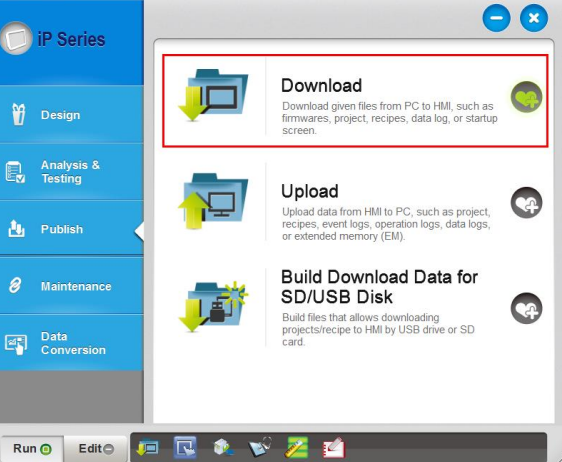
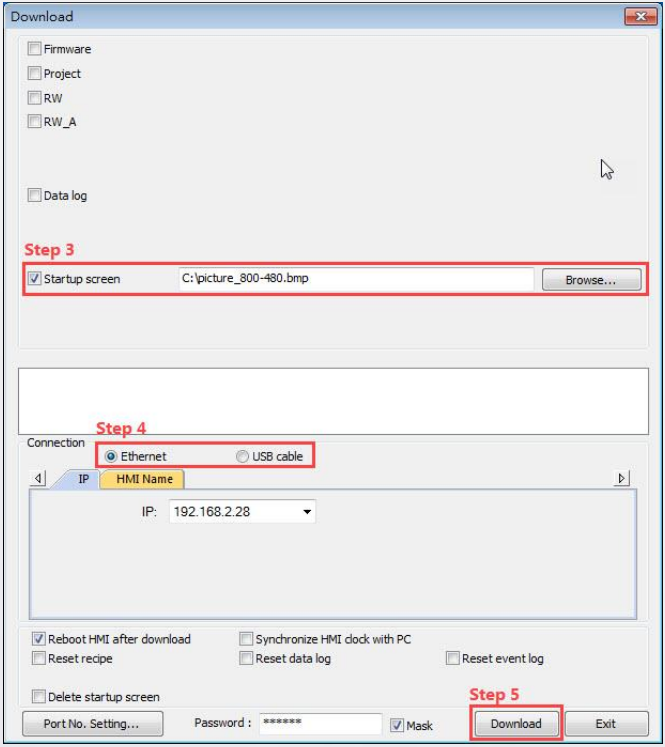
Step 3. Select a BMP file that matches the HMI screen size. Ex: Use an 800 x 480 file or smaller one for eMT3070.
Step 4. Download the picture file by using Ethernet or by connecting a USB cable. Designate an IP address when Ethernet is used.
Step 5. Click [Download]. The picture should show during HMI reboot when it is successfully downloaded.
Way 2 Download using EasyBuilder Pro
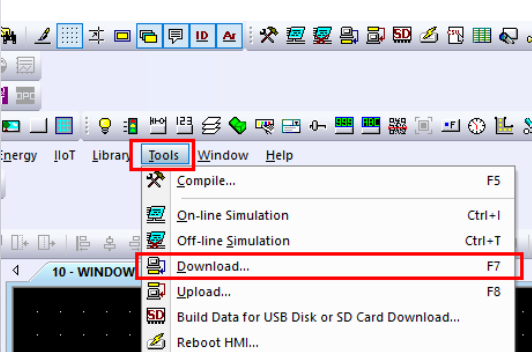
Step 1. Launch EasyBuilder Pro and click [Tools] > [Download].
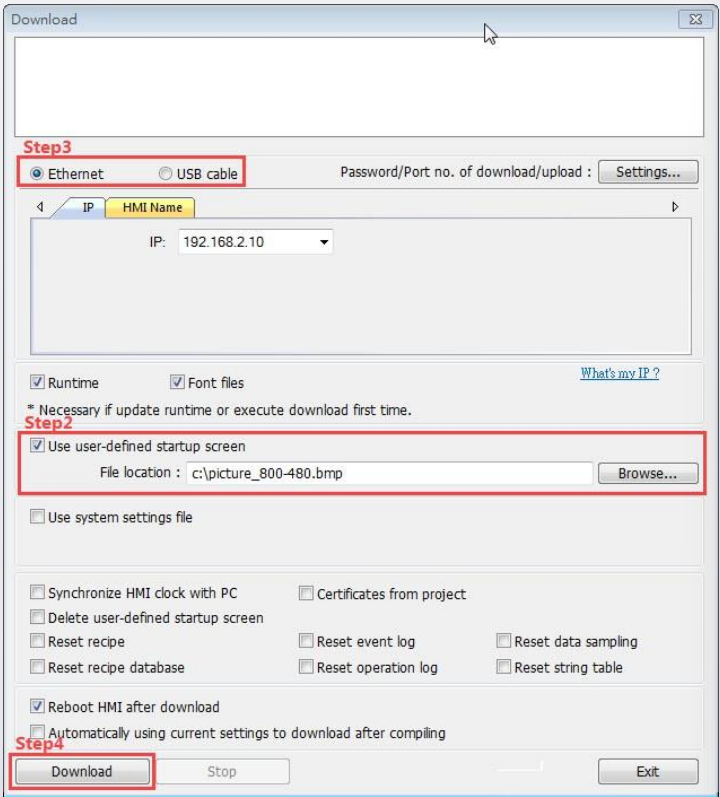
Step 2. Select a BMP file that matches the HMI screen size. Ex: Use an 800 x 480 file or smaller one for eMT3070.
Step 3. Download the picture file by using Ethernet or by connecting a USB cable. Designate an IP address when Ethernet is selected.
Step 4. Click [Download]. The picture should show during HMI reboot when it is successfully downloaded.
Słowa kluczowe
ekran startowy, startup screen, BMP, logo, Utility Manager, Download, rozmiar obrazu, 800x480, eMT3070, Ethernet, USB, How to Download Startup Screen to HMI