
Wgrywanie projektu z HMI do PC (Utility Manager)
Streszczenie: Wgrywanie skompilowanego projektu (.exob) z HMI do komputera programem Utility Manager przez Ethernet (adres IP panelu) lub USB; domyślne hasło 111111.
EN: How to upload the .exob project running on an HMI to a PC with Utility Manager via Ethernet or USB.
Dotyczy: panele HMI Weintek; Utility Manager (EasyBuilder Pro)
Źródło: Weintek FAQ (materiały producenta), oryginalny tytuł: „How to upload project to PC?”
Utility Manager is an upload tool for uploading the exob files that run on HMI to PC, allowing the user to modify the project file on PC.
Step 1. Launch Utility Manager, select the HMI model, and then select Upload.
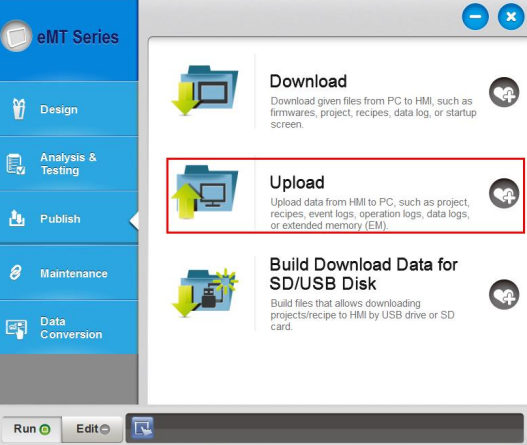
Step 2. Click [Browse] to browse for the directory to save the file.
Step 3. When HMI is connected to PC with an Ethernet cable, please enter the HMI’s IP address. HMI can also be connected to PC with a USB cable.
Step 4. Enter the password. By default the password is 111111.
Step 5. Click [Upload].
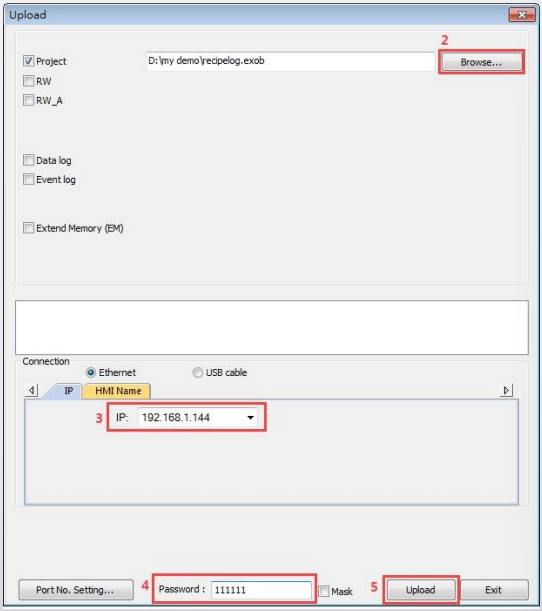
Step 6. When the project is successfully uploaded, click [Exit] to leave. You can now find the exob file in the specified directory.

Słowa kluczowe
wgrywanie projektu, upload, Utility Manager, plik .exob, kopia projektu z panelu, Ethernet, USB, hasło 111111, EasyBuilder Pro, How to upload project to PC?