
8. Menu Bar
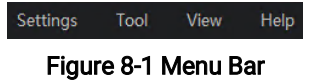
8.1 Settings
You can configure the Software settings, including general parameters, capturing/recording parameters, network parameters, buffer, history export, code draw, shortcut parameters, and permission.
8.1.1 General Settings
Click Settings → General to enter the following page.
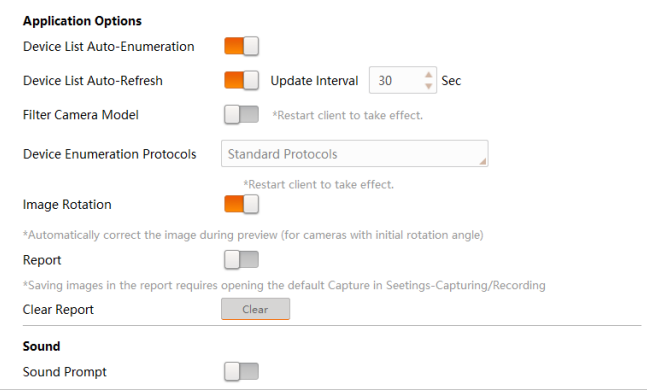
Figure 8-2 General Settings
Application Options
Device List Auto-Enumaration
If enabled, the Software will enumerate the camera list (device list) automatically.
Device List Auto-Refresh
If enabled, the Software will refresh the camera list (device list) automatically. You can set the update interval (unit: second, range: 1 to 120). The default value is 15.
Note
Camera Link camera does not support device list auto-refreshing.
Filter Camera Model
If enabled, only specific camera models will be displayed. You can set the Device Type Filtering Tag to filter devices with certain name format.
Note
You need to restart the Software to take the settings into effect.
Device Enumeration Protocols
Select protocols to enumerate the devices.
● Standard Protocols: Enumerate devices via GVCP (GigE Vision Control Protocol).
● Private Protocols: Enumerate devices via private protocols.
● Standard and Private Protocols: Enumerate devices using standard protocols and private protocols.
Note
You need to restart the Software to take the settings into effect.
Image Rotation
If this function is enabled, when a code shows obliquely, the Software will adjust the image of the code displayed in the live view window.
Note
This function should be supported by the device.
Report
If this function is enabled, the codes read by the device will be automatically stored in the database. Click Clear to clear the database. On the control toolbar, click to open the report of code reading. Click Select A Database and select a file (By default, the path is "..\Web\QualityReport\client") to view the report.
Note
The display experience may vary by different browsers. You can try other browsers if you failed to open the report.
Sound
Enable this function, and select the sounds to be displayed when a code is read successfully or when a code failed to be read.
Note
You should upload a file in .wav format.
Click OK to finish setting.
8.1.2 Capture and Recording Settings