
2. System Settings
For the first time operating the unit, please complete the following system settings. When finished, the project files designed using EasyBuilder can be used on HMI.
2.1 System Toolbar
After rebooting HMI, users can set the system with [System Toolbar] at the bottom of the screen. Normally, this bar is hidden automatically. Only by touching the target at the bottom-right corner of the screen will the System Toolbar pop up.
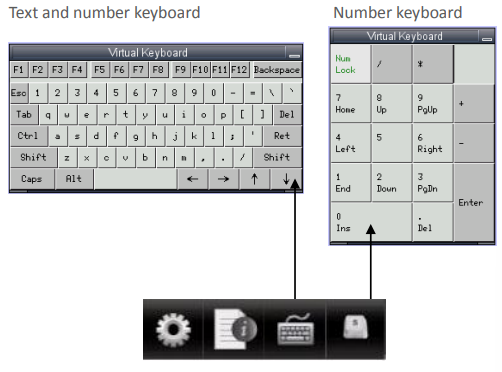
How to hide HMI System Setting Toolbar
When [DIP Switch 1] is set ON, the system setting toolbar is disabled. When set OFF; the system setting toolbar is enabled. Please restart HMI to enable/disable the toolbar. System register [LB-9020] can also enable/disable system setting toolbar When [LB-9020] is set ON, the toolbar is displayed, and set OFF to hide the toolbar.
2.2 System Information
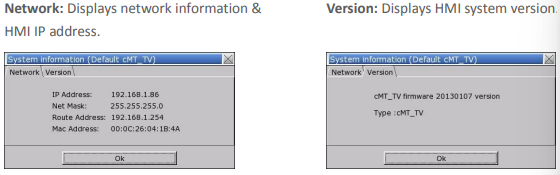
2.3 System Setting
Set or modify system parameters. Confirm password for security.
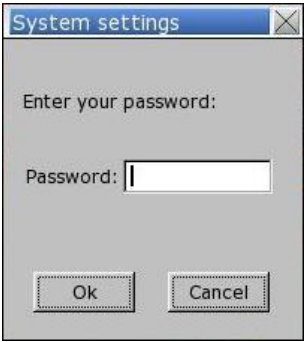
■ Network
Download project to HMI via Ethernet. Confirm IP address of target HMI. Select to obtain IP address automatically or specify an IP address.
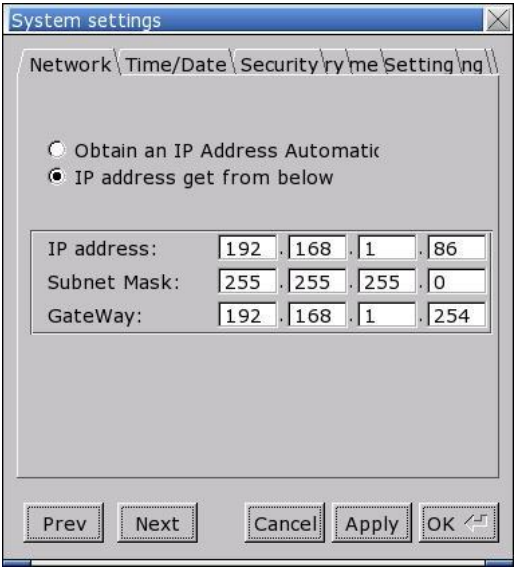
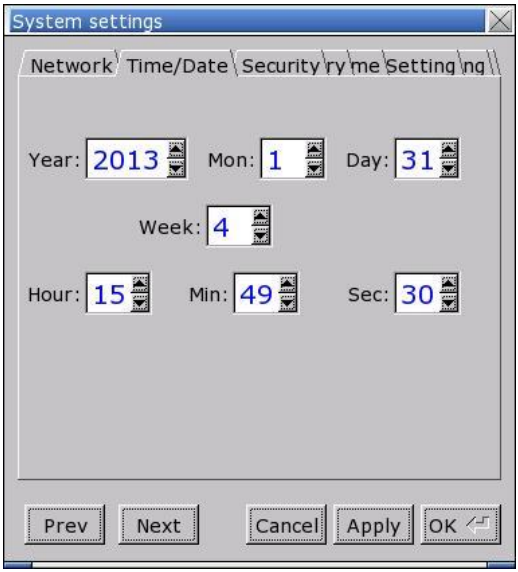
■ Time/Date
Sets HMI local time/date.
■ Security
Password protection, the default is 111111.
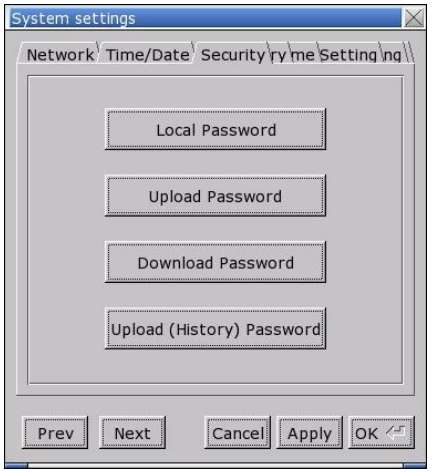
[Password for entering system]
[Password for uploading project]
[Password for downloading project]
[Password for uploading history data]
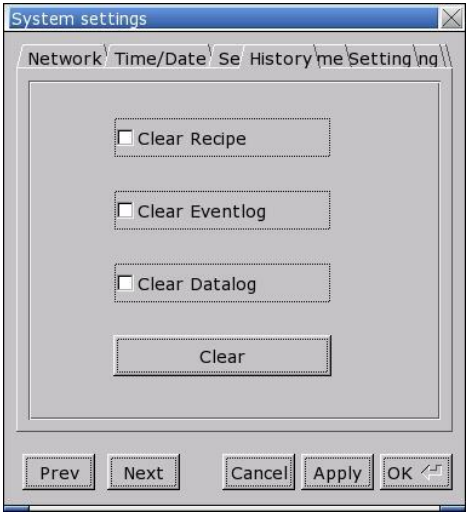
■ History
Clears history data in HMI.
[Recipe] / [Eventlog] / [Datalog]
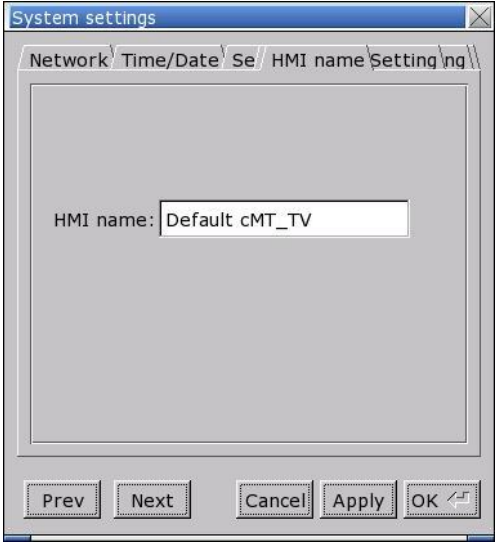
■ HMI name
Sets HMI name to identify HMI during download/upload process and avoid remembering each HMI IP address.
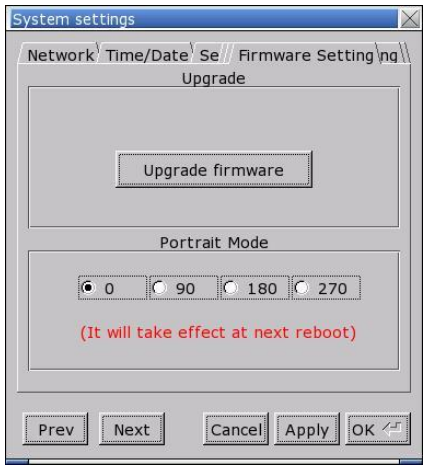
■ Firmware setting
Upgrades firmware / enables portrait mode.
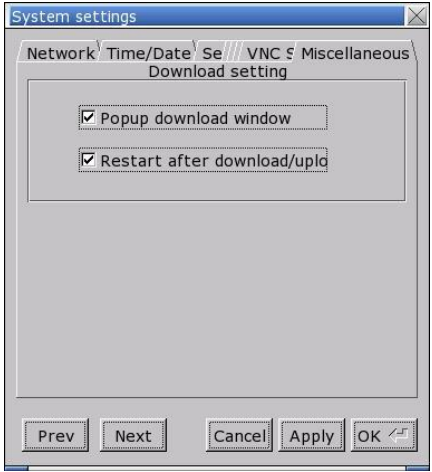
■ Miscellaneous
Settings relevant to download process.
2.4 Upgrade firmware
Follow the steps to upgrade firmware.
1. Save the NK.bin file to SD card or USB disk.
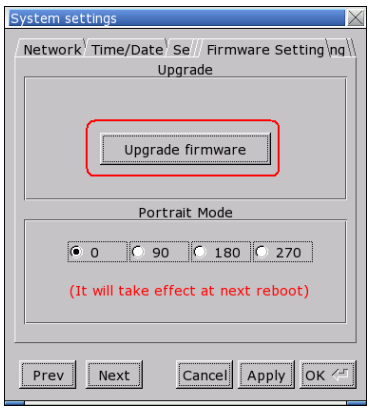
2. Open System Settings \ Firmware Setting tab, press [Upgrade firmware] and select the directory to store NK.bin.
No comments to display
No comments to display