
APPENDIX C: LOADING CONFIGURATIONS FROM FILES
This appendix describes how to load amplifier and Indexer 2 Program configurations from files.
C.1: Amplifier Quick Copy Setup
Use this procedure to configure an amplifier/motor pair by copying a .ccx file that was prepared for the amplifier/motor combination.
Make sure the amplifier has either a direct serial bus connection to the PC running CME 2, or a CAN connection to the gateway amplifier that has the serial bus connection.
 Start CME 2 by clicking the CME 2 shortcut icon on the Windows desktop.
In the CME 2 Copley Neighborhood, select the amplifier that you wish to set up.
 On the CME 2 Main screen, click Restore amplifier data from disk.
When the Restore Amplifier Data from Disk screen opens, navigate to the folder containing the appropriate .ccx file. Highlight the file name and then click Open to load the file data into volatile memory.
 On the CME 2 Main screen, click Save amplifier working memory to flash to
commit the new settings to flash memory.
C.2: CVM Program Quick Copy Setup
Use this procedure to load a CVM Program into an amplifier.
Make sure the amplifier has either a direct serial bus connection to the PC running CME 2, or a CAN connection to the gateway amplifier that has the serial bus connection.
 Start CME 2 by clicking the CME 2 shortcut icon on the Windows desktop.
In the CME 2 Copley Neighborhood, select the amplifier that you wish to set up.
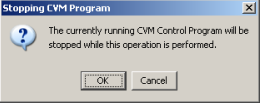
If the prompt appears, click OK.
When the Restore Control Program from Disk screen opens, navigate to the folder containing the appropriate .ccp file. Highlight the file name and then click Open to load the file data into amplifier flash.
This procedure also results in the setting of the Indexer 2 Program option Enable Control Program on Startup. This configures the program to auto start when the amplifier is powered up or reset.
No comments to display
No comments to display