
6. HMI Introduction
6.1 Introduction to this chapter
This chapter outlines the basic layout of xCore's HMI software and the distribution and role of its main functions.
Users need to read this chapter before actually using the robot.
6.2 RobotAssist introduction
RobotAssist is the host computer software of the xCore control system, with functions including robot motion control, task editing, parameter setting, and status monitoring. The software can be installed on PC, Surface, and xPad2 Teach Pendant. The devices can control a robot after being connected to it as long as they are in the same network segment as the robot.
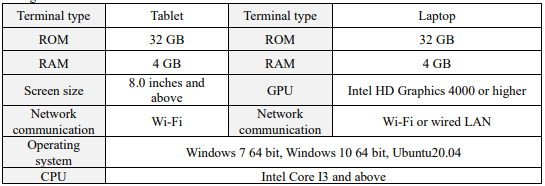
Besides xPad2, we suggest using a tablet or a laptop as the operating terminal. The recommended configurations are shown in the table below.

6.3 General layout of HMI
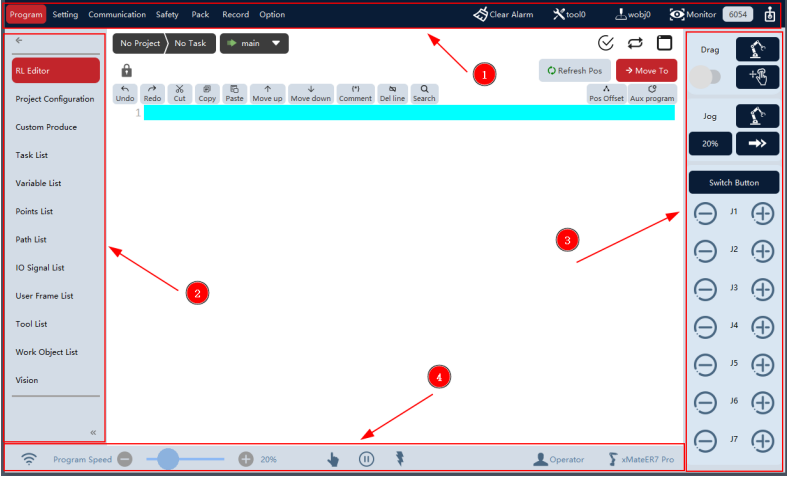
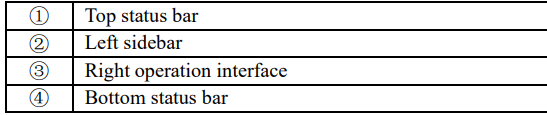
The main operation interface is usually composed of 4 main areas, including: top status bar, bottom status bar, left sidebar, and right operation interface.
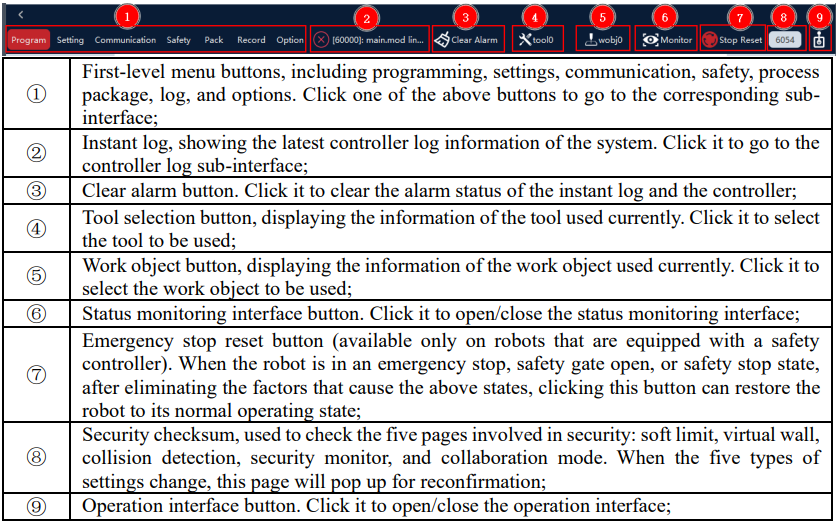
Top status bar, including: several first-level menu buttons (programming, settings, communication, safety, process package, log, options), instant log, clear alarm button, tool information button, work object information button, status monitoring button, RSC reset button, security check button, and operation interface button.
6.3.3 Right operation interface
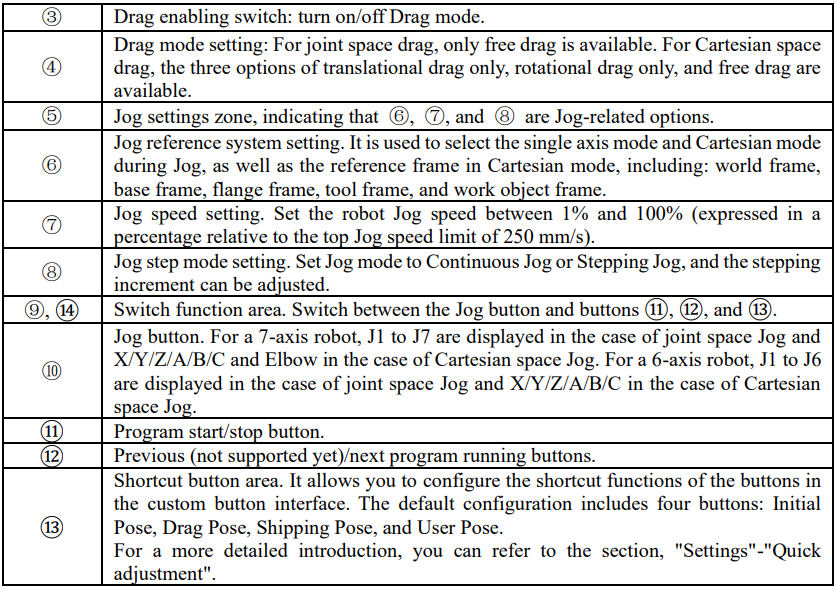
You can click  or
or  on the top status bar to open the operation interface, which can be used to change the robot control mode, control robot motion, and perform pose teaching.
The robot supports two types of pose teaching: Jog mode and Drag mode (for cobots only). Jog mode, in which the robot is controlled to move in the corresponding direction through the Jog button. Drag mode, in which the robot motion is directly and manually guided by using the end-effector drag Pilot/xPanel handle.

6.3.4 Bottom status bar
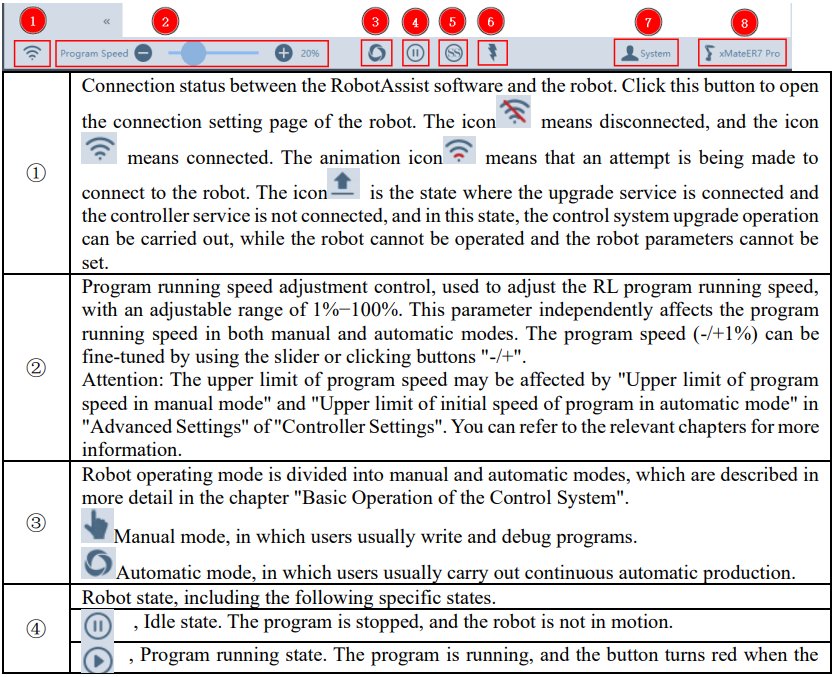
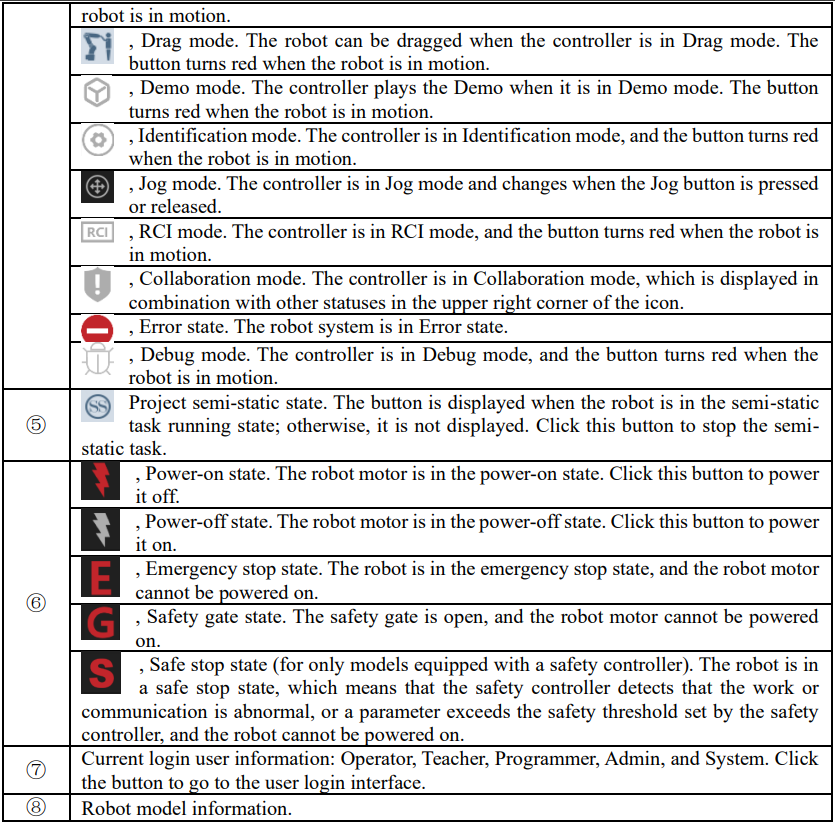
The bottom status bar displays the connection status between Robot Assist and the robot, program running speed, robot operating mode, robot status, motor status, current user login information, and robot model.
6.4 Status monitoring
Click the "Status Monitoring" button on the top status bar to open the floating status monitoring interface. Through the status monitoring interface, the following items can be monitored: robot 3D model, task running status, IO signal, network connection status, register variables, conveyor belt status, and PERS variable information, which is convenient for users to quickly understand the robot status.
6.4.1 3D model monitoring
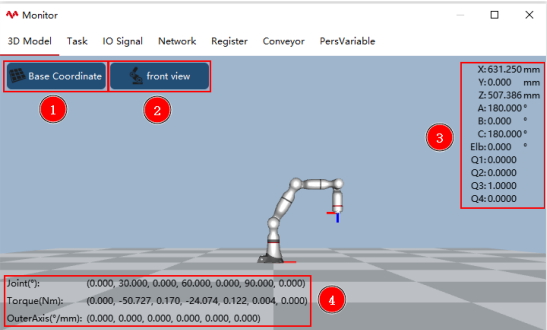
The interface visually displays the current state of the robot in the form of a 3D model. The 3D model's viewpoint can be switched by clicking and dragging, and the model can return to the default viewpoint by clicking the "Front view" button.



6.4.2 Task monitoring
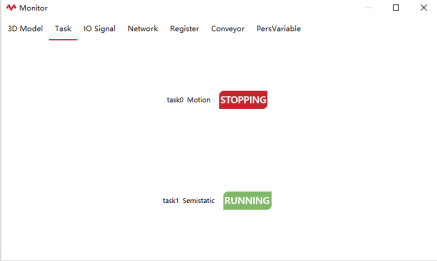
This interface displays the task name, task type, and running status of each task in the current project.
6.4.3 IO signal monitoring
For xMate cobots, the IO signal monitoring interface displays the 4-channel DI and DO signals on the robot base and the 2-channel DI and DO signals at the end-effector by default. For industrial robots, the IO signal monitoring interface displays configured IO signals in the controller by default.
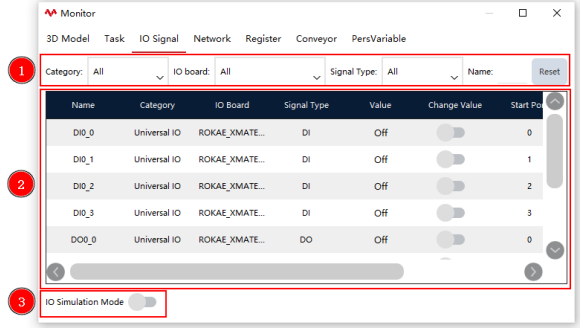

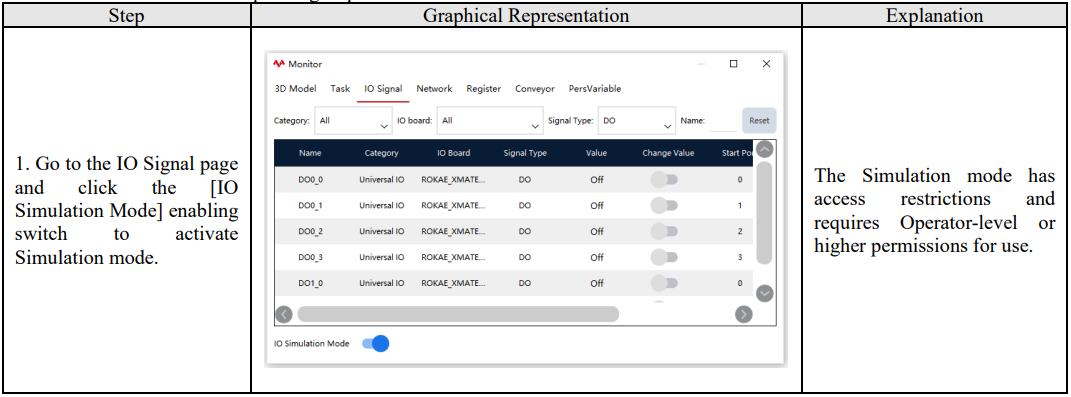
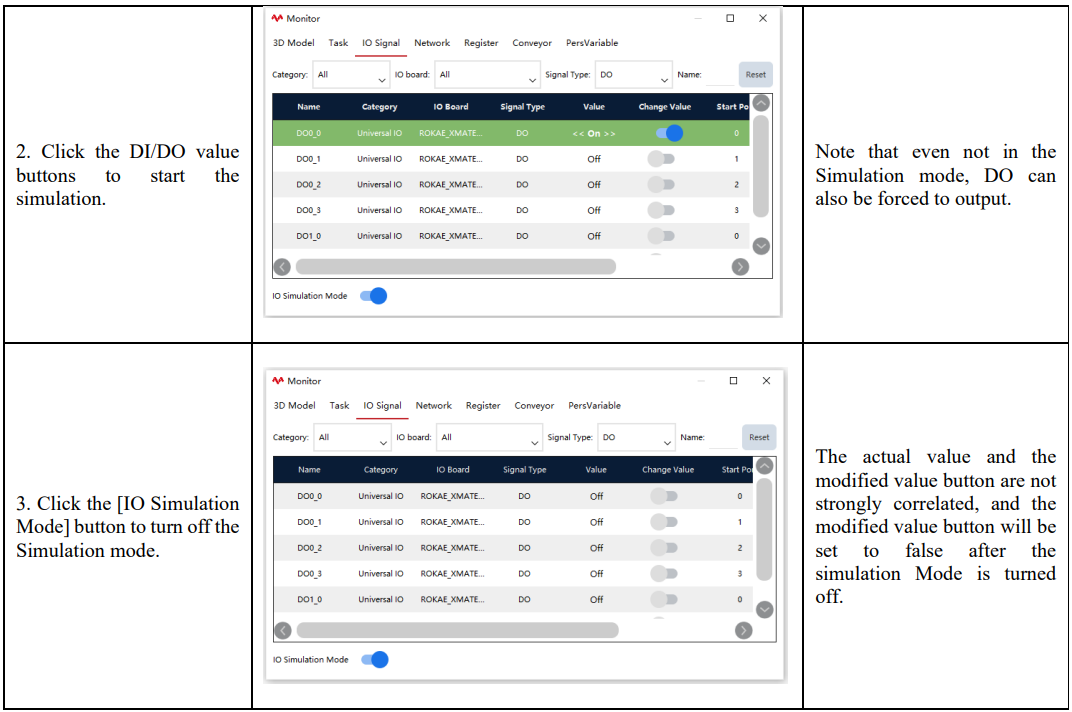
Operating steps of IO Simulation mode:
6.4.4 Network connection monitoring
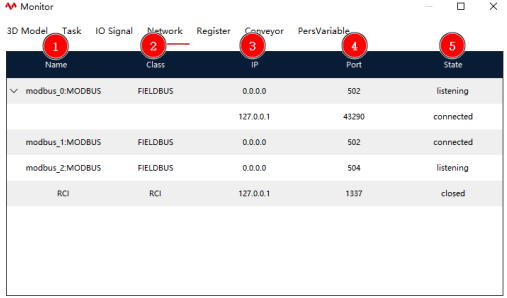
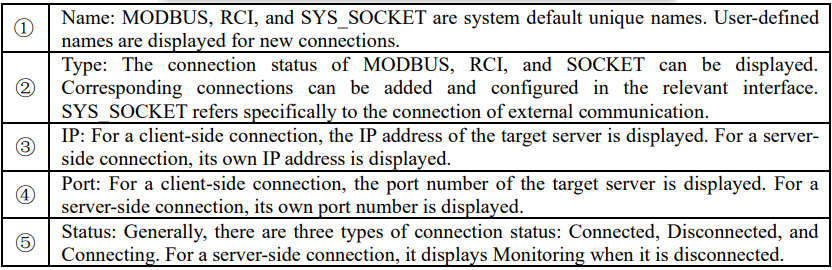
This interface displays the network information that is currently connected with the controller, including: name, type, IP, port, and status.
6.4.5 Register monitoring
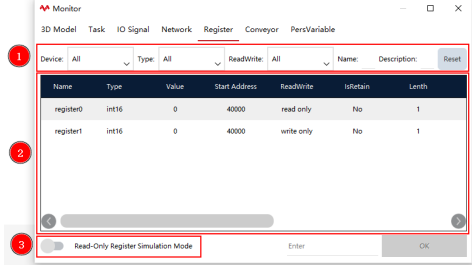
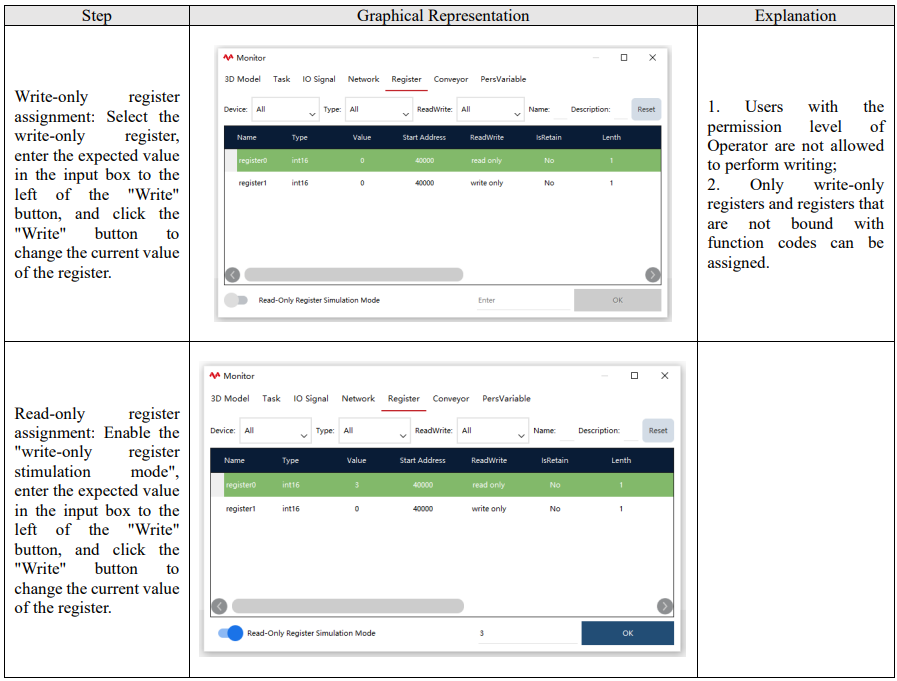
This interface displays the information of each register. If you think that there are too many registers displayed by default, you can filter them. The selectable filter conditions include: device, type, readwrite, name, and description. Click the "Reset" button to update them.

6.4.6 Conveyor belt monitoring
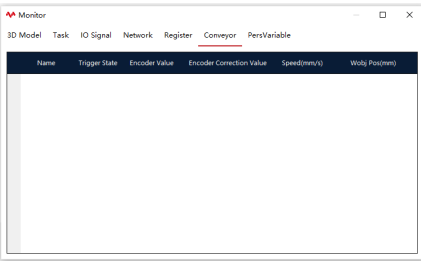
Used to cooperate with the conveyor belt process package and monitor the status of conveyor belt. See the conveyor belt tracking process package for details.
6.4.7 Variable monitoring
This interface displays the real-time information of variables listed in the variable list.
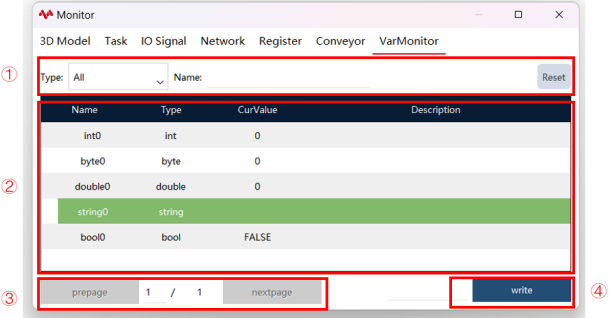

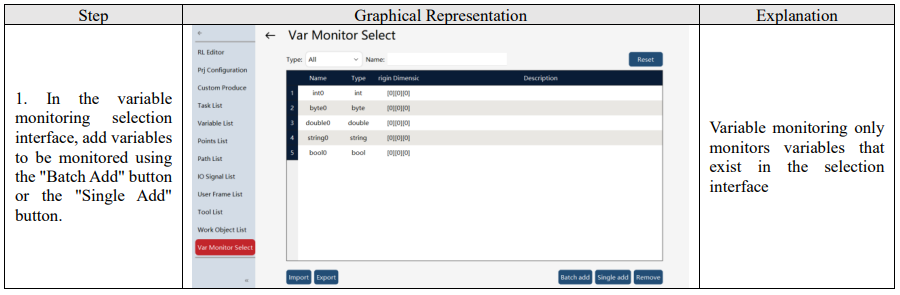
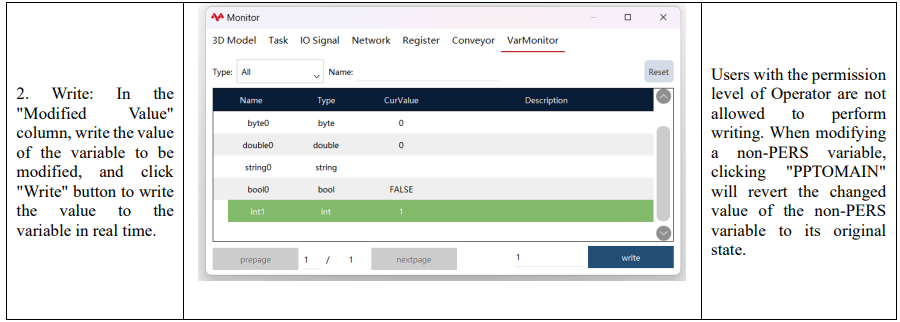
Note: After adding a new variable to be monitored, you need to first execute the "PPTOMAIN" operation before you can read or modify the variable.
6.5 Programming module overview
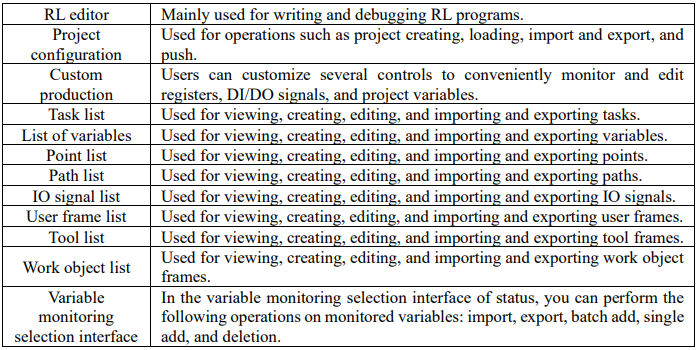
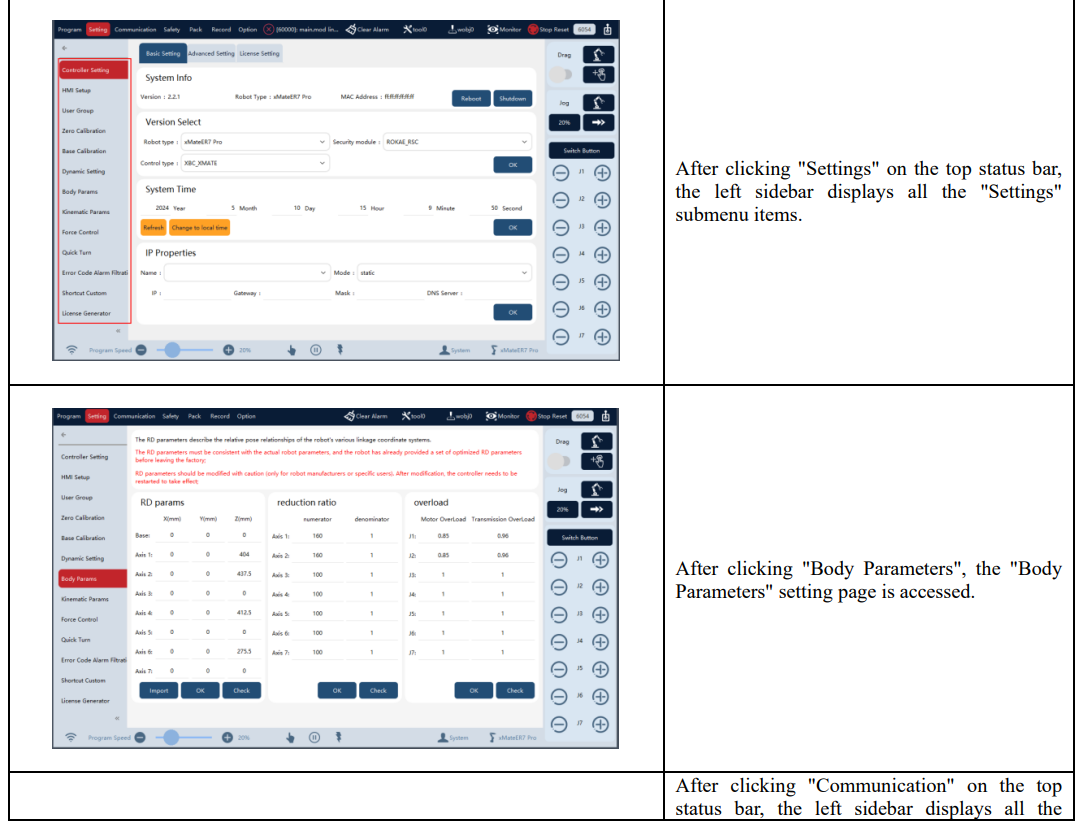
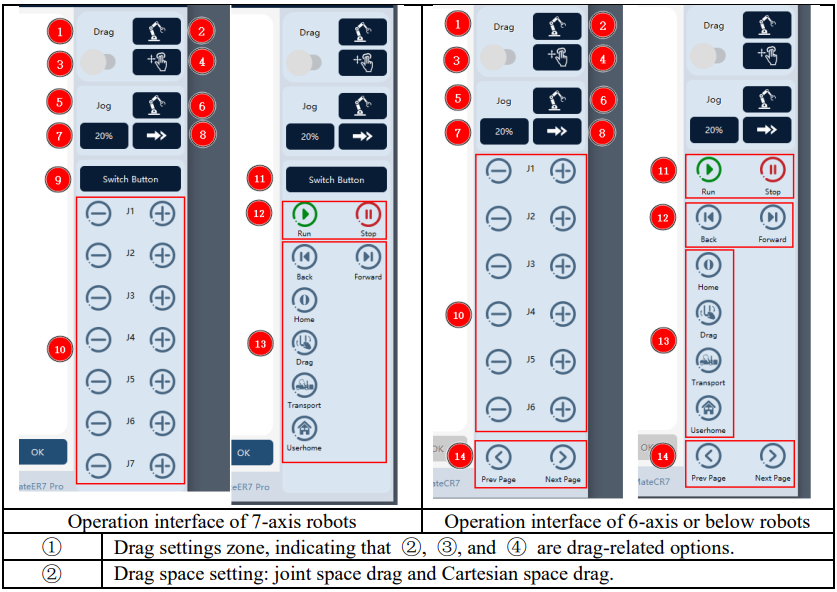
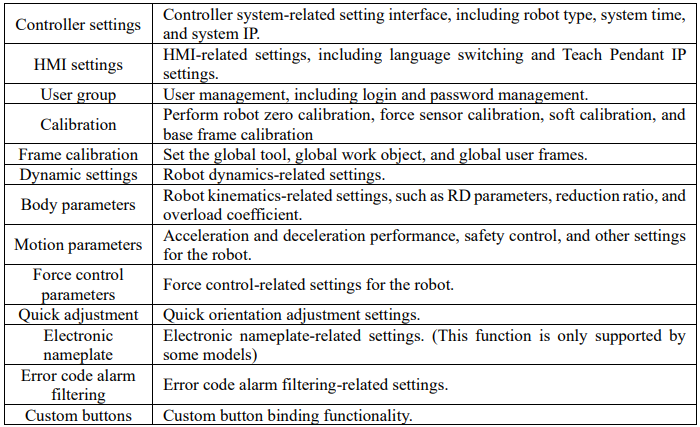
6.6 Setting module overview
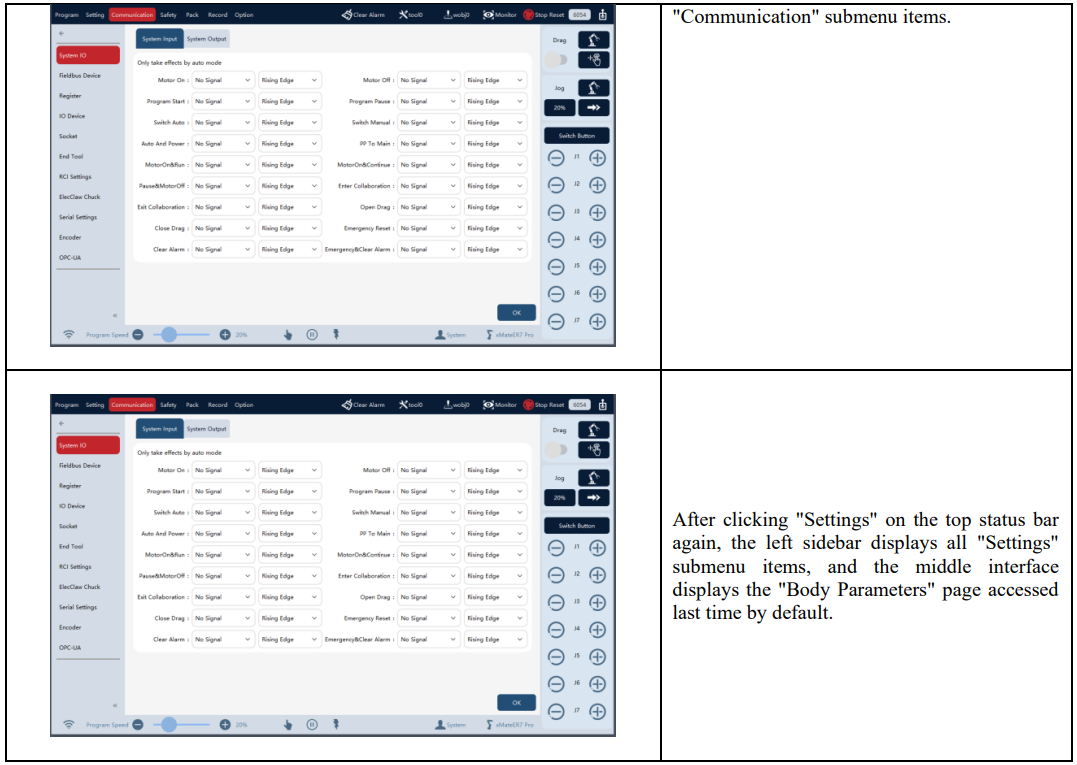
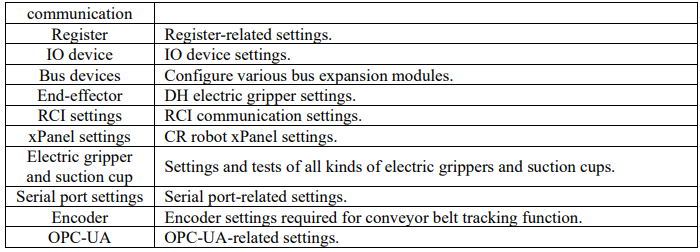
6.7 Communication module overview

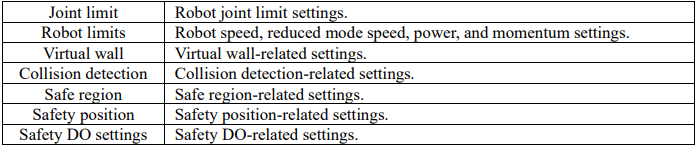
6.8 Safety module overview
6.9 Process package module overview
Support stacking, tray, conveyor belt tracking, PV typesetting, PV inserting, and other process packages. Please refer to the corresponding chapters.
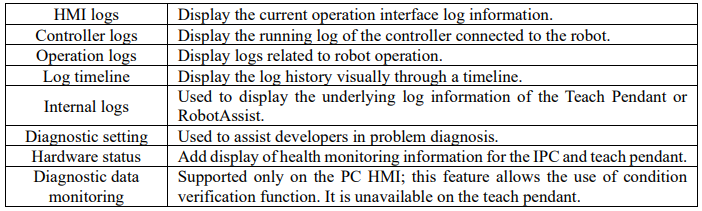
6.10 Log module overview
6.11 Option module overview
No comments to display
No comments to display