
5. Alarm Viewing and Processing
5.1 Alarm viewing
The alarms occurred during robot running can be viewed through the teaching pendant or ESView.
In case of an alarm, the robot will stop motion, and users need to take necessary measures to make the robot move continuously. If more than one alarm occur, only the last alarm will be displayed in the message prompt bar.
5.1.1 View alarm through teaching pendant
The robot will stop immediately after an alarm occurs when moving. The alarm icon will be displayed on the teaching pendant, and the user is allowed to view the details of the alarm on system log interface.
View the alarm information in the "System Log" of the teaching pendant screen.
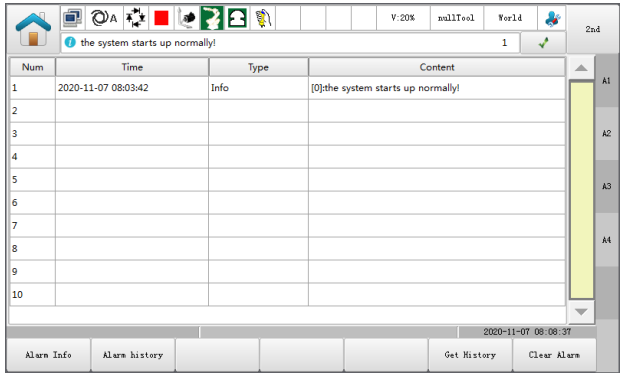
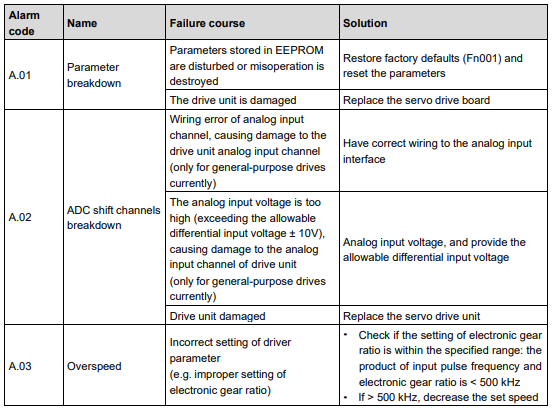
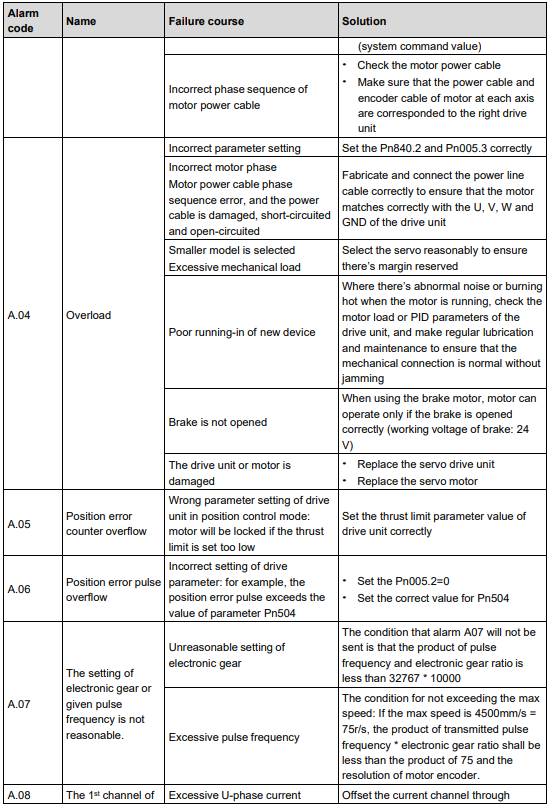
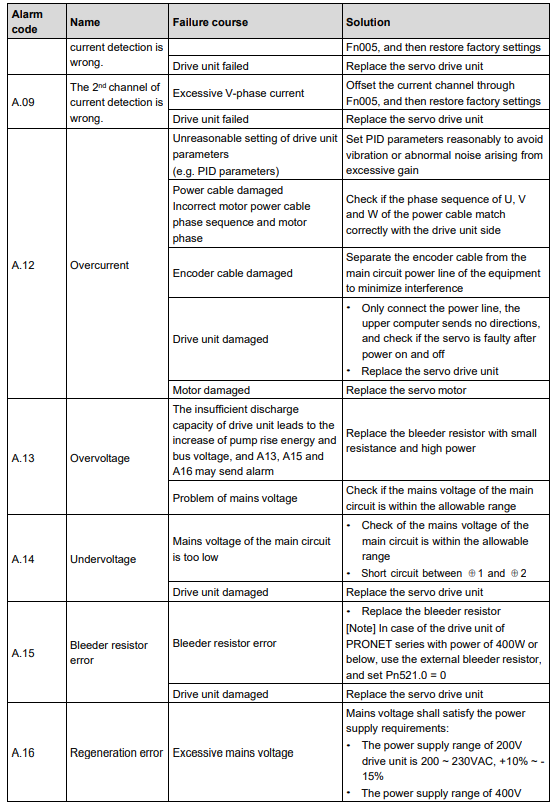
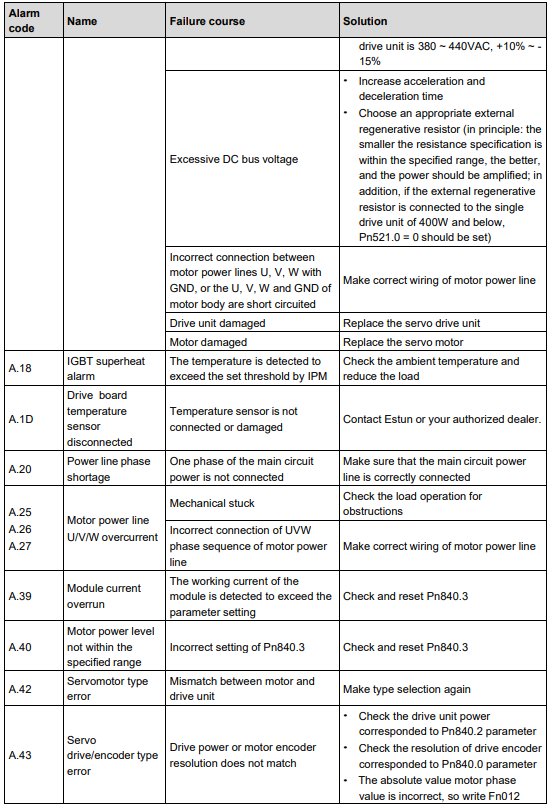
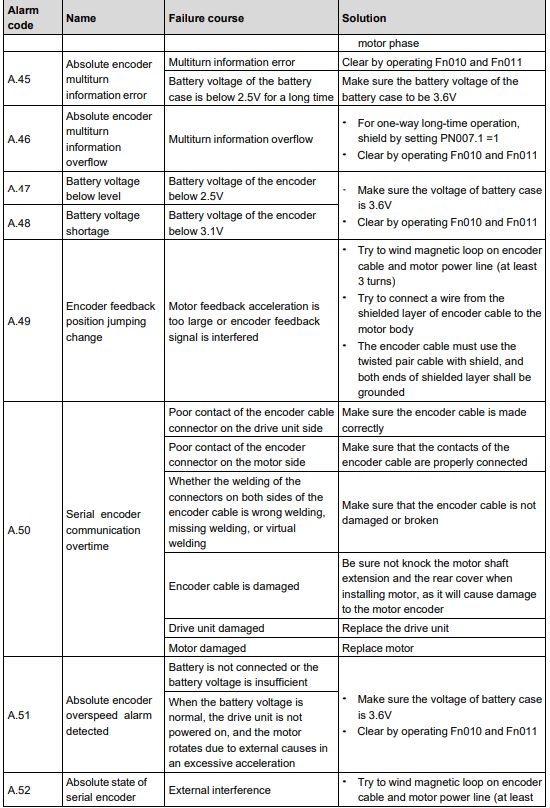
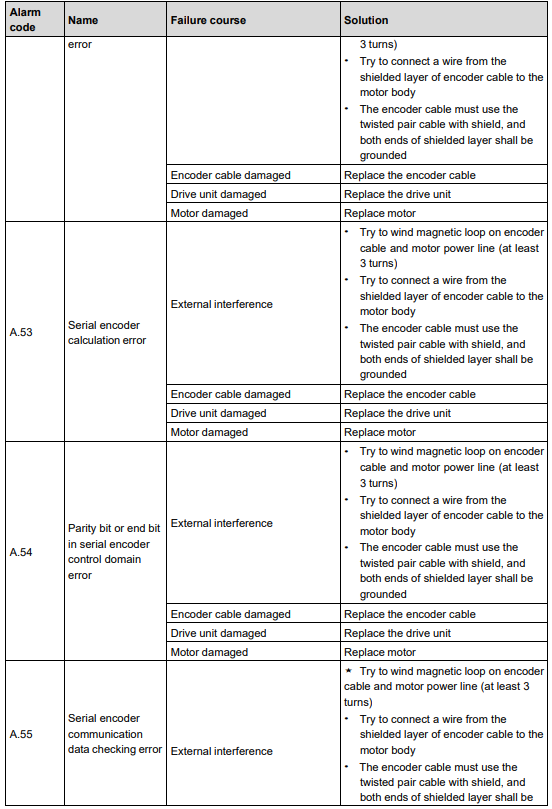
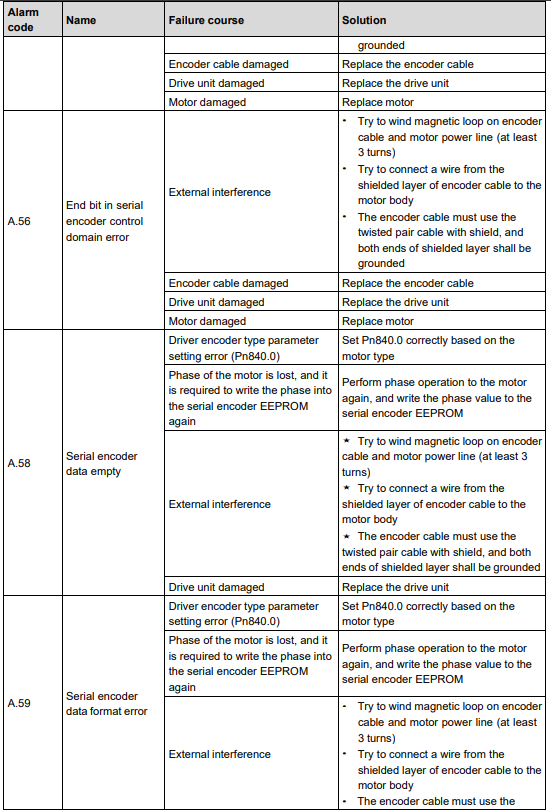
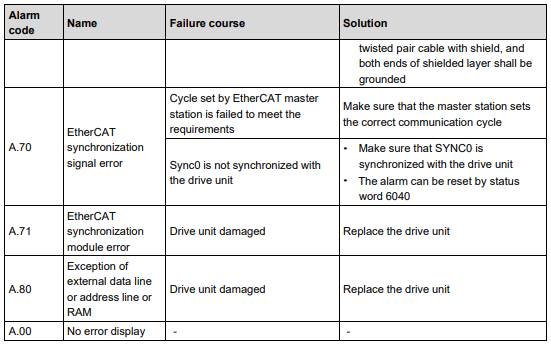
Please refer to "5.2 Alarm list" for a detailed description of the alarm.
Current alarm
Click "Current Alarm", and the interface will display the alarms that have not been cleared currently.
Historical alarm
Click "Historical Alarm" and the interface will display the information of alarms occurred after startup.
Get historical alarms
Click "Get Historical Alarms", synchronize all the historical alarm information of the controller and update the historical alarm interface.
Clear alarm
If there’s "Current Alarm", clear and reset the system by clicking "Clear Alarm", so that the system can run continuously. Users may also clear the alarms by clicking on the at right side of the alarm information column.
5.1.2 View alarms using ESView
When an alarm is produced inside the servo drive unit, users may choose "Tools → Alarm Information" or click  directly in the toolbar to enter the "Alarm Information" window, where the alarm information and historical alarm information of the servo can be viewed and reset.
5.2 List of alarms
No comments to display
No comments to display