
5. Device Connection
Device connection to the client software is required for device’s configuration and remote operations. This section introduces how to install the client software, set PC and device network, connect the device to the client software, etc.
5.1 Install Client Software
IDMVS is a client software for device configuration and remote operations.
Steps
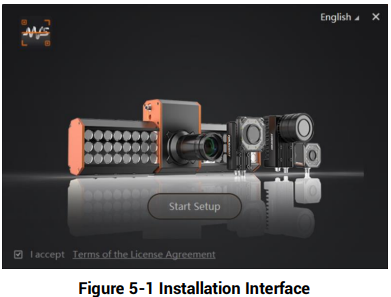
1. Double click the installation package to start installing the client software.
2. Select the language.
3. Read and check Terms of the License Agreement.
4. Click Start Setup.
5. Select installation directory and click Next.
6. Finish the installation according to the interface prompts.
5.2 Turn off Firewall
To ensure stable client running and image transmission, you are recommended turning off Windows firewall before using the client software.
Steps

1. Go to Windows Firewall.
Windows XP system: Click Start → Control Panel → Security Center → Windows Firewall.
Windows 7 system: Click Start → Control Panel → Windows Firewall.
Windows 10 system: Click Start → Control Panel → System and Security → Windows Defender Firewall.
2. Click Turn Windows Defender Firewall on or off on the left.
3. Select Turn off Windows Defender Firewall (not recommended).
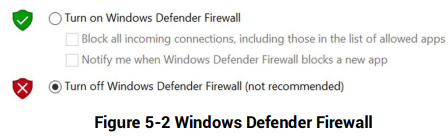
4. Click OK.
5.3 Set PC Network
To ensure stable image transmission and normal communication between the PC and the device via client software, you need to set the PC network before using the client software.
Steps

Steps
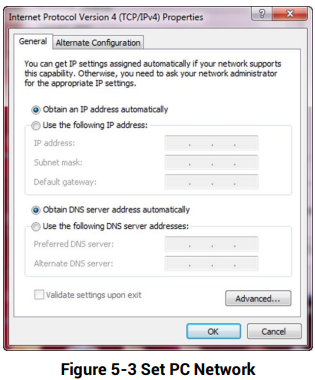
1. Go to PC network settings page: Start → Control Panel → Network and Internet → Network and Sharing Center → Change adapter settings.
2. Select NIC and set the IP obtainment mode.
● Select Obtain an IP address automatically to get an IP address of the PC automatically.
● Or select Use the following IP address to set an IP address for the PC manually.
5.4 Set Device Network
You can set and operate the device in the client software only when the device is in the same network segment with the PC where the client software is installed.
Steps
1. Double click the client software to run it.
2. Click  to find the device.
3. Right click the device to be connected.
4. Click Modify IP.
5. Set the IP address of the device in the same network segment with the PC.
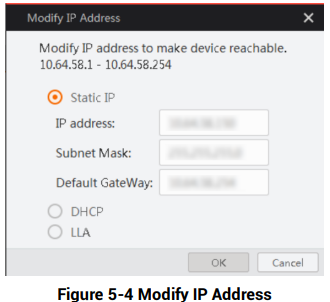
6. Click OK.
5.5 Connect Device to Client Software
Make sure that your device IP address is in the same network segment with the PC where you installed the client software before connecting the device to it.
Double click the device name in the device list, or click  to connect the device to the client.
No comments to display
No comments to display