
3. Environment Configuration
Before performing further operations on the Software, you should make sure you have properly configured the PC and the devices, or some functions may be unavailable.
3.1 System Requirements
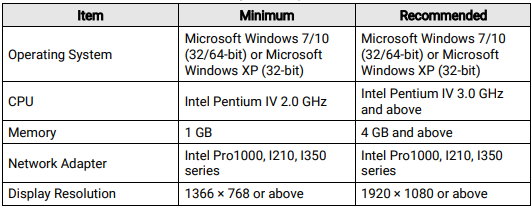
Make sure the PC on which you install the Software meets the minimum requirements at least.
Note
● This Software has integrated all the required drivers. As a result, you can install the Software easily without installing driver separately.
● We recommend adding the Software to the allowlist of the anti-virus software, in case of being recognized as virus.
● The Software interface requires the display resolution of at least 1366 × 768 or above for a complete display on the PC.
● Virtual Code Reader is only available when the MVID-M dongle is plugged in to the PC on which the Software runs.
Table 3-1 System Requirements
3.2 Configure NIC
Before performing further operations on the Software, you should make sure that the IP addresses of the PC and the code readers are on the same network segment, and that the Jumbo Frame of the PC system is enabled, or connecting device to the Software will fail, and packet losses and frame losses will occur during acquisition of some devices.
1. Open the NIC configurator. You can choose from one of the following ways to open it.
● Go to Start → All Programs → IDMVS → Tools → NIC Configurator.
● Go to Applications → NIC Configurator in the installation folder of the Software.
● Right-click a network interface on the device list and then click NIC Settings.
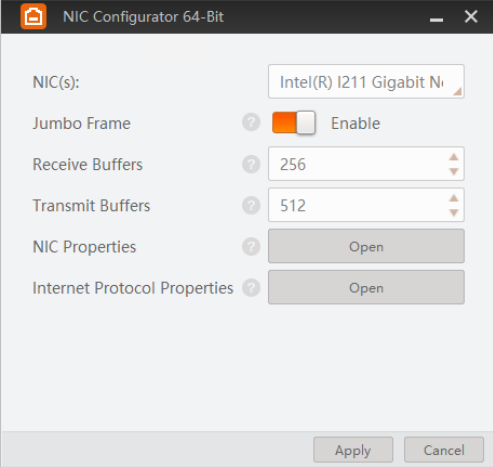
Figure 3-1 Open the NIC Configurator
2. Set parameters for the network interface card.
● Jumbo Frame: The Jumbo Frame function can reduce the CPU usage and improve the data transmission efficiency. After enabling the Jumbo Frame function, the Jumbo Frame value will be set to 9 KB or 9014 Bytes automatically.
Note
If you only need to connect AGV code readers to the Software, enabling Jumbo Frame is not required, for the data transfer interface of the device is of 100M level. For other types of code readers, you should enable Jumbo Frame.
● Receive Buffers: Set the size of Receive Buffers. Increasing the Receive Buffer size improves receiving performance while costs more system memory.
● Transmit Buffers: Set the size of Transmit Buffers. Increasing the Transmit Buffer size improves data transmission performance while costs more system memory.
● NIC Properties: Click Open to open the properties page of the selected network interface card. You can view and edit the properties if needed.
Note
If enabling Jumbo Frame via NIC configurator fails, click Advanced on the properties page to check if Jumbo Frame is supported by the network interface card. If supported, set the Jumbo Frame value to 9014 Bytes or larger. If not, try updating the NIC driver or using other network interface card(s).
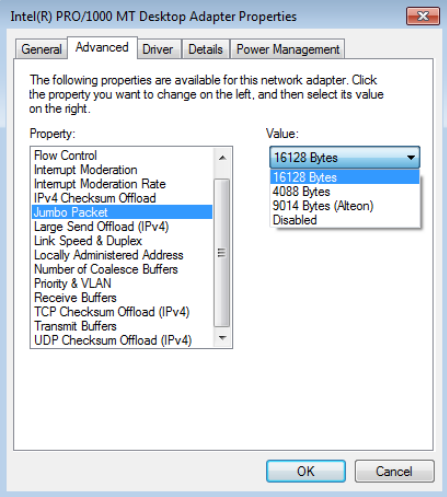
Figure 3-2 NIC Advanced Properties
● Internet Protocol Properties: Click Open to open the properties page of the internet protocol, and then selectObtain an IP address automatically or use the IP address of which the IP segment is same with that of the devices.
Note
The properties page of the internet protocol varies with different series of network interface card. The following picture takes Intel® Ethernet Connection I217-V for an example.
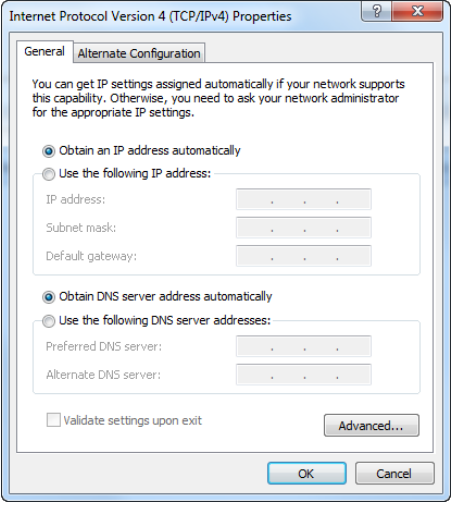
Figure 3-3 Set PC IP address
3.3 USB Device
Make sure you have properly installed the USB driver, or connecting device to the Software will fail.
When you connect a USB device to the PC, the Windows system will automatically install a USB driver after discovering the device. You can check whether the USB driver is installed properly via the device manager of the Control Panel.
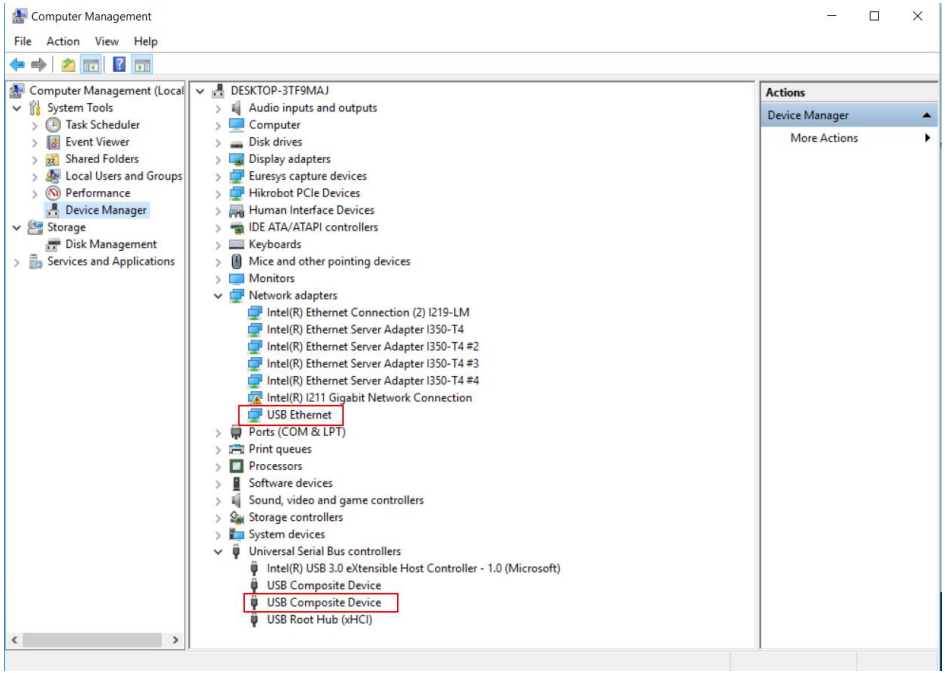
Figure 3-4 Installed USB Driver
If the USB driver is not installed properly, you can install it again.
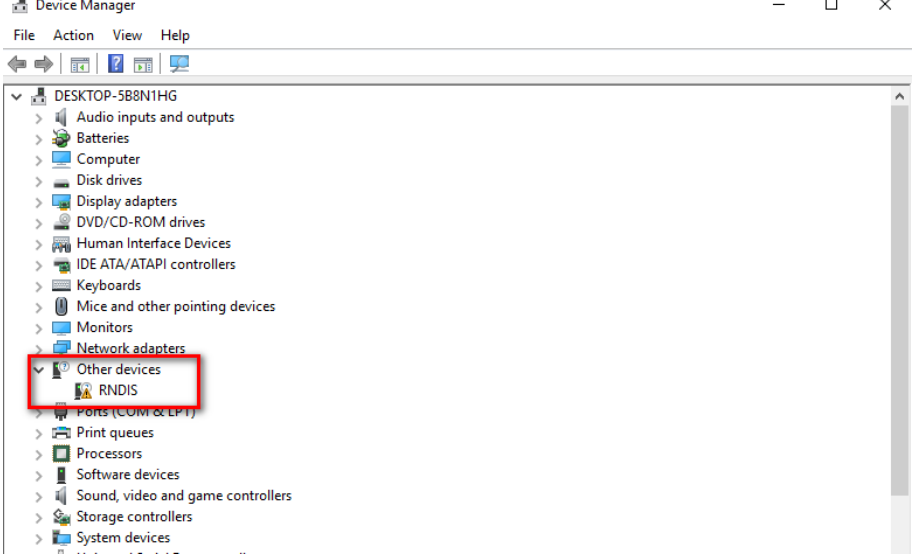
Figure 3-5 Uninstalled RNDIS
No comments to display
No comments to display