
8. FAQs
8.1 The way to find the corresponding control cabinet manual based on nameplate
The control cabinet model is shown in the figure below:
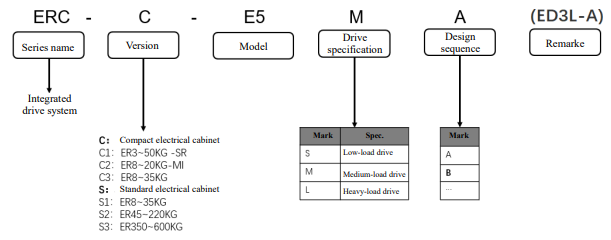
Solutions
Step 1: Find the nameplate of the control cabinet. Take the C2E control cabinet manual as an example.
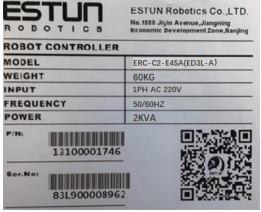
Step 2: Based on the nameplate information, it can be determined that it is a C2 series control cabinet. To learn more detailed information about the control cabinet, you can search for the "User Manual of ESTUN Robot C2E Series Control Cabinet".
Step 3: If you have any questions or cannot accurately find the corresponding manual for the control cabinet, please contact an ESTUN engineer.
8.2 Power supply requirements for ESTUN robots
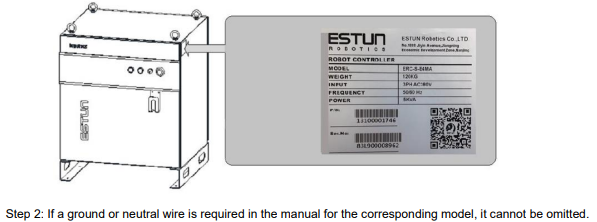
The input voltage and power requirements indicated on the nameplate of the control cabinet must be met for the power supply of ESTUN robots. If the manual requires a ground or neutral wire, it cannot be omitted.
Solution
Step 1: Find the nameplate on the control cabinet, and ensure that the input voltage and power requirements indicated on the nameplate are met. Refer to the figure below:
8.3 The way to deal with the emergency stop status displayed after the robot is turned on
Solution:
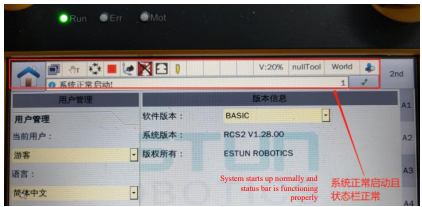
Step 1: Check if the teach pendant starts up normally.
Step 2: Check whether the teach pendant, control cabinet, and external emergency stop button are pressed.
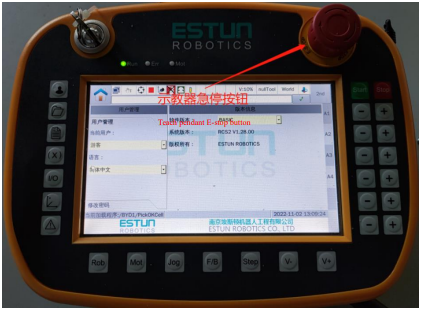
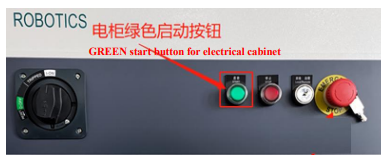
Step 4: If the control cabinet panel is fitted with a "Start" button, it needs to be pressed to turn on the robot.
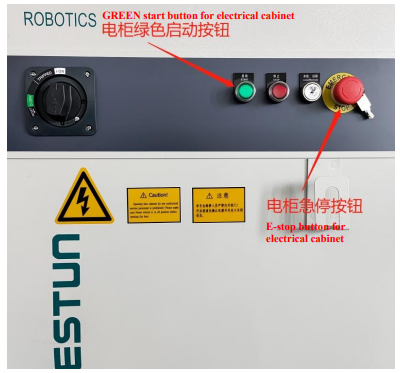
8.4 The way to perform periodic maintenance on robots
Different robot models have varying maintenance requirements and schedules. Specific maintenance schedules and requirements can be found in the corresponding robot model's user manual.
Solution
Use the ER20-1780 robot as an example:
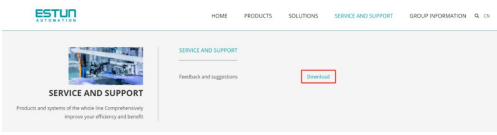
Step 1: Log in to the ESTUN official website and select "Service & Support>Document Downloads."
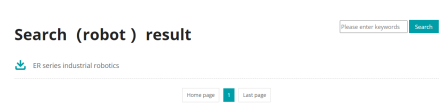
Step 2: Enter "Instruction Manuals of Main Units" in the search box, find the document "Instruction Manual of ESTUN Robot Universal Small Load Series", and check the "Maintenance and Repair" to get relevant maintenance information.
8.5 The way to backup the robot teach pendant program
The teach pendant program can be backed up via the USB interface on the teach pendant.
Solution
Step 1: Prepare a FAT32 formatted USB drive and plug it into the USB interface on the teach pendant.
Step 2: Press the  button on the teach pendant or click "Project Management" on the home page to enter the "Project Management" interface.
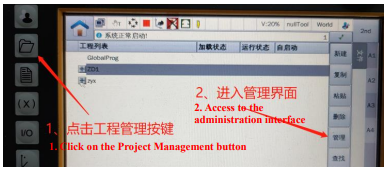
Step 3: Select the program that needs to be imported or exported and use the corresponding arrow to indicate import or export.
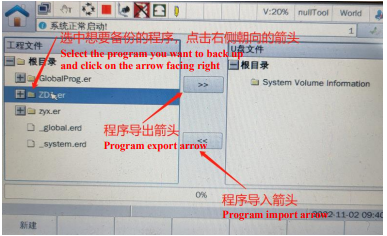
Step 4: After importing or exporting the program, wait for 30 seconds before unplugging the USB drive.
8.6 The way to recover after triggering the robot E-stop button
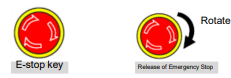
During robot operation, after the E-button is triggered, it can be released by rotating the triggered E-stop button.
Location of the E-stop button: upper right of the teach pendant or on the control cabinet.
Solution
As shown in the figure below, the robot is in an emergency stop state.
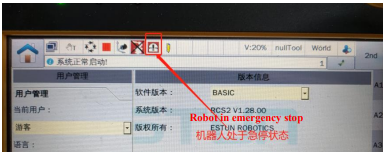
Step 1: Find the triggered E-stop button and release it.
Step 2: Press if there is a "Start" button on the electric cabinet panel.
Step 3: Clear the teach pendant alarm prompt.
Step 4: Check that the teach pendant is in a normal state and run according to the actual situation.

8.7 What to do if the teach pendant cannot perform program editing and modification during use
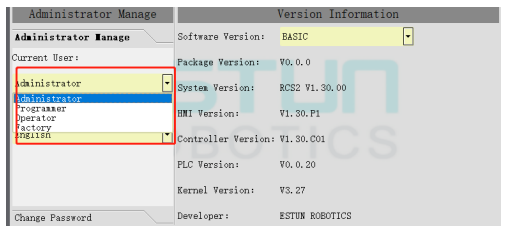
The teach pendant is logged in by default as an "operator" role, which does not have permission to edit programs. It needs to be switched to "administrator".
Solution
Step 1: Press  or click "User Management" on the teach pendant homepage to enter the "User Management" interface.
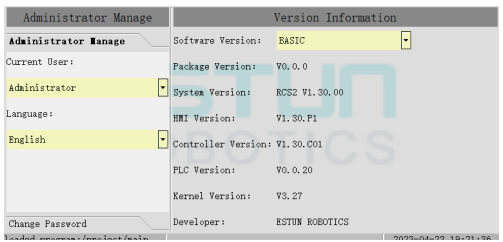
Step 2: In the "Current User" drop-down list, select the "Administrator" role and enter the correct password. After verification is successful, reload the program that needs to be edited and modified, and then the program can be edited and modified.
8.8 What communication protocols does Estun robot currently support
Currently, ESTUN robots mainly support communication protocols such as ModBusTcp, TCPIP, EtherNetIP, Profinet, MC, Fins, etc.
8.9 The way to solve the problem of point deviation during normal use of the robot
Solution
Step 1: Check if the robot zero point is normal.
Step 2: Check if the fixture is deformed.
Step 3: Check if the production line is shifted.
Step 4: Establish a teach reference point separately to reproduce the point deviation for comparison.
8.10 How to determine if the robot cannot move after power on
If the robot does not move after power on, it may be because the program is not in the running state or the conditions in the program are not met.
Solution
Step 1: Check whether the robot is in the running state through the status bar on the teach pendant.
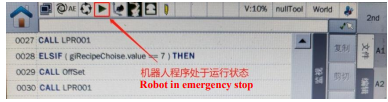
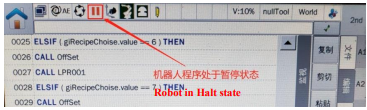
Step 2: Check if a certain instruction condition is not met according to the program pointer in the program interface.
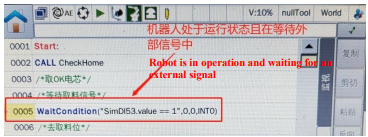
8.11 The way to solve the failure of teach pendant to enter system after robot powering on
System malfunctions and mismatched IP settings between the teach pendant and the controller can both cause the loading progress bar to freeze at a certain state, preventing the teach pendant from entering the system.
Solution
Scenario 1: If the teach pendant's progress bar stays at 10% or 13%, the teach pendant's system is abnormal, and you should contact Estun technical personnel for assistance.
Scenario 2: If the teach pendant's progress bar stays at 20%, the teach pendant's IP settings do not match the controller. Please follow the steps below.
Step 1: Enter the IP setting interface of teach pendant through the physical buttons on the left side of the teach pendant. Press buttons 1/7/6/5/4 in sequence as shown in the figure below.
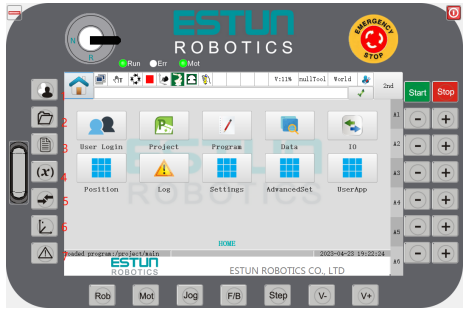
Step 2: After setting the correct IP, save and restart.
Scenario 3: If the progress bar of teach pendant stays at 80%, 85%, or 90%, the controller startup is abnormal, and you should contact Estun technical personnel for assistance.
No comments to display
No comments to display