
6. View Servo Alarms and Handling
6.1 View Alarms Using Teach Pendant
When a robot encounters an alarm during its operation, it immediately halts its motion. The teach pendant will display an alarm icon, to allow users to access the "Log Management" interface to view detailed information about the alarm.
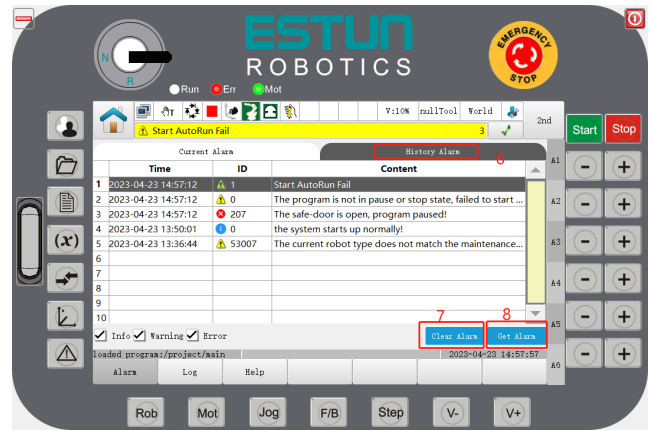
Step 1 Click on the "Log Management" or  button on the Home page or screen to enter the "Log Management" page. Then, click on the "Alarm" button below to view the "Current Alarms" information.
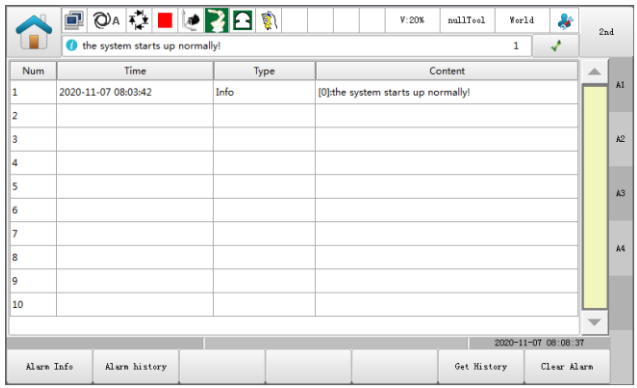
Step 2 Click on the "Content" of the current alarm to view its "Detailed Information", including phenomenon, cause analysis, and solutions.
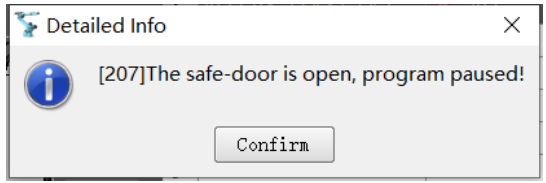
Step 3 If the current alarm has been confirmed as resolved, click the "Clear Current Alarm" button below to clear the current alarm.
Step 4 Click on the "Historical Alarms" above to access the "Historical Alarms" tab. Then, click the "Get Historical Alarms" button to obtain historical alarm information.
6.2 Log
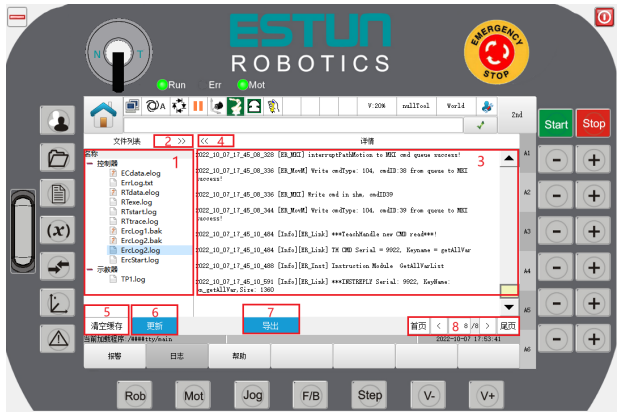
Step 1 Click on the "Log" button in the "System Log" interface to switch to the logging interface.
Step 2 Users can view the contents of the log on the controller or demonstrator side as appropriate.
6.3 Help
On the Log management screen, you can check whether there are any alarm details on the Help screen.
Step 1 On the "Log management" screen, click the "Help" button at the bottom to switch to the "Help" tab.
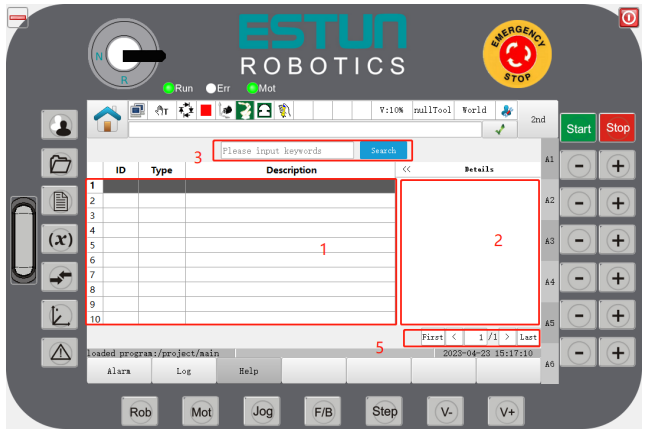
Step 2 Click "Search box", enter "Alarm number" or "Keyword" and click "Confirm". "Press the "Search" button to find out the detailed information of the alarm.
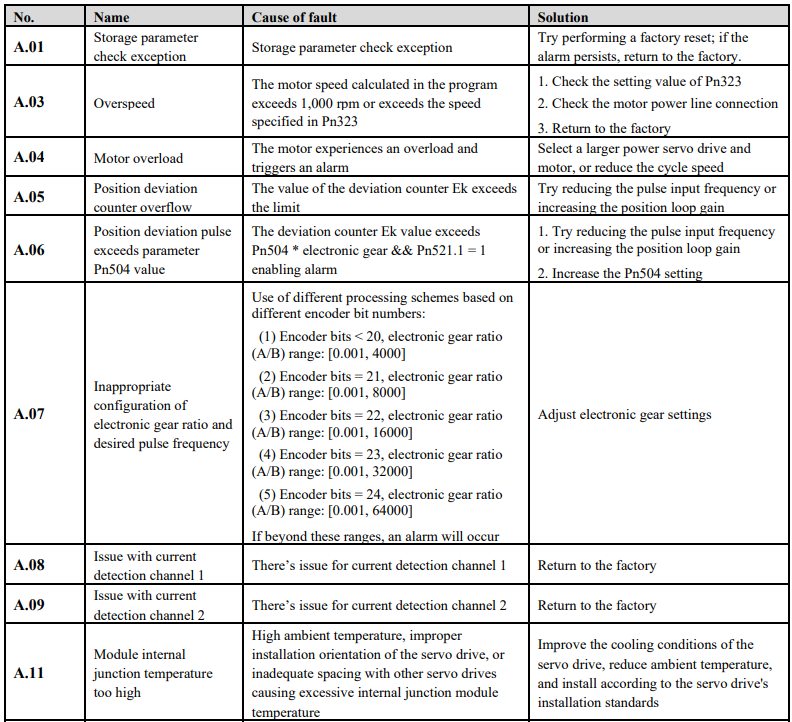
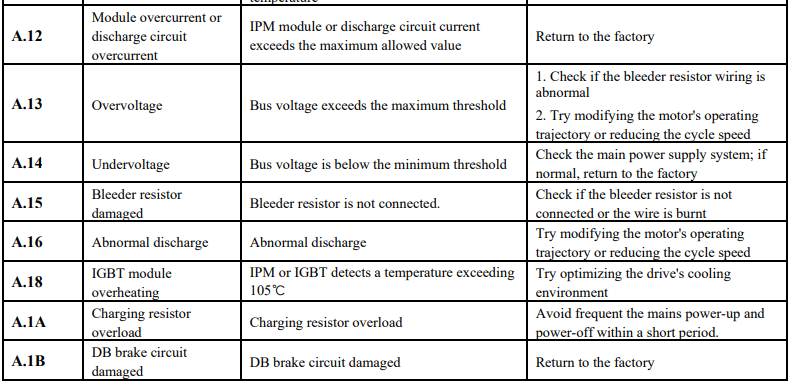
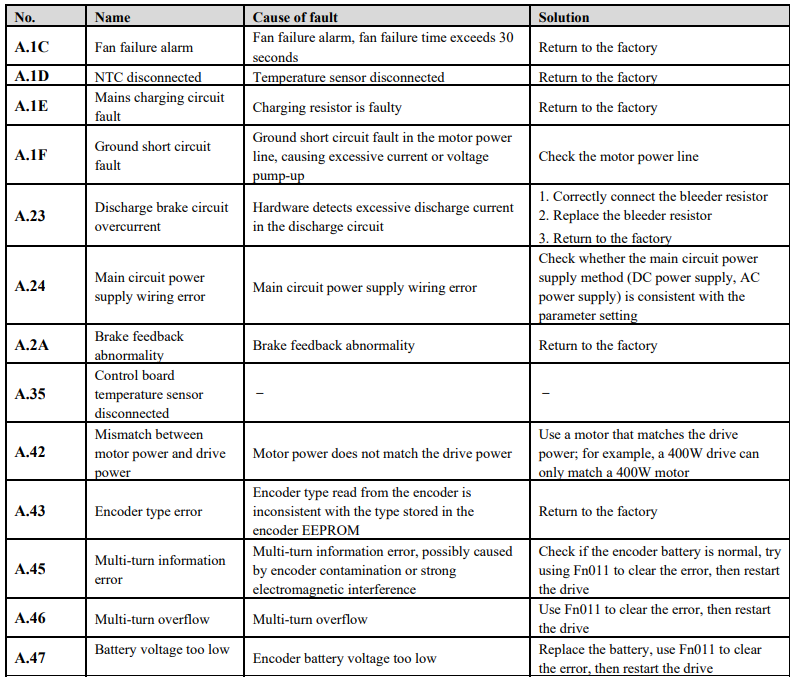
6.4 Alarm List
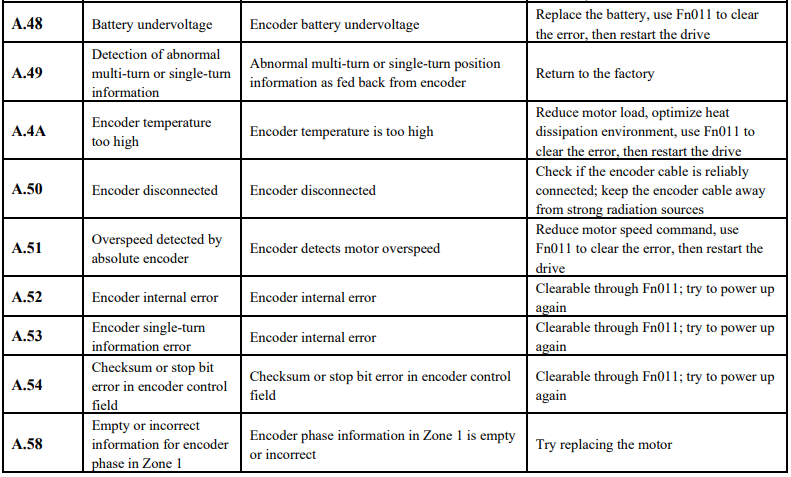
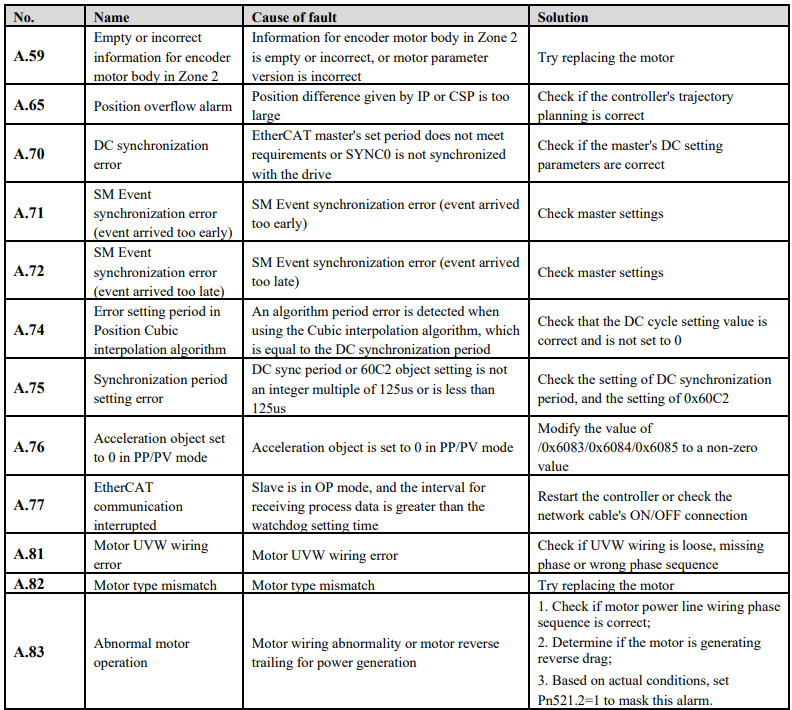
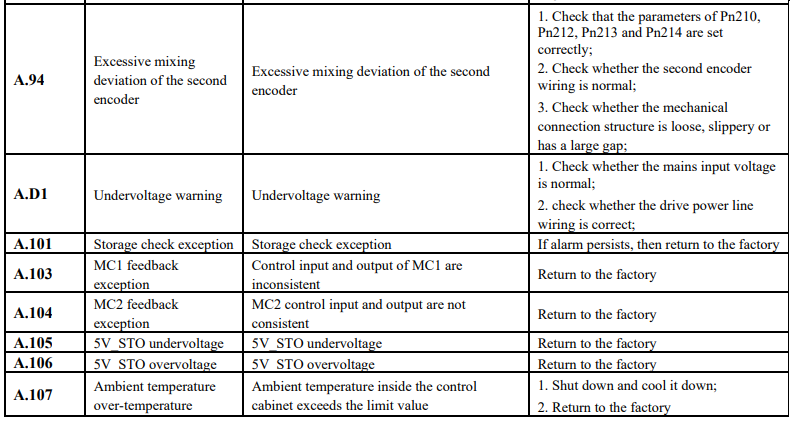
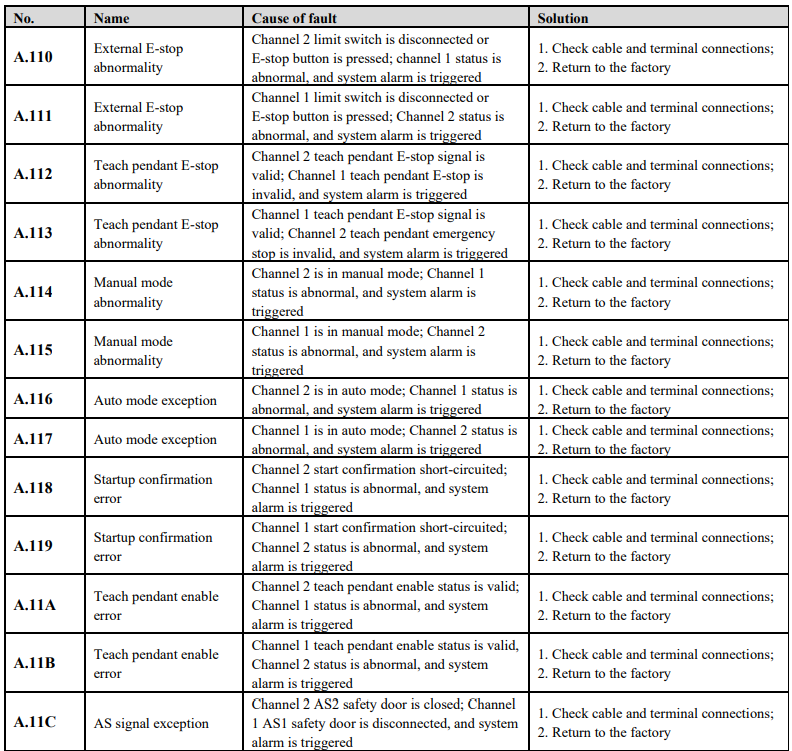
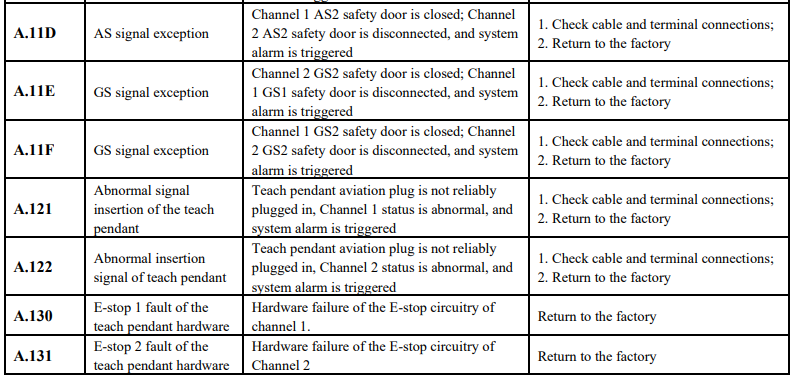
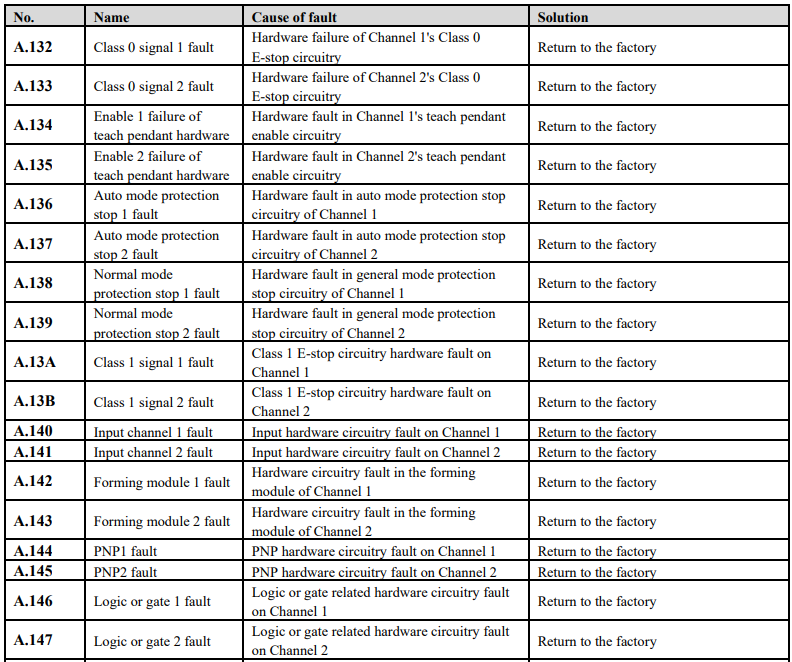
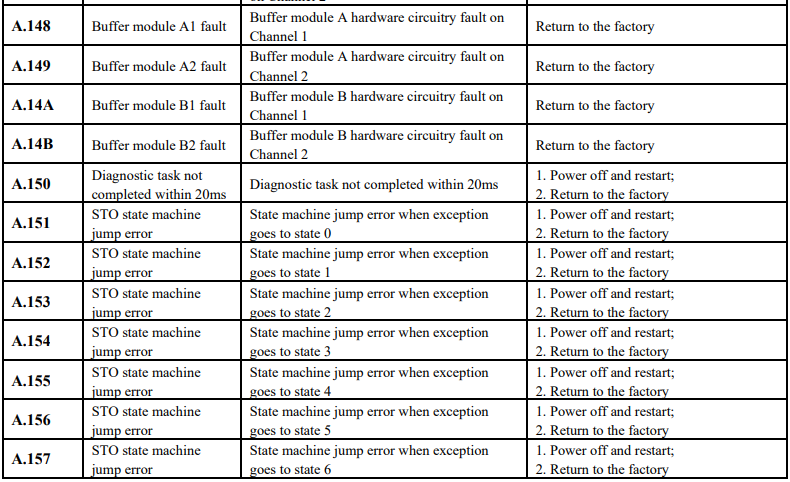
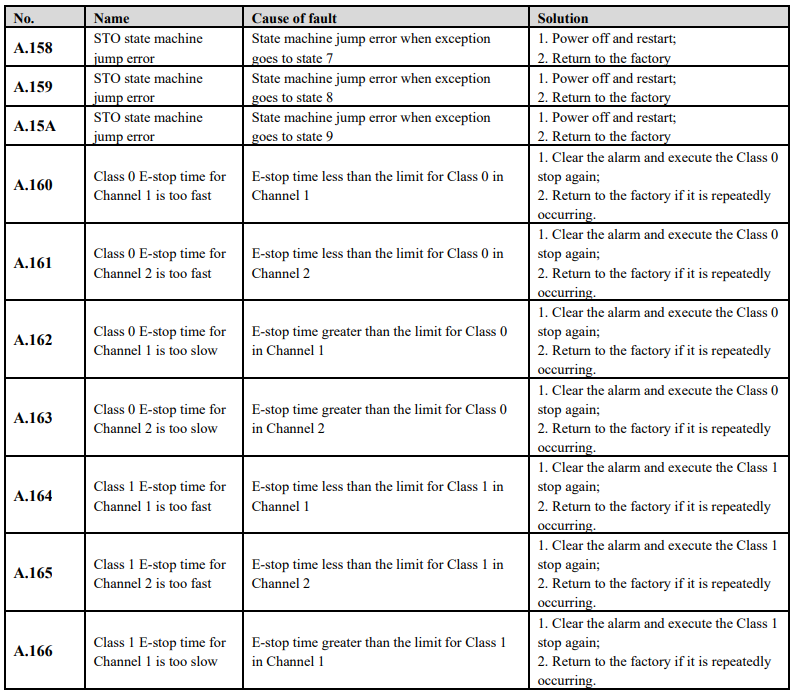
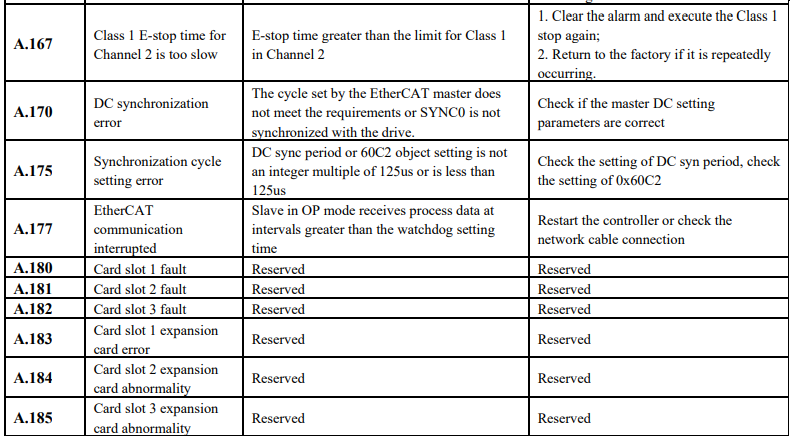
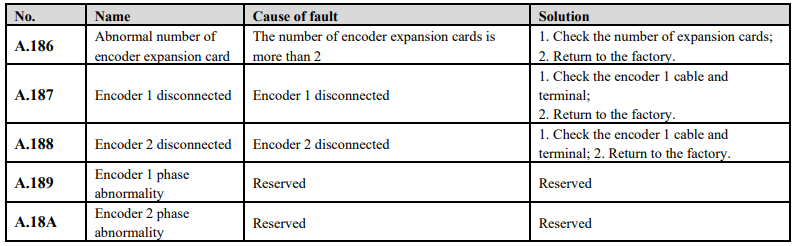
No comments to display
No comments to display