
7. Maintenance
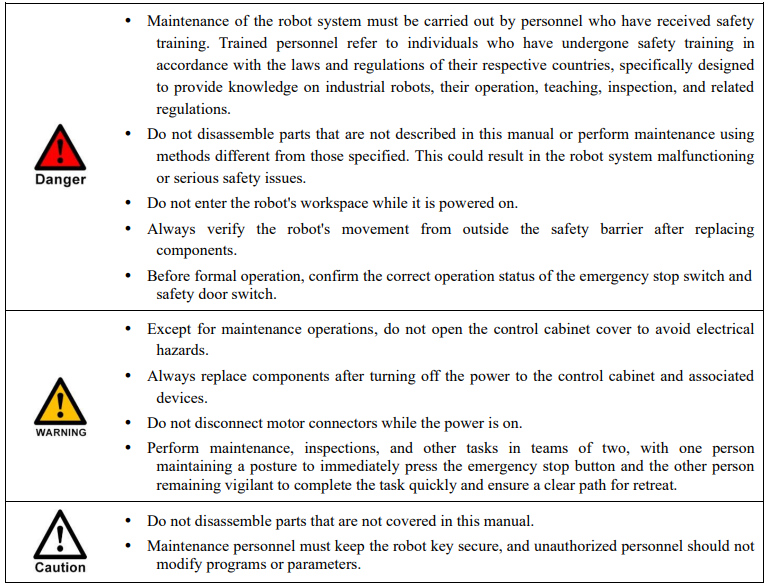
7.1 Maintenance precautions
Before performing maintenance, please carefully read the following content and ensure a thorough understanding of the methods for safe maintenance.
7.2 Daily inspection
To ensure the normal functioning of the product and protect it from damage, it is necessary to perform regular maintenance and inspections.
If the equipment is located in the following environments, reduce the inspection interval:
Temperature, humidity, dust, and vibration in the environment
High-temperature environment
Frequent start-stop situations
Environments with AC power and load fluctuations
Environments with significant vibration or impact
Environments with corrosive substances, such as acids or alkalis
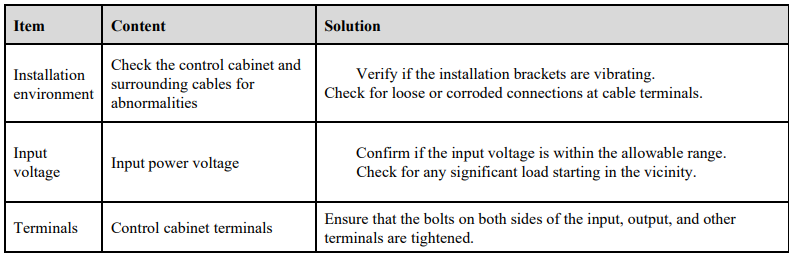
To ensure the proper functioning of the product and prevent damage, daily confirmation should be made for the following items:
7.3 Regular inspection
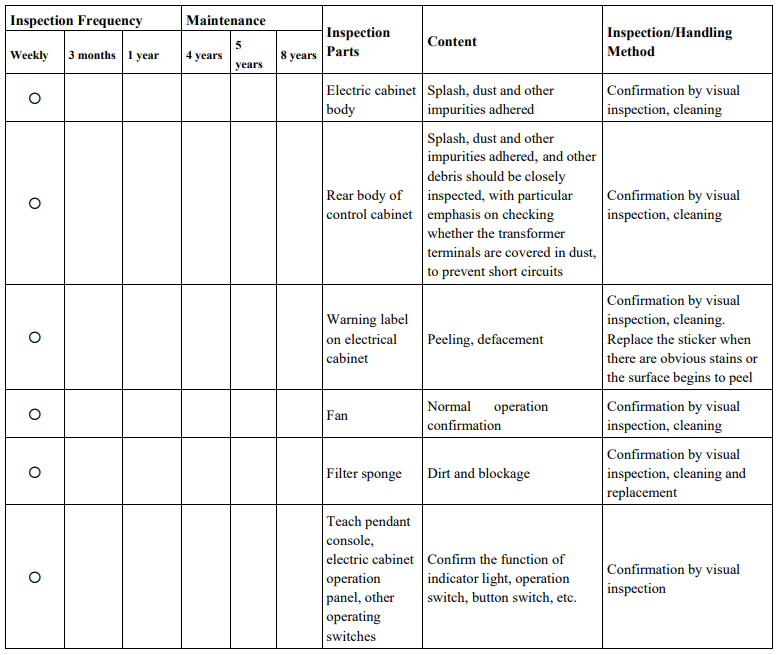
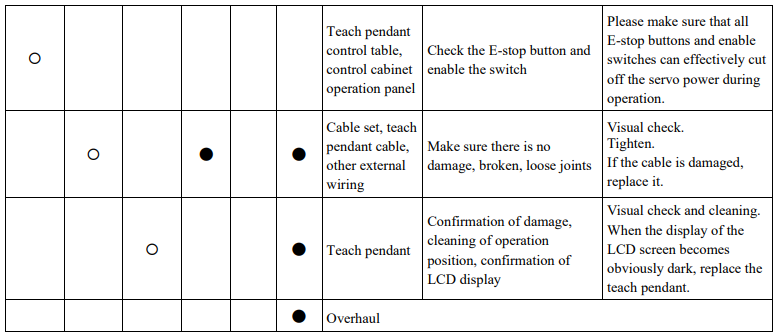
Regular inspections should be conducted on areas that are difficult to inspect during operation. It is essential to maintain the control cabinet in a clean state and effectively remove accumulated dust from the product surface to prevent dust, especially metal dust, from entering the internal components.


7.4 Program Backup and Loading
7.4.1 Program backup
Step 1 Insert the USB flash drive into the USB port of the teach pendant.
Step 2 Click  to enter the project management interface.
Step 3 Click "Management" on the right-side menu to access the interface shown in Figure 7-1.
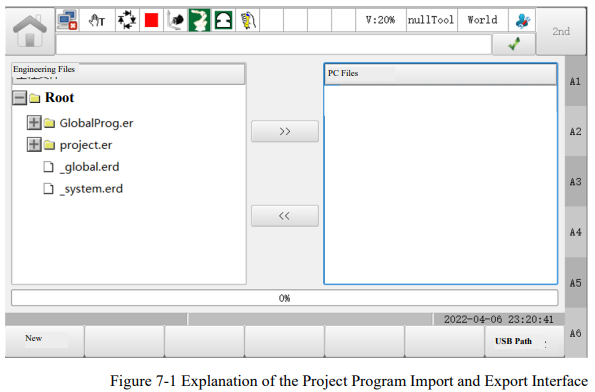
Step 4 Select the program to be backed up from the left side and click  to complete the backup of the program to the USB drive.
7.4.2 Program loading
Step 1 Insert the USB flash drive into the USB port of the teach pendant.
Step 2 Click  to enter the project management interface.
Step 3 Click "Management" on the right-side menu to access the interface shown in Figure 7-1.
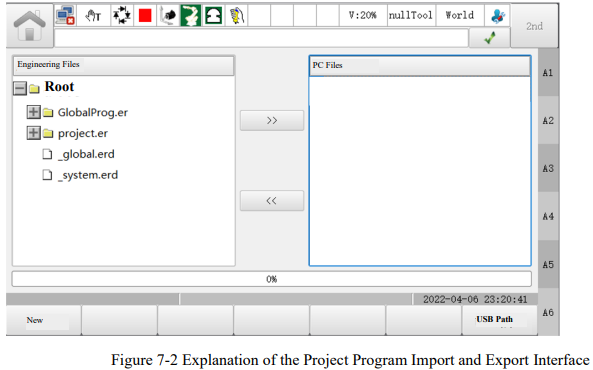
Step 4 Click the "USB Path" at the bottom right to select the previously backed-up program and import it into the teach pendant.
Step 5 Once the program is located in the "Program Management" interface, click the "Load" button.
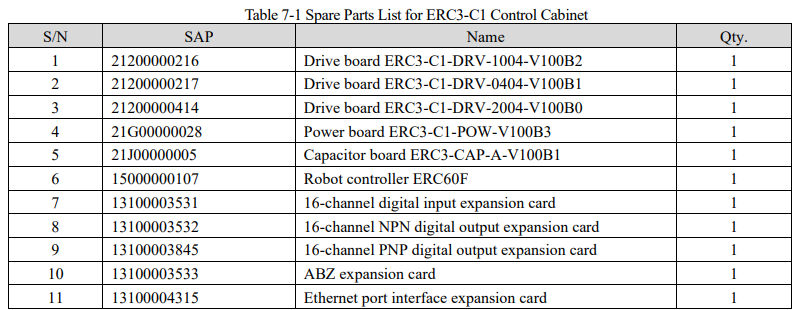
7.5 List of spare parts
No comments to display
No comments to display