
16. DATA, FIRMWARE, AND LOGS
This chapter describes how CME 2 manages amplifier data and firmware, how to download firmware, and use the amplifier logs.
Amplifier RAM and Flash Memory
Disk Storage of Amplifier and Motor Data Files
Data Management Tools
Amplifier Firmware
Error Log
Communications Log
16.1: Amplifier RAM and Flash Memory
Amplifier RAM holds status data and certain user-entered data during operation. Its contents are flushed when the amplifier is reset or powered off. Flash memory permanently stores the data. The contents of flash are loaded into amplifier RAM at power-up or reset, as described below.
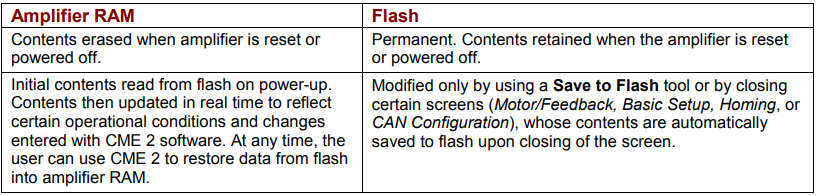
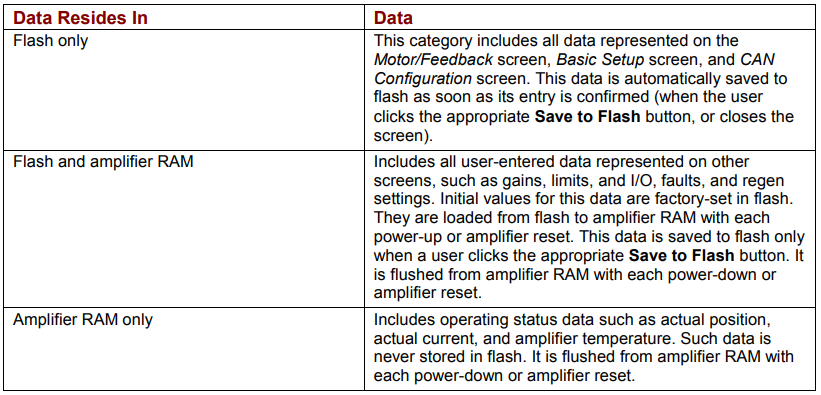
As described below, some data resides in flash only, some in amplifier RAM only, and some in both.
16.2: Disk Storage of Amplifier and Motor Data Files
At any time, the user can save certain data from amplifier RAM and flash memory to a file on disk. From the Main screen, the user can save all user-entered data represented on all screens (the data described as Flash only and Flash and amplifier RAM on). This data is saved in a Copley Controls amplifier data file with a .ccx filename extension.
From the Motor/Feedback screen, the user can save all data represented on the Motor/Feedback screen. This data is saved in a Copley Controls motor data file with a .ccm filename extension.
A .ccx file can be restored to return the amplifier to a previous state or to copy settings from one amplifier to another, as described in Copy Amplifier Data.
16.3: Data Management Tools
16.3.1: Amplifier Data Management Tools
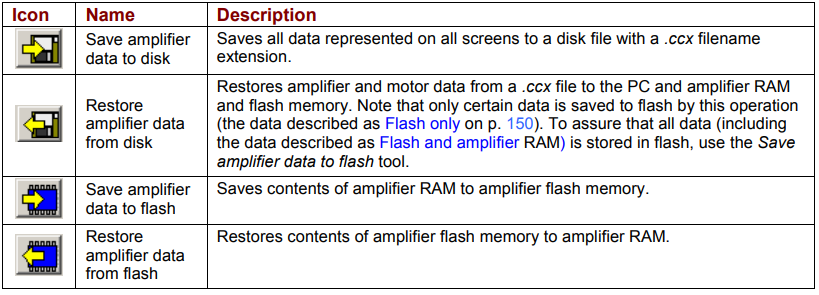
Operations performed using the amplifier data management tools at the top of the Main screen (shown below) affect amplifier settings, including motor/feedback data. (CVM Control Program data is not saved by these operations.)

The amplifier data management tools are described below.
16.3.2: Motor Data Management Tools
Operations performed using the data management tools at the bottom of the Motor/Feedback screen (shown below) affect only user-entered data that is represented on the Motor/Feedback screen.

The motor data management tools are described below
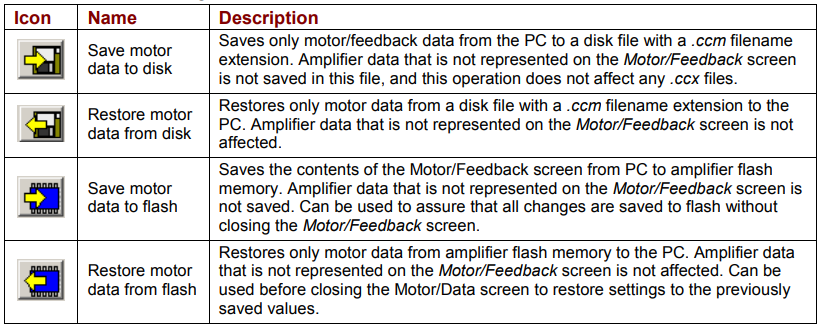
To use a data management tool, click the icon and respond to prompts.
16.3.3: Save MACRO File for Delta Tau Controllers
This feature is available only on Copley MACRO amplifiers such as the Accelnet MACRO, with a minimum firmware version of 1.2.
Save a MACRO file:
1 On the CME 2 Main screen, choose FileSave MACRO File to open the MACRO File
Save window:
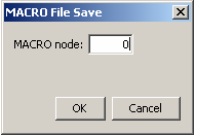
2 Enter the ID of the MACRO node with the settings you want to save and click OK.
3 When prompted, enter a File Name. If needed, navigate from the default AmpData folder to another folder where you wish to store the file.
4 Click Save to save the .pmc file in the same folder and close the screen
16.4: Amplifier Firmware
The amplifier’s flash memory holds the amplifier’s firmware. As needed, perform the following steps to obtain new firmware and download it to amplifier flash memory.
NOTE: Firmware can only be downloaded to an amplifier via a direct serial port or CAN connection between the amplifier and the PC. CME 2 does not support downloading firmware to a node amplifier via a multi-drop gateway amplifier.
NOTE: To check the firmware version currently loaded, click the Amplifier Properties button or choose HelpAbout.
WARNING: Do not power down or disconnect the amplifier during firmware download.
Download Firmware to the Amplifier
1 On the Main screen choose ToolsDownload Firmware to open the Download Firmware window.
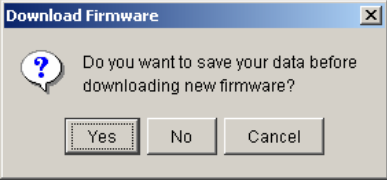
2 To download new firmware without saving amplifier and motor data, click No and then proceed to Step 4.
3 To save amplifier and motor data for backup purposes before downloading firmware, click Yes.
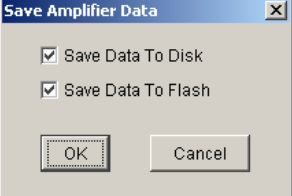
Choose whether to save to disk, flash, both, or neither.
Click OK to save data and continue to select a firmware image, or click Cancel to continue without saving data.
If Save Data to Disk was selected, use the Save Amplifier Data to Disk screen to browse to the folder where you want to save the .ccx file. Then enter a name in the Name field. Then click Save.
When the Firmware Images window appears, proceed to Step 4.
4 Use the Firmware Images window to locate and select a firmware image file.
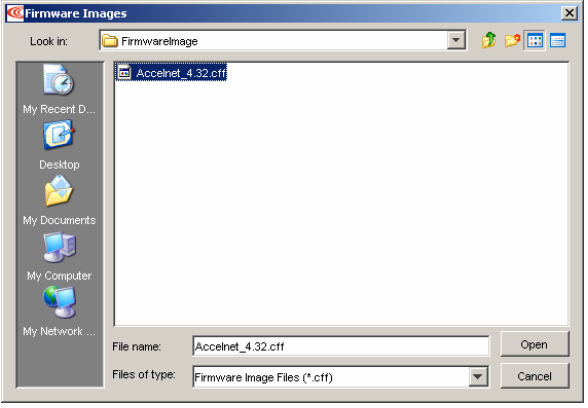
5 Click Open to begin the download. A message window displays a series of progress messages:
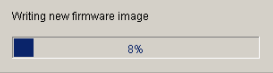
When the message window closes, the firmware download is complete
16.5: Error Log
Copley amplifiers track faults and warnings in a log in flash memory
1  Click the Error Log tool on the Main screen.
2 Click a tab to view a section of the log:
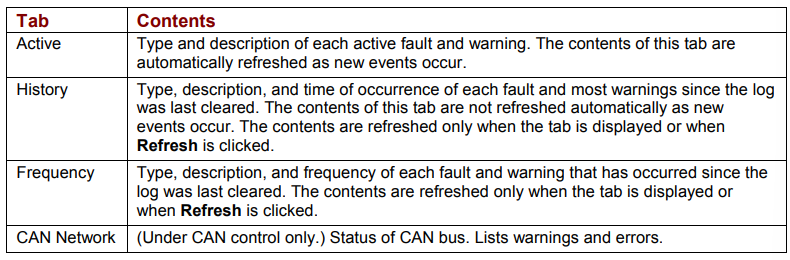
3 To update the contents of the History or Frequency tabs, click Refresh.
4 To save the log to a disk file, click the Save to Disk icon on the log screen. Then navigate to the appropriate folder, enter a File Name for the log, and click Save.
5 To clear the log if needed, press Clear Log. (Contents cannot be recovered.)
6 To close the log screen, click Close.
16.6: Communications Log
The communications log tracks all communications between CME 2 and the amplifier. The log is maintained in the PC’s RAM. Typically it is used only on request of customer service for troubleshooting purposes. When required, perform the following steps to manage the tracking and storage of these messages.
NOTE: Do not leave the Enable Logging control selected for any longer than necessary. Leaving it enabled for long periods can affect the PC’s performance.
View the CME 2 Communications Log
1 On the Main screen, choose ToolsCommunications Log to open the screen:
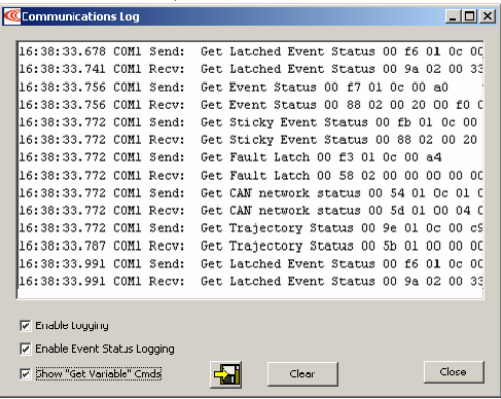
2 Select the logging options described below.
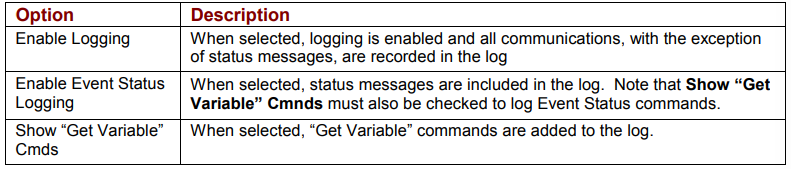
3 To clear the log contents from the PC’s RAM, press Clear.
NOTE: The log is limited to 2000 lines. When it reaches that limit, CME 2 automatically clears the oldest 1000 lines.
4  To save the log contents from the PC’s RAM to a disk file, click the Save to Disk icon. When prompted, enter a File name. Then, click Save to save the log file and close the window.
No comments to display
No comments to display