
APPENDIX H: GAIN SCHEDULING
The Gain Scheduling feature allows you to schedule gain adjustments based on changes to a key parameter. For instance, Pp, Vp, and Vi could be adjusted based on changes to commanded velocity.
Gain adjustments are specified in a Gain Scheduling Table. Each table row contains a key parameter value and the corresponding gain settings. The amplifier uses linear interpolation to make smooth gain adjustments between the programmed settings.
Gain scheduling involves the basic steps outlined below. Details follow in the chapter.
Configure Gain Scheduling
Set Up the Gain Scheduling Table(s), observing the Gain Scheduling Table Guidelines
H.1: Configure Gain Scheduling
Use this procedure to select basic Gain Scheduling options.
1 If necessary, Start CME 2 Software.
2 On the Main screen, choose AmplifierGain Scheduling.
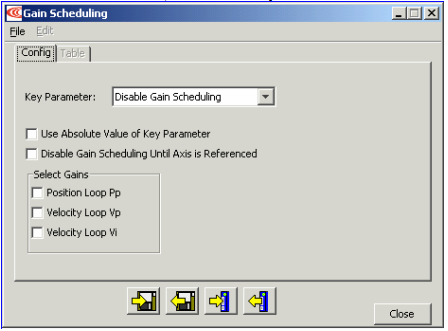
3 Choose the Key Parameter:
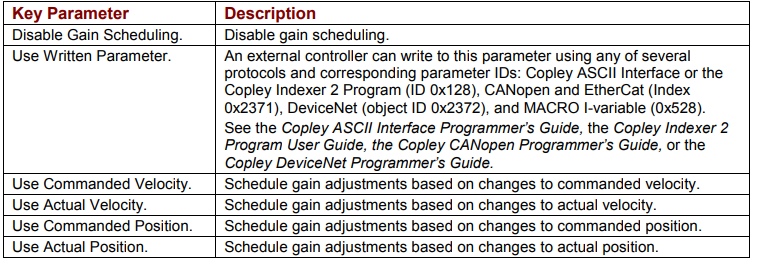
4 Optionally set controls:

5 Select the gains that you wish to adjust by schedule. The choices are Pp, Vp, and Vi. For each gain you select, a column will be enabled in the Gain Scheduling Table.
6 Continue with Set Up the Gain Scheduling Table(s)
H2: Set Up the Gain Scheduling Table(s)
H.2.1: Create a Gain Scheduling Table
1 If necessary, Start CME 2 Software
2 On the Main screen, choose AmplifierGain Scheduling.
3 On the Gain Scheduling screen, open the Table tab:
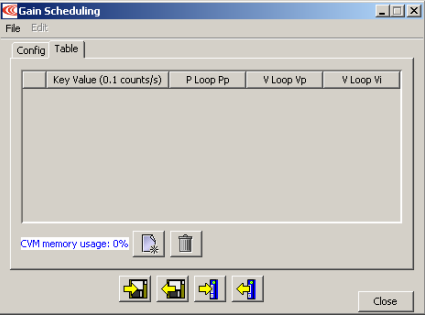
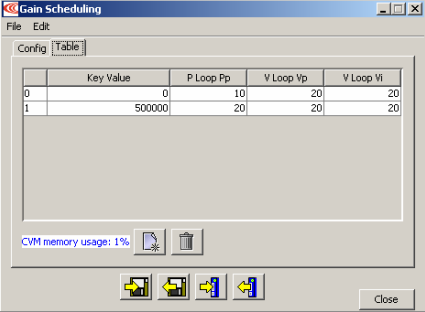
If there is a table stored in amplifier flash, the screen will show it as in this sample:
4
 If there is already a table stored in flash: Optionally Save Settings and Table Data to Disk (p. 197).
 Then click the Delete tool to delete the gain scheduling table data from amplifier flash and PC RAM.
5
 On the Table tab, click the Create a new gain scheduling table tool. See the prompt:
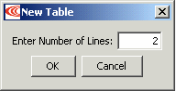
6 Enter the number of lines (the number of gain adjustment specifications). Click OK.
7 Enter the Key Parameter and gain adjustment values. All values must be integer, and each Key Parameter value must be greater than the previous as described in Gain Scheduling Table Guidelines. Click in a field to enter or modify a value. Standard mouse and keyboard editing techniques are available.
8
 On the Table tab, click Save gain scheduling table and setup to amplifier flash memory before attempting to run the new table. This saves the Table tabdata and all Config tab settings.
9 Close the screen.
H.2.2: Edit Gain Scheduling Table Values
1 If necessary, Start CME 2 Software.
2 On the Main screen, choose AmplifierGain Scheduling.
3 On the Gain Scheduling screen, open the Table tab:
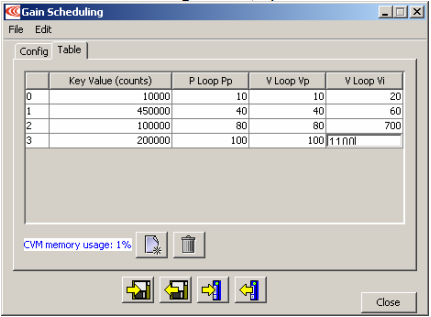
4 Edit using standard keyboard and mouse techniques. Note that if you begin typing immediately, the digits you enter will be inserted in front of any existing digits.
All values must be integer, and each Key Parameter value must be greater than the previous as described in Gain Scheduling Table Guidelines.
5
 On the Table tab, click Save gain scheduling table and setup to amplifier flash memory before attempting to run the new table. This saves the Table tab data and all Config tab settings.
6 Close the screen.
H.2.3: Save and Restore Gain Scheduling Tables and Settings
The Config tab settings and Table tab data can be saved to a Copley Controls gains file (filename extension .ccg) on disk. A .ccg file can be restored and then saved to flash.
Save Settings and Table Data to Disk
1
 On the Gain Scheduling screen, click the Save gain scheduling table and setup to disk tool to open the Save Table to Disk screen. Enter a name for the file, and click Save. Config tab settings and Table tab data are saved to the file.
2
 Click Save gain scheduling table and setup to amplifier flash memory before attempting to run the new table. This saves the Table tab data and all Config tab settings to amplifier flash.
3 Close the screen.
Restore Settings and Table Data from Disk
1 Set Up the Gain Scheduling Table(s) or Edit Gain Scheduling Table Values. Observe the Gain Scheduling Table Guidelines.
2
 On the Gain Scheduling screen, click the Restore gain scheduling table and setup from disk tool to open the Restore Gain Scheduling Table from Disk screen. Highlight the name of the file containing the settings and data you wish to restore, and click Open. The settings and data are restored to the Config and Table tabs.
3
 Click Save gain scheduling table and setup to amplifier flash memory before attempting to run the new table with the new settings. This saves all Config tab settings and Table tab data to amplifier flash.
4 Close the screen.
H.3: Gain Scheduling Table Guidelines
A Gain Scheduling Table contains a progression of Key Parameter values and corresponding gain adjustment values.
H.3.1: Gain Schedule Table Storage Limits
The maximum number of lines (gain adjustment specifications) that can be stored in the Gain Scheduling Table is 1000. A typical Gain Schedule Table will contain far fewer lines.
The number of Gain Scheduling Table lines is limited by the amount of CVM memory space available in the amplifier. A Gain Scheduling Table loaded into the amplifier shares that space with Copley Virtual Machine (CVM) programs and Camming Tables. Therefore, the maximum number of Gain Schedule Table lines will decrease if CVM programs or Camming Tables are stored in the amplifier.
The Gain Scheduling screen Tables tab displays the percentage of amplifier memory used:
H.3.2: Gain Schedule Data Rules
• All must be whole numbers (no fractional values).
• All Key Values must be increasing.
No comments to display
No comments to display