
5. Auxiliary Program Function
Each tab represents a specific function and includes the following functionalities:

5.1.System Output
It primarily displays controller information and outputs user operations, such as connecting to the controller

5.2.Error Message
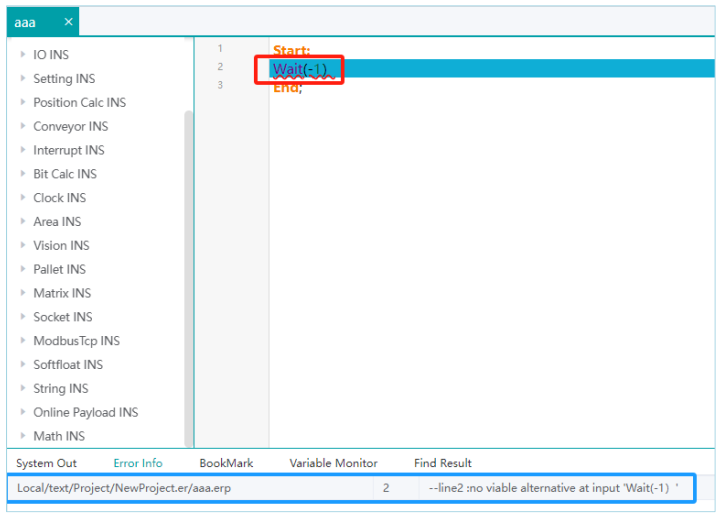
It is primarily utilized to offer error prompts and notifications during programming
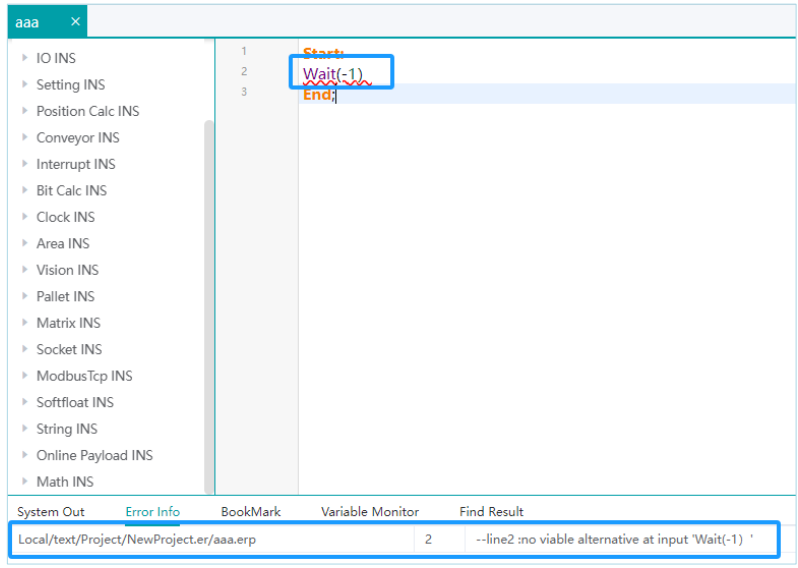
Double-clicking on an error will navigate to the corresponding error line in the text. For example, doubleclicking on a specific line in the "Error Messages" will jump to the corresponding error line.
5.3.Bookmarks
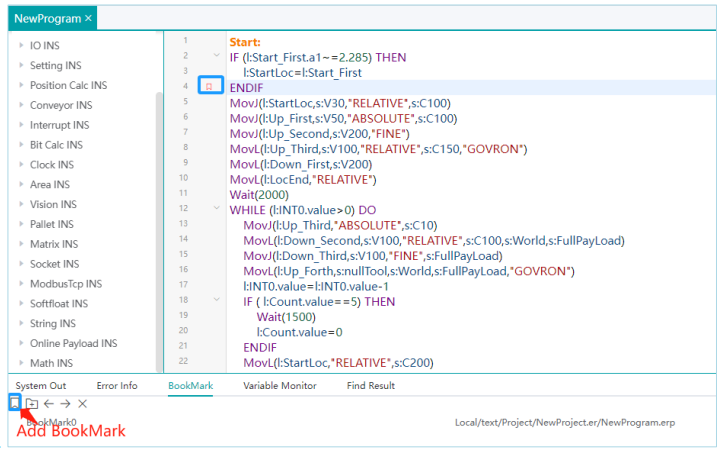
Mainly used for writing code and adding bookmarks to facilitate program searching and usage. When you click on 'Add Bookmark' in the program, the following label appears, indicating that the bookmark has been successfully added.
Double-clicking on a line in the bookmark bar can also jump to the specified line in the text.
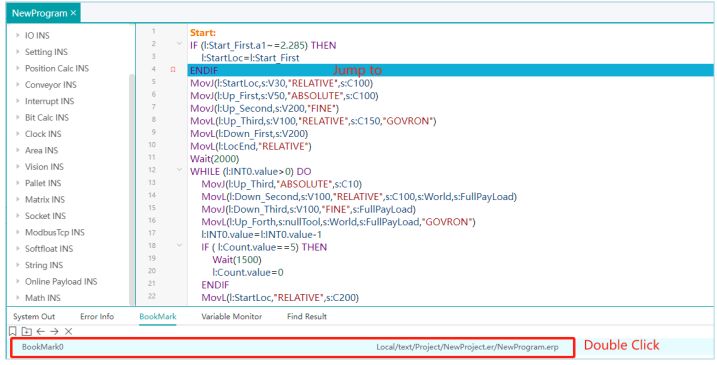
To remove a bookmark, simply double-click on the small tag associated with it.

5.4.Variable Monitoring
In a text program, selecting a variable and right-clicking on it allows the user to choose "Add Monitoring" to add the variable to the monitoring list.
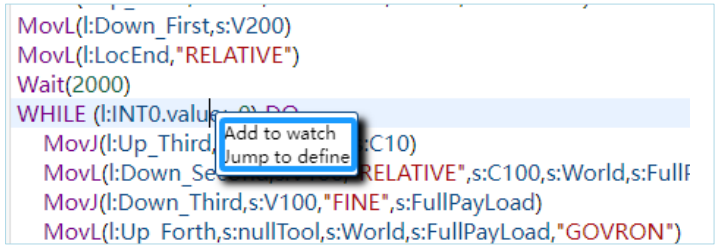
Successful addition is displayed as follows:

5.5. Search Results
This feature is mainly employed to search within the workspace and projects in the project management tree.
It supports case-sensitive and whole-word matching but does not support regular expressions.
5.5.1.Searching within the Workspace
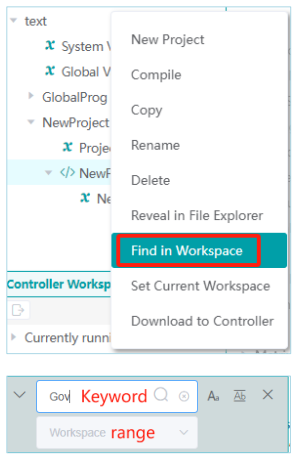
Search results:

5.5.2.Searching within a Project
Functionality similar to 5.5.1.
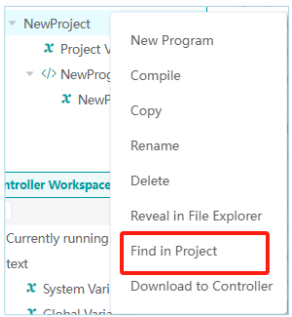
5.5.3. Searching within Text
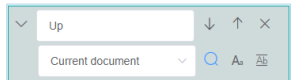
Opening a text editor and using the shortcut Ctrl+F brings up the search box as shown below.
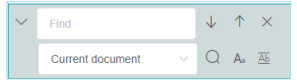
Search location options include the current document, project of the document, and workspace of the document.
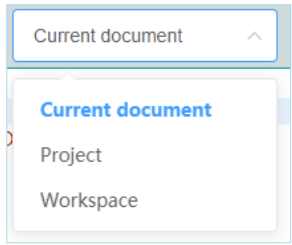
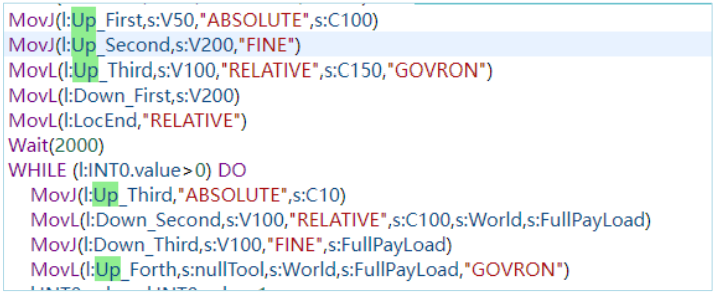
Search results are displayed under the "Search Results" tab.
No comments to display
No comments to display