
Eksport pliku CSV z RSLogix 500 z przecinkiem jako separatorem
Streszczenie: Jak wyeksportować tagi z RSLogix 500 do pliku CSV z przecinkiem jako separatorem: w krajach, gdzie separatorem listy jest średnik (m.in. Polska), trzeba przed eksportem zmienić separator w ustawieniach regionalnych Windows, inaczej EasyBuilder Pro nie odczyta pliku.
EN: How to export a comma-separated CSV from RSLogix 500 by changing the Windows list separator, so EasyBuilder Pro can read it.
Dotyczy: Allen-Bradley RSLogix 500, EasyBuilder Pro, Windows
Źródło: Weintek FAQ (materiały producenta), oryginalny tytuł: „How to export CSV file from RSLogix 500 software with comma sign?”
CSV is a kind of text file that uses comma sign to separate values. However, in the operating systems of some countries, semicolon is used as list separator, therefore when exporting CSV file using RSLogix500 software, semicolon is used and may cause EasyBuilder Pro to fail at identifying the file content. Change the list separator to comma sign through the following steps then export CSV file for EasyBuilder Pro to read.
Note: The countries that run operating systems using semicolon as list separator are listed below, please complete the setting before exporting CSV file.
Czech | Netherlands | France | Germany | Greek | Italy | Spain | Poland | Sweden | Finland | Russia | Malaysia | Turkey
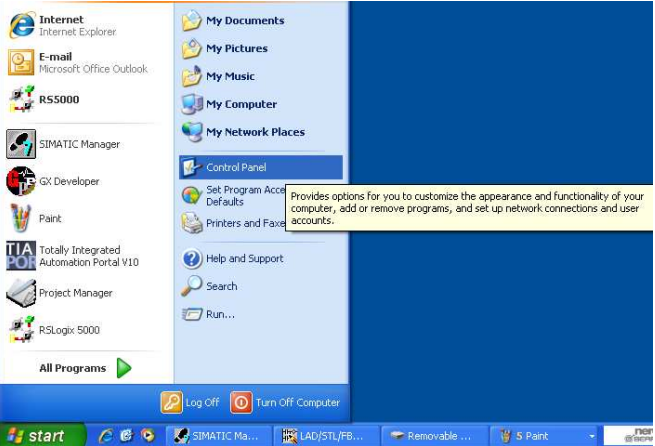
Select [Control Panel]
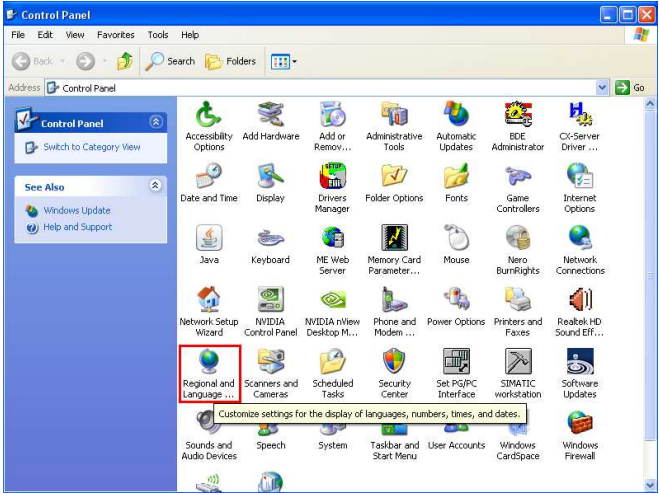
Select [Regional and Language].
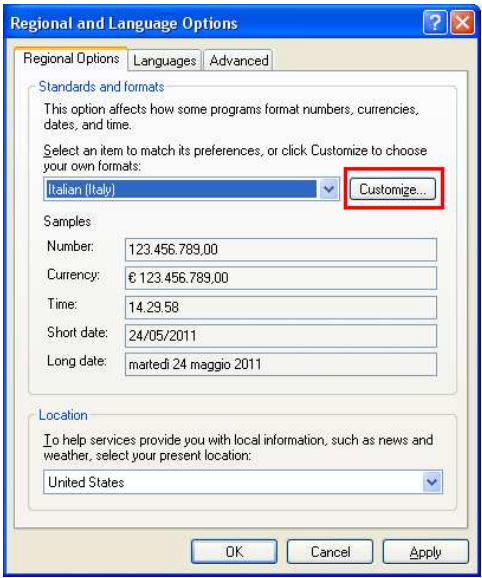
In Regional Options, select [Customize].
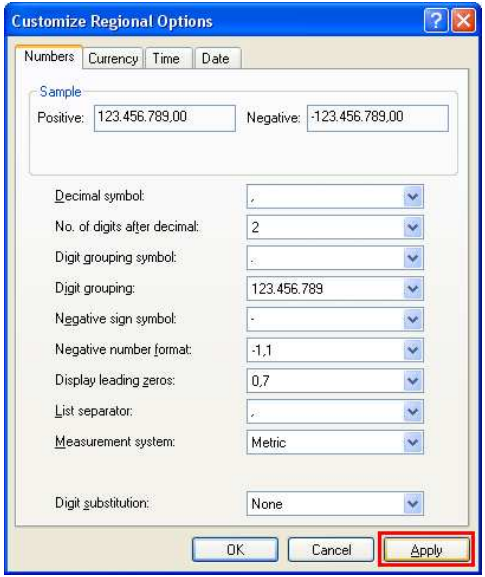
Select comma sign in List Separator
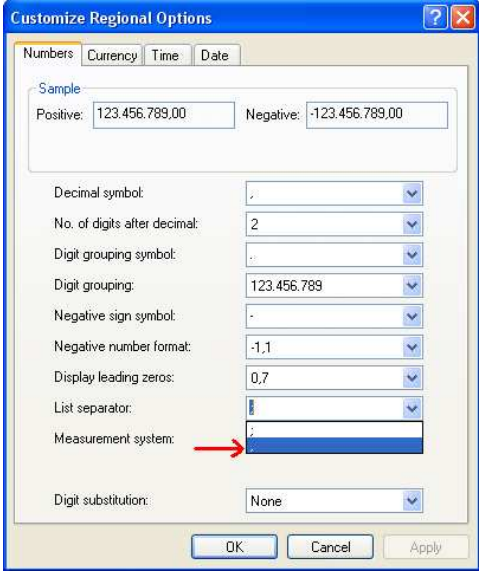
Click [Apply] and [OK].
 After finishing settings above, use RSLogix 500 to export CSV file, the CSV file will use “,” as default separator.
Słowa kluczowe
CSV, separator listy, przecinek, średnik, list separator, RSLogix 500, Allen-Bradley, Rockwell, import tagów, ustawienia regionalne, EasyBuilder Pro, How to export CSV file from RSLogix 500 software with comma sign?
No comments to display
No comments to display