
Konwersja pliku .dtl do .csv (EasyConverter)
Streszczenie: Konwersja pliku danych .dtl pobranego z HMI do .csv programem EasyConverter (Project Manager) i otwarcie go w Excelu.
EN: How to convert an HMI .dtl data file to .csv using EasyConverter.
Dotyczy: EasyConverter (Project Manager / Utility Manager)
Źródło: Weintek FAQ (materiały producenta), oryginalny tytuł: „How to translate dtl to csv file”
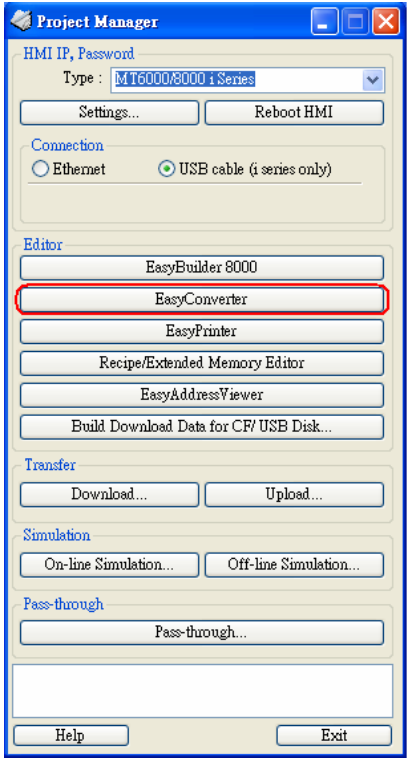
1. After users get the *.dtl file from HMI, open Project Manager and press EasyConverter
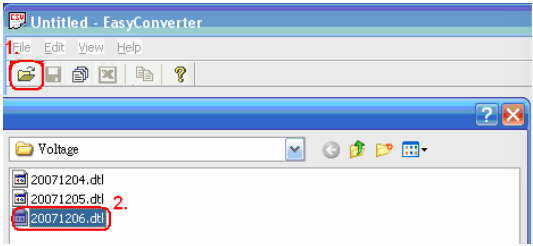
2. Select Open file and choose the desired *.dtl file from your pc.
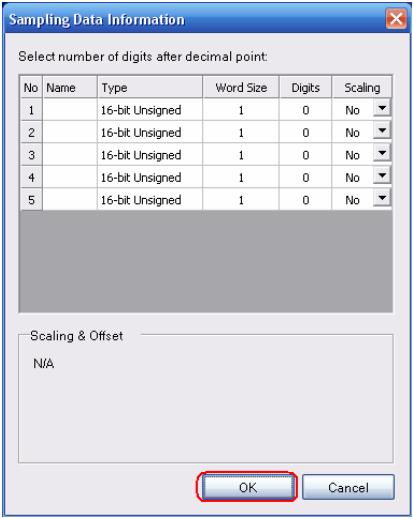
3. Press OK for reading the *.dtl file.
4. Press “EXCEL” icon to translate the file.
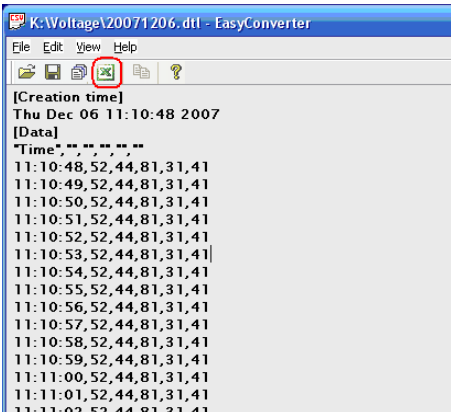
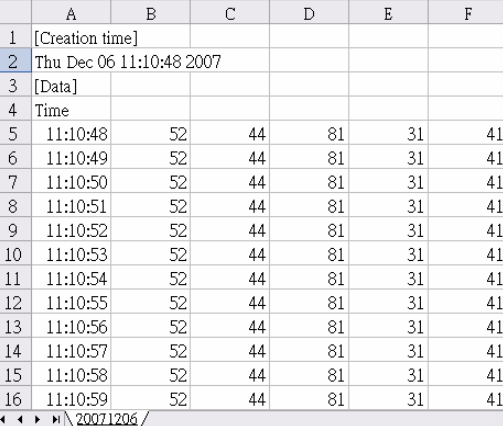
5. The *.dtl file will be translated to *.csv file by Excel.
Słowa kluczowe
plik .dtl, konwersja do CSV, EasyConverter, Excel, dane historyczne, data log, Project Manager, eksport danych, How to translate dtl to csv file
No comments to display
No comments to display