
Konfiguracja serwera VNC w HMI
Streszczenie: Uruchomienie serwera VNC w HMI (zakładka VNC server w ustawieniach systemowych, hasło logowania) i połączenie z PC przez przeglądarkę z Javą lub klienta VNC. Ograniczenia: jeden użytkownik naraz, rozłączenie po godzinie bezczynności, tylko serie X i i.
EN: How to enable the HMI VNC server and connect from a PC via a Java-enabled browser or VNC viewer; one user at a time, X and i series only.
Dotyczy: panele HMI Weintek serii X oraz i
Źródło: Weintek FAQ (materiały producenta), oryginalny tytuł: „How to use VNC server?”
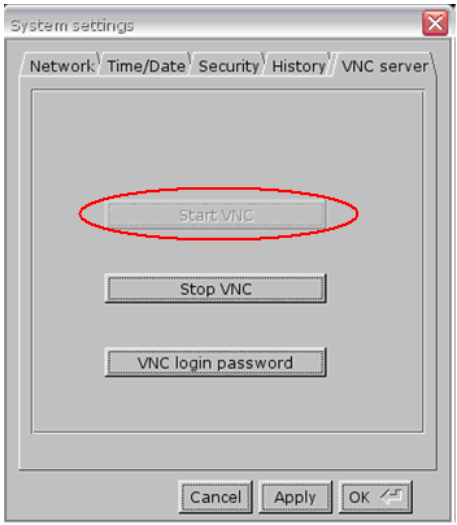
- Enable VNC server and set login password on HMI System Settings / VNC server tab.
2. Install Java for Internet Explorer or install VNC viewer.
Java web site: http://java.com
VNC viewer:
ftp://ftp.weintek.com/MT8000/utility/vnc-4_1_2-x86_win32_viewer.zip
VNC viewer for Pocket PC:
ftp://ftp.weintek.com/MT8000/utility/zoomVNC.CAB
http://zoomvnc.com/
3. Execute IE, and enter IP address of HMI: http://192.168.1.28 (example)
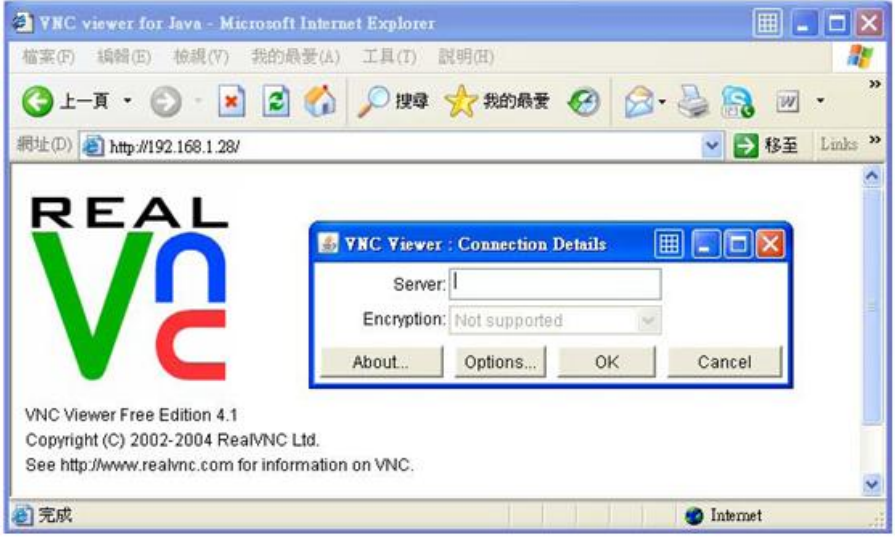
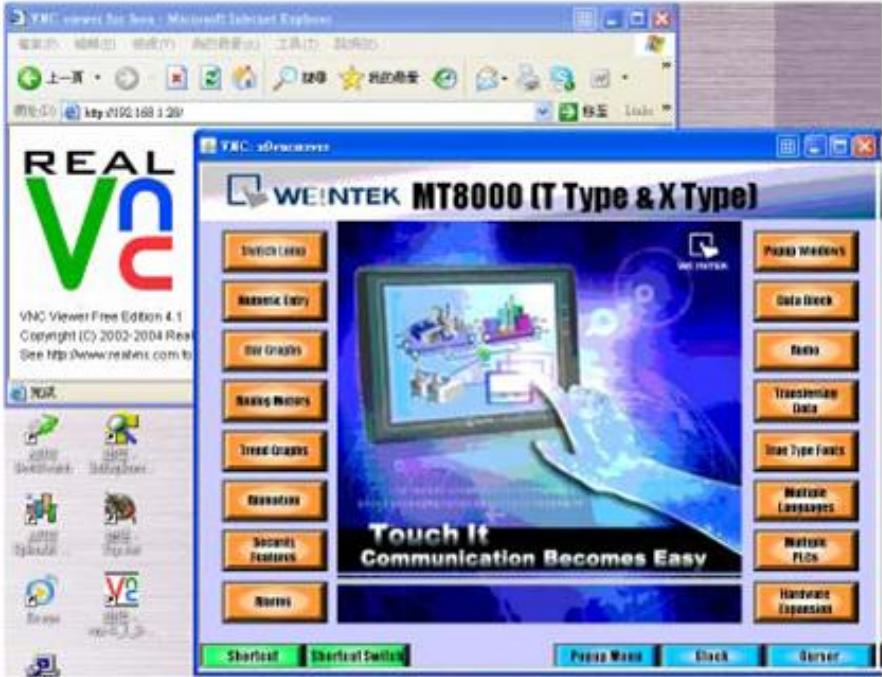
Or execute VNC viewer, and enter HMI IP address and password.
Note:
(1) Only available for one user to login to VNC at the same time.
(2) HMI will reject VNC connection if no operation done for one hour.
(3) X and i series support VNC function only.
Słowa kluczowe
VNC, serwer VNC, VNC server, zdalny dostęp, VNC viewer, przeglądarka, Java, hasło VNC, port 5900, zdalny podgląd, How to use VNC server?
No comments to display
No comments to display