
11. Ethernet Pass-Through Communication
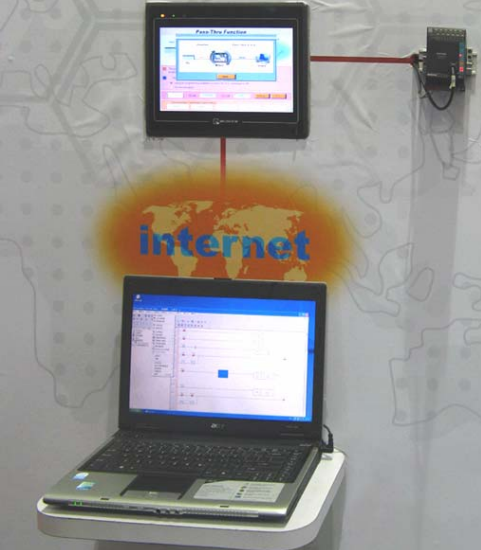
MT8000 provides Ethernet pass-through communication which allows PC to link to the PLC through the HMI. In this situation, the role of HMI is similar to a converter.
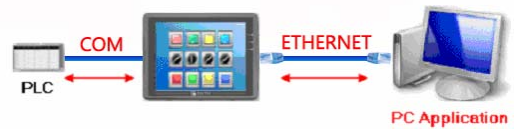
First, a virtual serial port must be created on PC. The application program on PC can communicate with PLC through this virtual serial port.
Instructions are as follows:
1. Open Project Manager and click the [ Pass-through] button ;

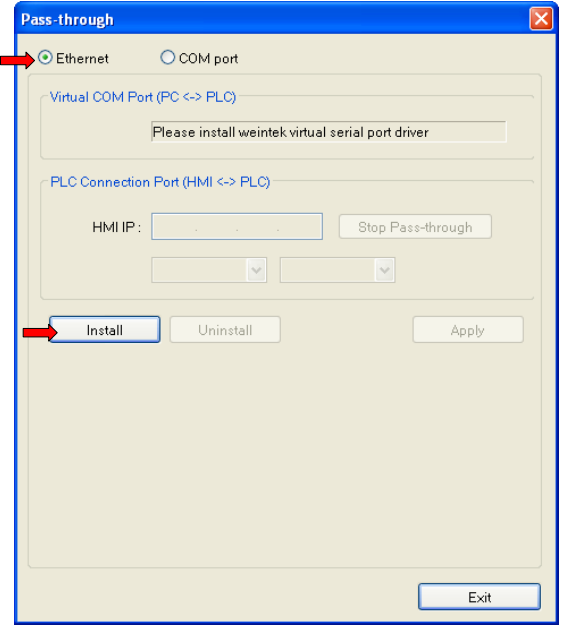
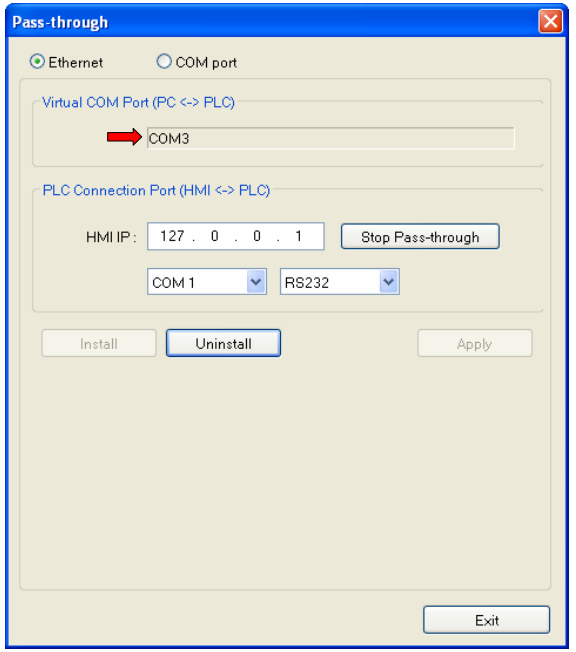
2. Check the [Ethernet] radio box, and click [ Install] button to install the virtual serial port driver ;
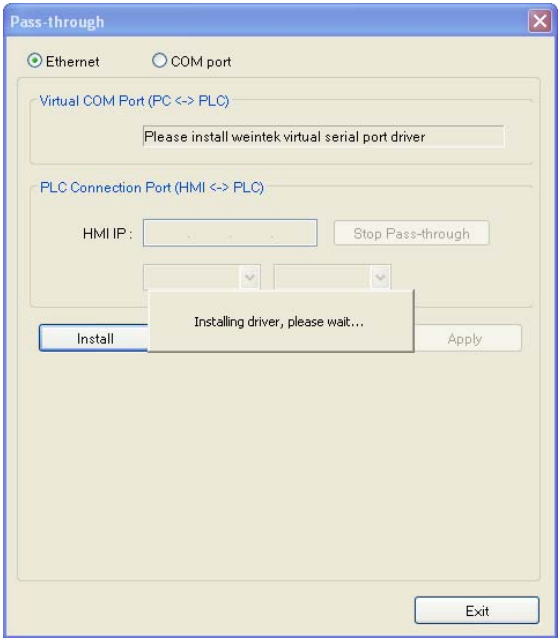
3. Installing driver ...
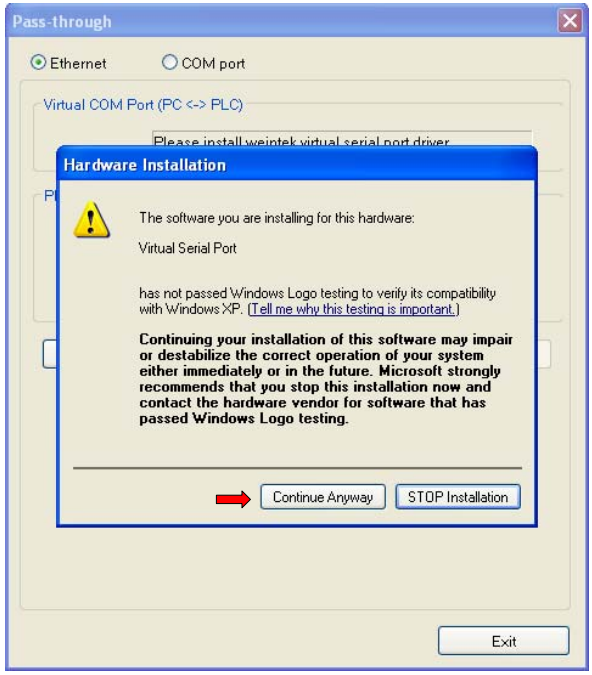
4. Click [ Continue Anyway]
5. Virtural seriel port installation completed. A new virtual COM port number is found ;
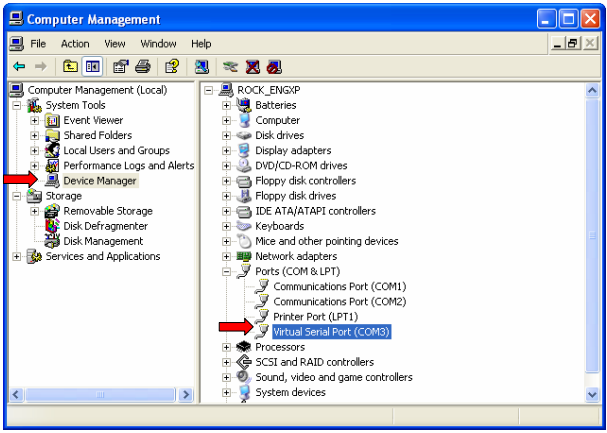
6. Check out the [ Computer Management] to see if the virtual COM port is
successfully installed.
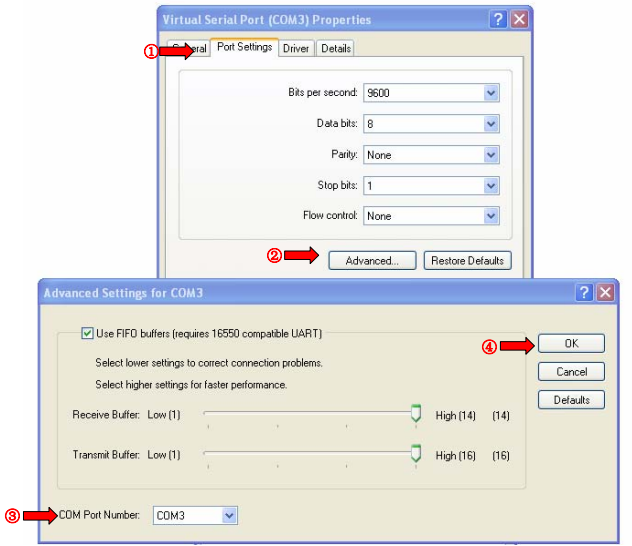
7. Select the [ Virtual Serial Port] and click right key . Select [Properties ] to change COM port number ;
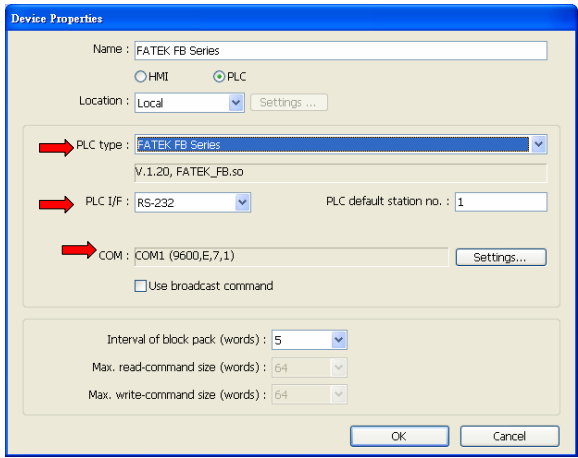
8. Take communication between Fatek PLC and MT8000 for example, if the MT8000 HMI IP address is 192.168.1.200, the PLC parameter settings are as follows :
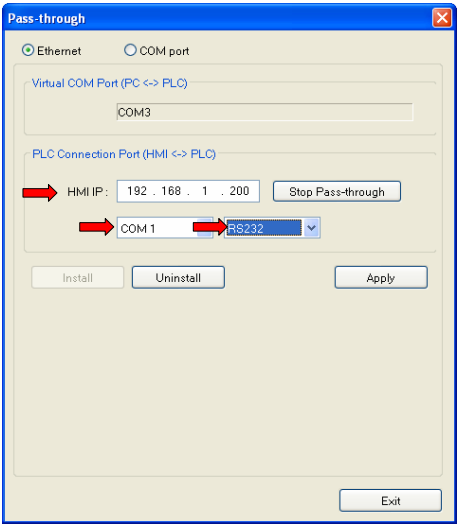
9. In the [ Pass-through] window, setup the HMI IP address : 192.168.1.200 ; Set the COM port number to COM1, which is the communication port number between MT8000 and the PLC ; The COM port type is RS232, which is the communication port type between MT8000 and the PLC ; These settings are according to the window shown above ; Click [ Apply] button.
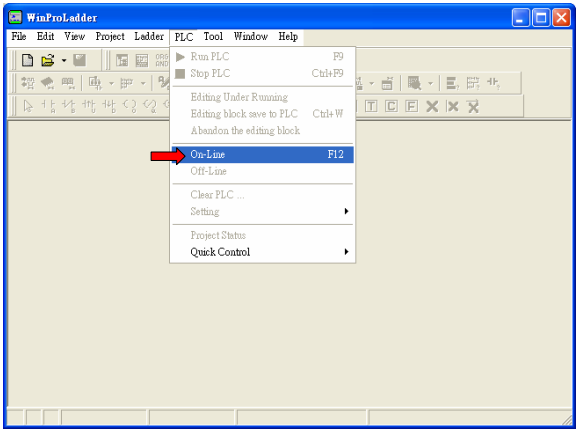
10. Open the Fatek PLC software : WinProladder ; Select [On-Line] under PLC menu ;
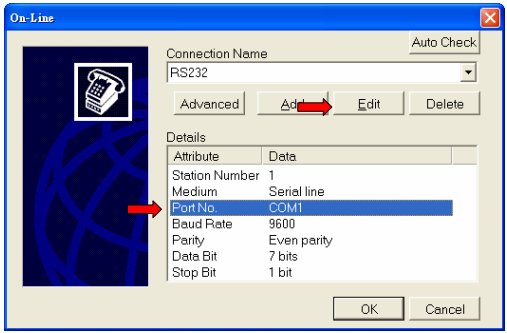
11. Set the COM port ;
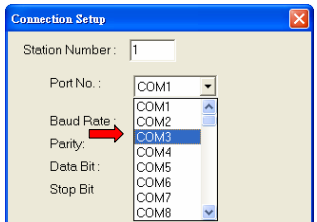
12. Set the COM port number to COM3, which is the Virtual Serial Port number that you get in step 5 ;
13. Connection succeeded ;
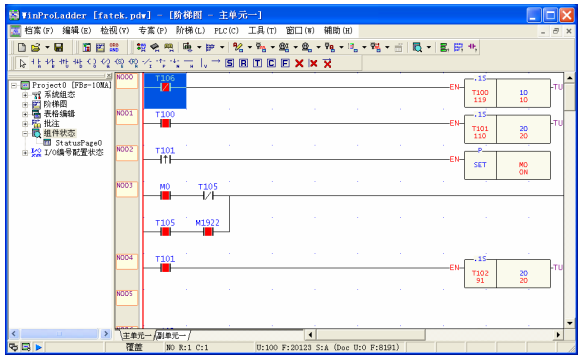
14. PC-HMI-PLC connection example ;
No comments to display
No comments to display