
73. How to Download Complete Font to HMI?
In EasyBuilder, only the fonts used in the project are downloaded to HMI. When displaying the languages written from right to left (for example: Arabic), certain fonts may not be correctly displayed on HMI. To solve this problem, you may download the complete font file to HMI. This FAQ explains how to configure the project in order to display the fonts correctly
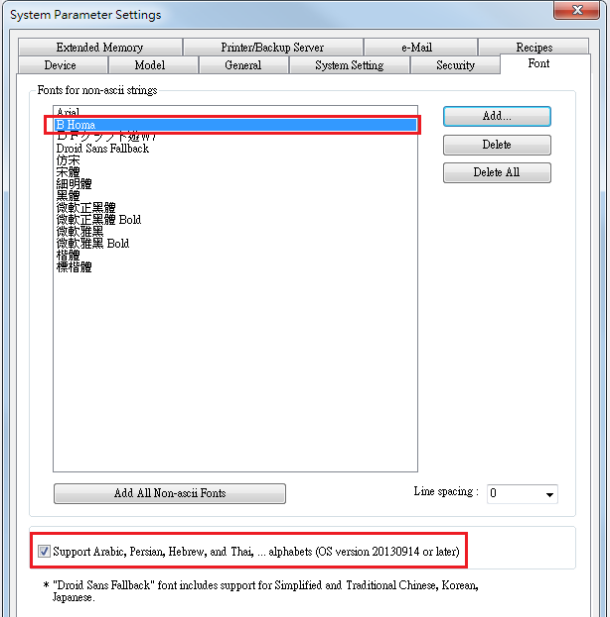
Step 1. To display the languages written from right to left, please go to EasyBuilder » System Parameter Settings » Font tab and select [Support Arabic, Persian, Hebrew, and Thai, …alphabets]. Add the font to be displayed into the “Fonts for non-ascii strings” list. The following part illustrates how to download B Homa font as an example. (B Homa font can be used to display Arabic)
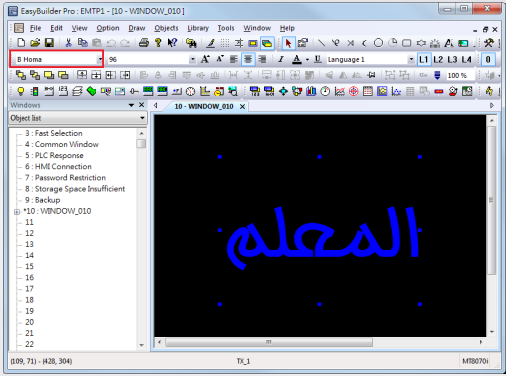
Step 2. In the project editing window, enter the text and use B Homa font.
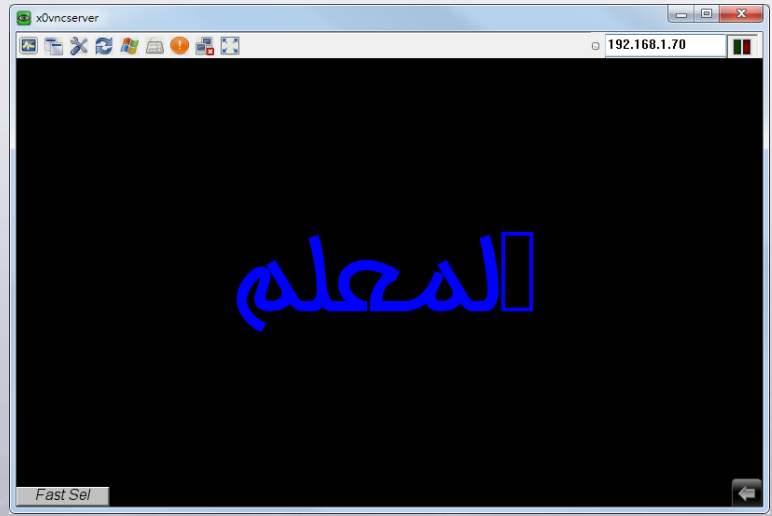
Step 3. Save, compile and then download the project. You may find that the font is incorrectly displayed.
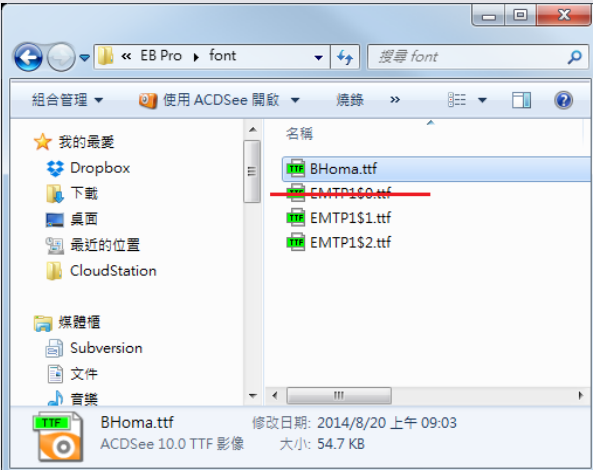
Step 4. Compile the project again. Please note the directory to save the font file. In this example, the B Homa font file is saved in:
D:\EasyBuilder\EB Pro\font\EMTP1$0.ttf
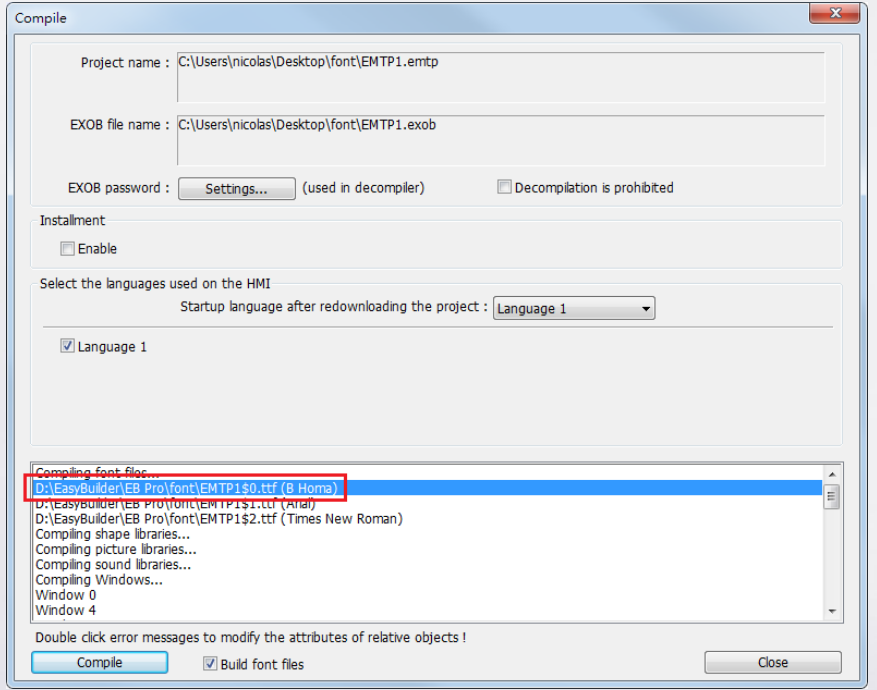
Step 5. Copy the B Homa font file from “C:\Windows\Fonts” and save to “D:\EasyBuilder\EB Pro\font”. Delete the existing EMTP1$0.ttf file and then rename B Homa font file to “EMTP1$0.ttf”. Please do not compile the project again after changing the font file; otherwise, the font file will be replaced.
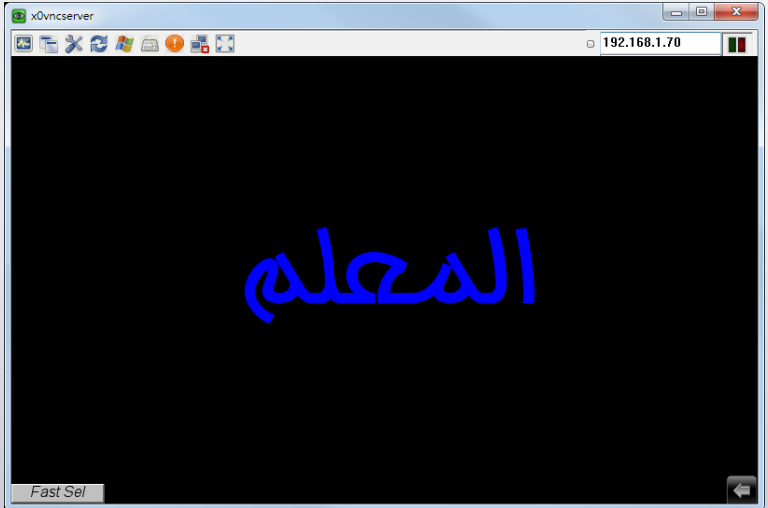
Step 6. Download the project to HMI, the complete font file will be included in the project, and can be correctly displayed.
Note: The supported project size can be different between models, please make sure that the total size of the project file plus the complete font file does not exceed the limit.
No comments to display
No comments to display