
6. Update the MT8000/6000 OS
MT8000/6000 OS Image version is 20081013 or later, which supports using USB disk or CF card to update OS. The update process is similar to downloading project to the touch panel HMI. The following example shows how to update OS by using USB disk.
1. Find the corresponding OS document in the MT8000/6000 and copy it to the USB disk (as shown in picture 1); For example, copy it to the 001 folder that is previously created;
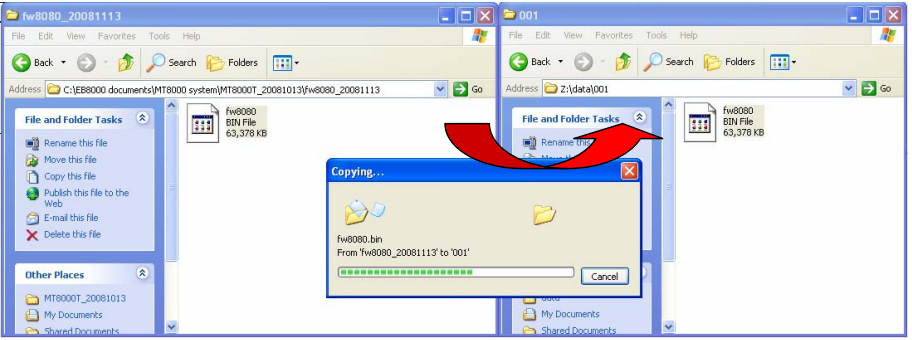 picture 1
2. Insert the USB disk into the USB port of the MT8000/6000;
3. Move the cursor to the lower-right corner of the touch panel screen. A “<” button (as shown in picture 2) will show up, click it to open status bar(as shown in picture 3);
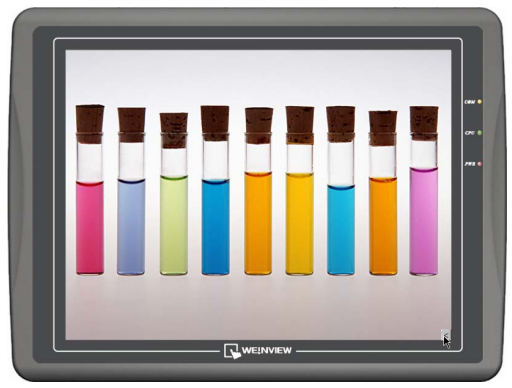
picture 2
4. Click  button, a popup window will appear and ask users to input the password (as shown in picture 4);
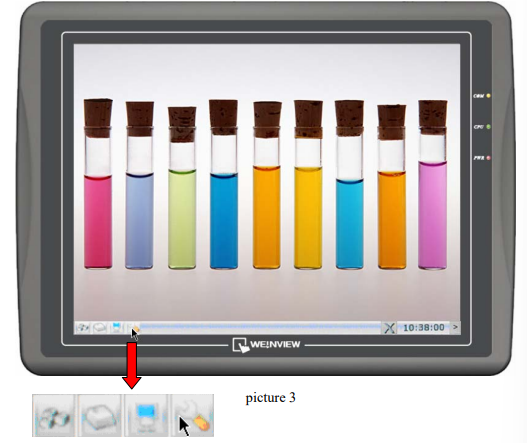
5. Enter the correct password (factory default setting password: 111111), and then the “System settings” window will show up. Switch to the “Upgrade firmware” tab (as shown in picture 5);
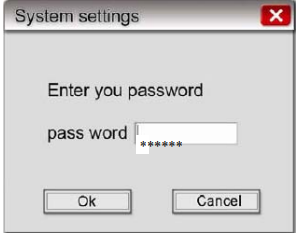 picture 4
6. Click “Upgrade firmware” button, a “Pick a Directory” popup window will show up (as shown in picture 6);
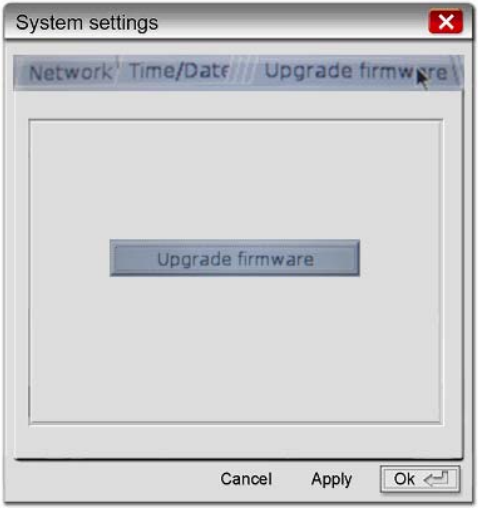
picture 5
7. Open the usbdisk folder, select the 001 folder, then click “OK” button;
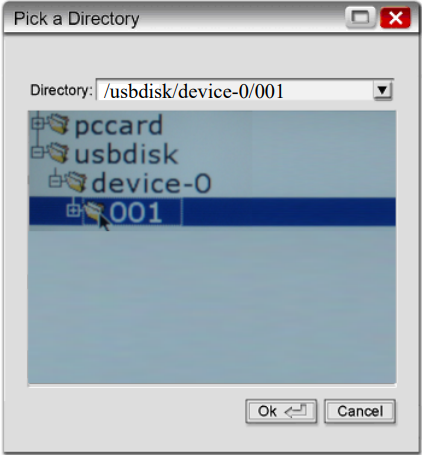
picture 6
8. Start upgrading the OS. This process will take a few minutes. The progressing bar indicates the upgrading status (as shown in picture 7);
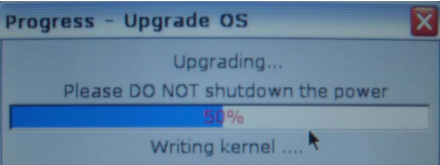
picture 7
9. After the upgrading process is completed, the system will automatically restart; a touch panel calibration is recommended.
No comments to display
No comments to display