
67. How to correctly display the project content in different DPI settings?
The computer display resolution is getting higher and higher, in order to display the text clearer, changing the DPI is a choice. However, this also influences the EasyBuilder project display. Incorrect display can happen due to the difference in DPI settings from one computer to another. To avoid this, please follow the steps to adjust the DPI setting.
Checking the current size of text
Step 1. Click the right mouse button on the desktop and select [screen resolution] » [Resolution]。
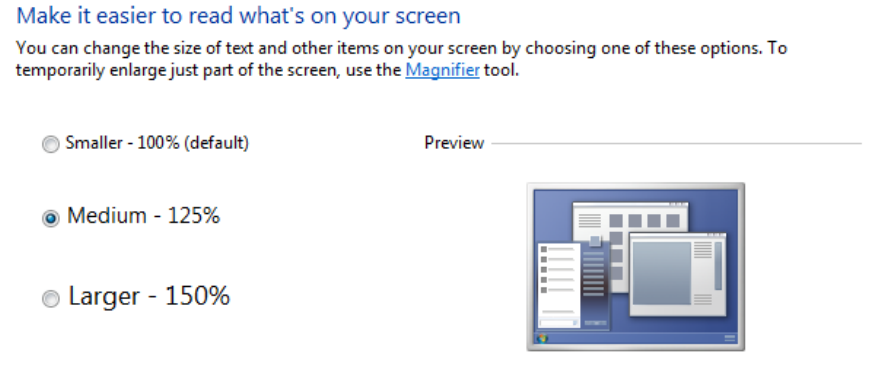
Adjusting the DPI of EasyBuilder project
Step 1. Launch EasyBuilder Pro, select [Tools] » [Text DPI Setting]
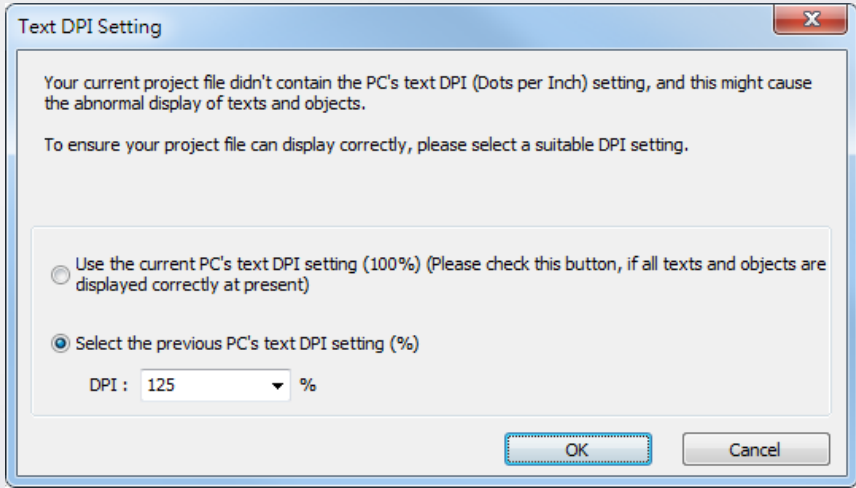
Step 2. Choose [Select the previous PC’s text DPI setting], adjust the DPI to the same setting as the previous computer used to create this project. The text will be correctly displayed. Click [OK]; the system will generate a BAK file for future reference.
Step 3. The DPI setting will be stored in the system. Next time when opening this project file, the previous PC’s DPI setting will be used.
No comments to display
No comments to display