
8. Translate MT500 Project to MT8000
How to translate projects for MT500 model to MT8000/eMT3000 model
EasyBuilder provides a feature to translate project files used on MT500 models and download them to MT8000/eMT3000 models. In this way, the project files can be upgraded without being rebuilt.
The following demonstration explains how to translate a MT500 project file and use it on an eMT3000 model.
A.
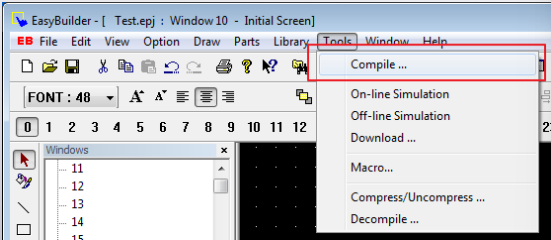
Step 1. Since EasyBuilder Pro (EB Pro) can only convert from .eob format file, open the .epj file in EasyBuilder500 (EB500) to convert first. Click [Tools] » [Compile] to convert the .epj file to an .eob file. If the file is already an .eob file, skip this step.
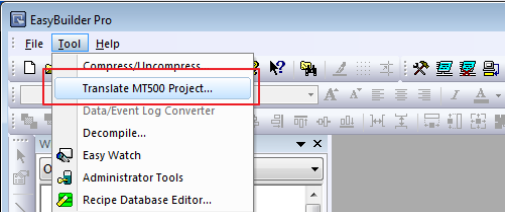
Step 2 Launch EB Pro, click [Tools] » [Translate MT500 Project].
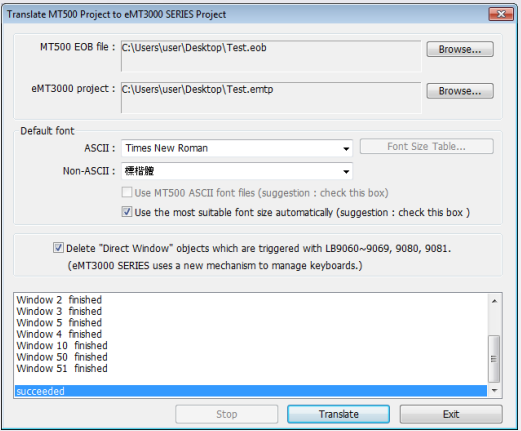
Step 3. Select the .eob file and the needed functions, click [Translate] to start translating.
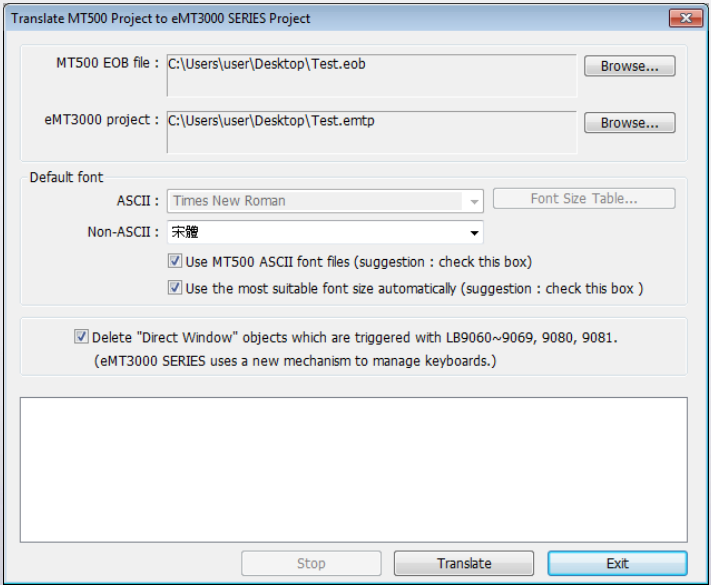
3.1 In [MT500 EOB file] box select the .eob file.
3.2 In [eMT3000 project] box enter the directory and file name to store the translated file.
3.3 EB500 uses Dos Font whereas EB Pro uses Windows True Font.
When translating the project, select [Use MT500 ASCII font files] and [Use the most suitable font size automatically] if needed.
3.4 If not selecting [Use the most suitable font size automatically], click [Font Size Table] to select the font size used when translating EB500 font to EB Pro font.
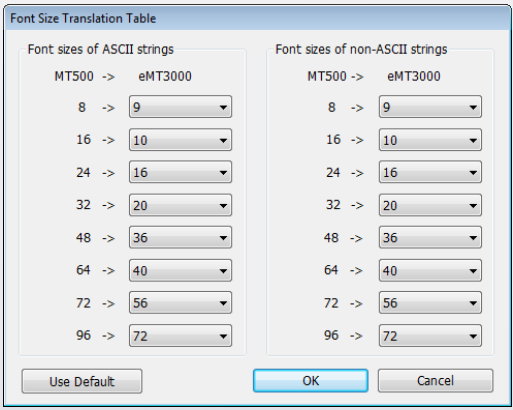
(Note: When the font size is bigger than the object size, Text object cannot display complete content.)
3.5 In EB500, to trigger a popup keyboard, a Direct Window which works together with relative system tags is needed. In EB Pro, the popup keyboard can be set simply by selecting the window number when creating the object. Therefore, it is recommended to select [Delete “Direct Window” objects which are triggered with LB9060~6069, 9080, 9081.] check box.
Step 4. After translation, the “succeeded” message is displayed. Click [Exit] to leave.
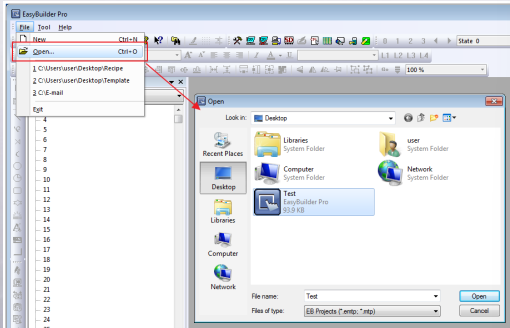
Step 5. The translated file is stored in the specified directory. Click [File] » [Open] to open the .emtp file.
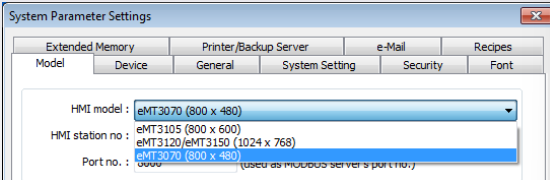
Step 6. When open the .emtp file, [System Parameter Settings] dialog box appears. Select a HMI model.
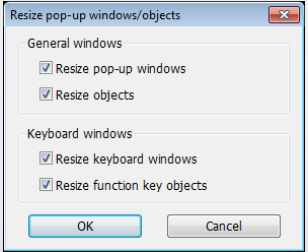
Step 7. The screen size of the selected model may be different from that of the MT500 model. Therefore, the following dialog box appears. Select whether to resize windows or objects and click [OK] to finish translation.
Notes
Generally, most of the translations can be done following the steps described earlier. However, some objects or features designed differently in EB500 and EB Pro. Some steps which are more complicated is simplified and improved in EB Pro, and some features can’t be translated by EB Pro and therefore requires users to adjust manually. Please note if the following items are used in EB500 project file, and check carefully on the content.
Improved features
Combines Alarm and Event Log
Adds scroll bar on Alarm Display / Event Display objects.
Adds scroll bar on Trend Display object.
Combines Recipe Transfer object with Data Transfer (Trigger-Based) object.
Changes the limits of keyboard value entry.
Manually adjust features
Window size
Security class (user password)
Popup window
RS485 default communication interface
Data displayed in keyboard window
Trend Display
Label Tag Library
Customized Address Tag Library
Language
Window name
Object description
Improved features
Combines Alarm and Event Log In EB500, alarms are logged in Alarm Scan object and events are logged in Event Log object. EB Pro combines these two types of logs in Alarm (Event) Log object.
Adds scroll bar on Alarm Display / Event Display objects. EB Pro includes scroll bars on Alarm Display / Event Display objects. Users don’t have to create a word register to control event display in EB Pro.
Adds scroll bar on Trend Display object. EB Pro includes scroll bars on Trend Display objects. Users don’t have to create a word register to control trend display in EB Pro.
Combines Recipe Transfer object with Data Transfer (Trigger-Based) object. EB Pro includes the functions of Recipe Transfer object on Data Transfer (Trigger-Based) object.
Changes the limits of keyboard value entry. The format of value entry in EB500 is 32-bit signed, whereas the format of value entry in EB Pro is 32-bit float.
Manually adjust features
Window size
The screen size of MT500 may be different from that of the new model. If so, adjust the screen size of the project..
1. In EB Pro, right-click on the window tree in project and select [Attribute] to check the current window size.
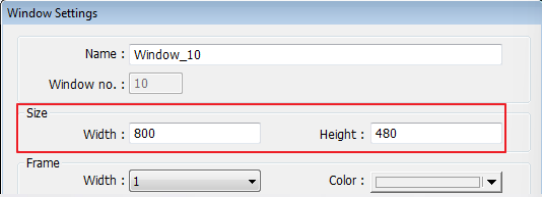
2. In [System Parameter Settings] check the current HMI model type and its resolution.
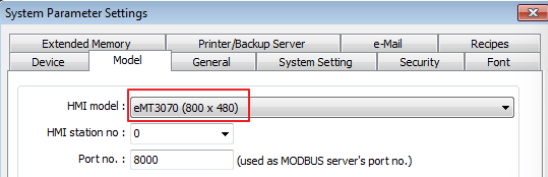
3. If the resolution of the model is different from the project window size, please change the project window size by switching to another model.
FAQ Demonstration:
FAQ_07_Switch_MT8000_Project_between_HMI_Models
Video Demonstration:
EasyBuilder - Resize
Security class (user password)
The security mechanism in EB500 mainly protects windows, and only three accounts are allowed. In EB Pro, not only windows but also objects on windows can be protected by different security classes. EB Pro provides two security modes, [General mode] and [Enhanced security mode]. [General mode] provides 12 user accounts and 6 security classes whereas [Enhanced security mode] provides 12 user accounts and 12 security classes. Secret user and User Account Control (UAC) are available in [Enhanced security mode]. Since the security mechanism in EB500 is completely different from EB Pro, this function can’t be translated. Please set the security mechanism again after translation.
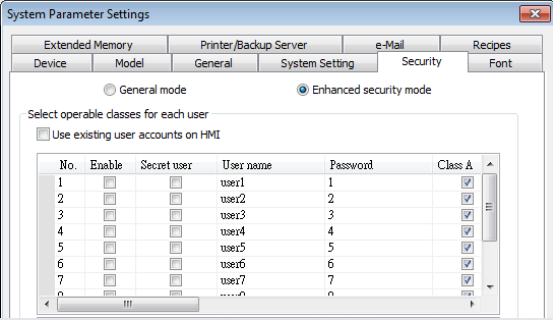 (EB Pro)
See EasyBuilder Pro User Manual: Chapter_10_Security
[General mode] Demonstration: Security
[Enhanced security mode] Demonstration: Enhanced_Security
Popup window
In EB500, a popup window can be closed by selecting [Change window] when setting a Function Key object, and at the same time change to another window. In EB Pro, the change window action and close popup window action are separated. The popup window has to be closed by selecting [Close window] when setting a Function Key object. If in EB500, [Change window] check box is selected, please select [Close window] in EB Pro after translation.
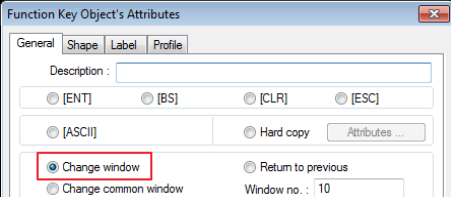
(EB500)
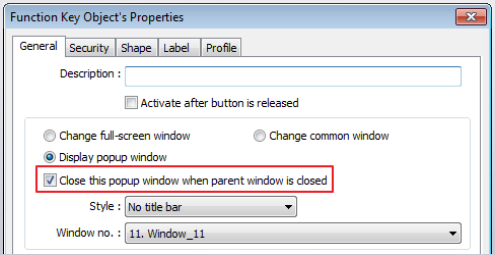
Furthermore, in EB Pro, [Close this popup window when parent window is closed] check box on [Function Key Object’s Properties] dialog box is selected by default after translation. If this function is not needed, clear the selection manually.
RS485 default communication interface
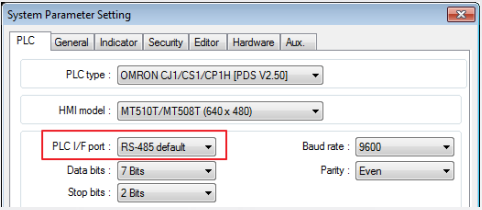
The [RS485 default] selection is not available in EB Pro PLC I/F setting, therefore, after translation, the interface may be changed to another one. Please select the correct PLC I/F in EB Pro.
 (EB500)
Data displayed in keyboard window
EB500 writes the data entered by keyboard to registers from LW-9060 through LW-9075. EB Pro writes the data entered by keyboard to LW-9150. Please check the ASCII Display object (AD_0) in window number 50 and 51 to see if the translation is correct.
Trend Display
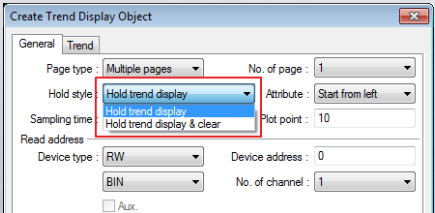
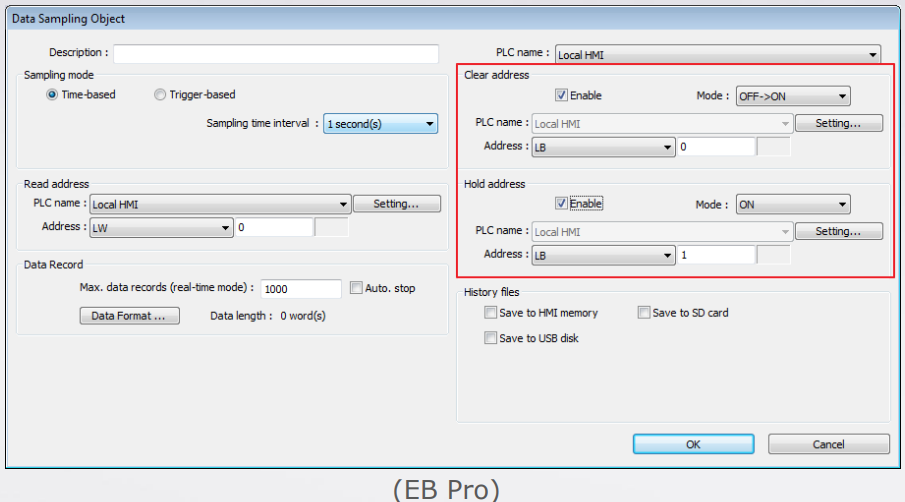
In EB500, when setting Trend Display object, the [Hold trend display] selection for [Hold style] is not loaded in EB Pro after translation. In EB Pro, please select [Data Sampling] object and set [Clear address] and [Hold address].
(EB500)
Label Tag Library
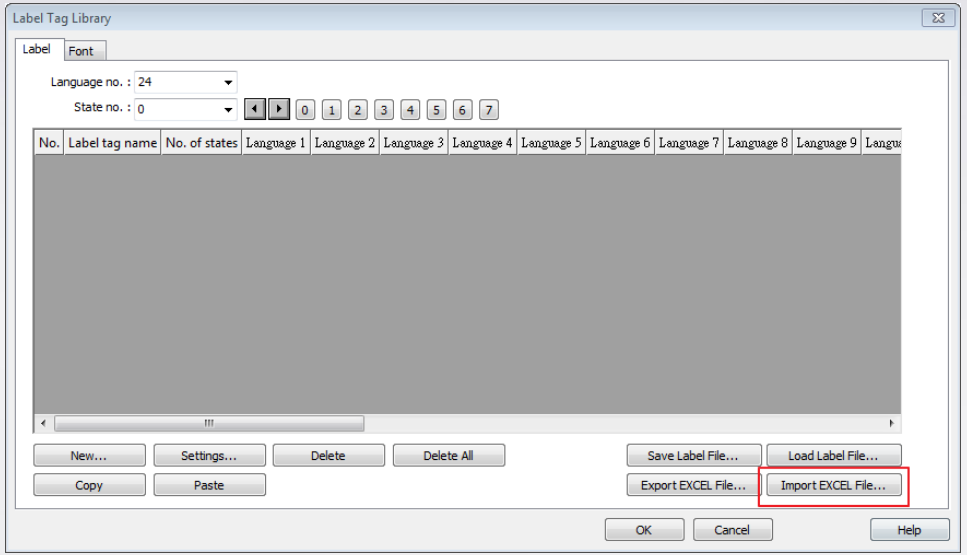
The format of Label Tag Library in EB500 is different from the format in EB Pro. Please follow the steps to use the data of Label Tag Library in EB Pro.
1. In EB500, open Label Tag Library, and click [Export CSV File].
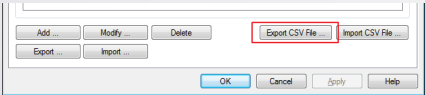
2. Open the .csv file by using Office Excel, edit the file and save to a .xls file.
3. In EB Pro, open Label Tag Library, and click [Import Excel File].
Customized Address Tag Library
The format of Address Tag Library in EB500 is different from the format in EB Pro. Please follow the steps to use the data of Address Tag Library in EB Pro.
1. In EB500, open Address Tag Library, click [Export CSV…].
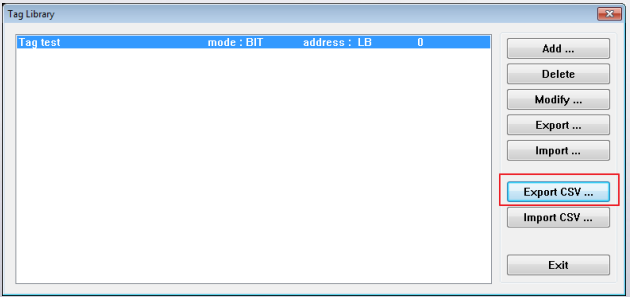
2. Open the .csv file by using Office Excel. The file is similar to the following figure.
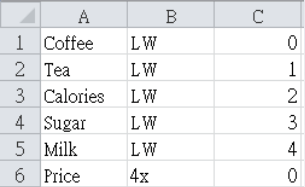
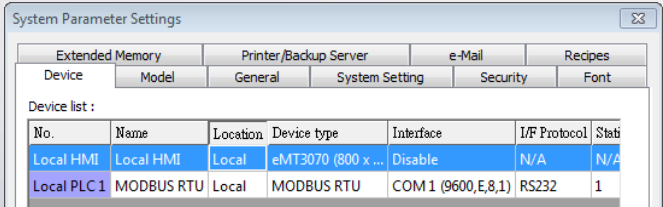
3. Insert a column between column A and B, and enter the device name as shown in the following figure.
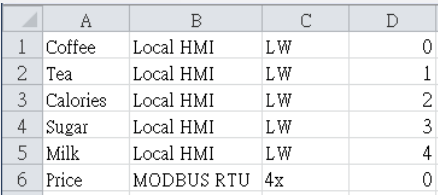
In EasyBuilder, please see [System Parameter Settings] » [Device list] to find the device name.
4. In EB Pro, open Address Tag Library, click [Import CSV…].

Language
Chinese language contains Simplified Chinese and Traditional Chinese. After translation, if incorrect font is displayed in the file, please follow the steps to translate again.
1. In Easy Manager, use [Off-line simulation] to check current language of the project.
2. On PC, go to [Control panel] » [Region and Language] » [Administrative] tab and set current language for non-Unicode programs according to the current language of the project.
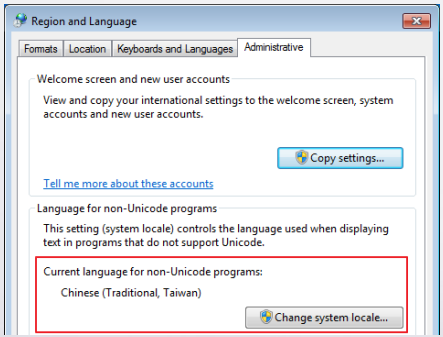
3. When finished, restart PC, and translate the .eob file of EB500 again. The font should be correctly displayed.
Window name
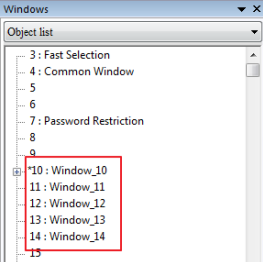
The window names specified in EB500 will be renamed by window numbers after translation.
Object description
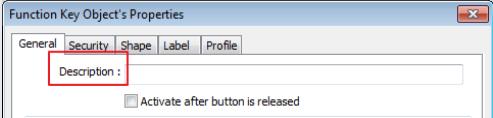
The descriptions specified in EB500 will be cleared after translation.
No comments to display
No comments to display