
60. How to clear DDR and Flash data on i Series HMI?
When using i Series HMI, the project, recipes (RW, RW_A), data log, and event / alarm log are stored in HMI memory.
Note: Data log and event / alarm log are only stored in HMI memory when assigned to. DDR loses its contents when the device is powered off. The following introduces how to clear data in flash memory.
1. System Reset
When system is reset, the project, recipe, data log and event / alarm log in flash memory are all cleared. Each HMI is equipped with DIP switch, follow the steps described to clear flash memory content, and restore to factory default by using DIP switch.
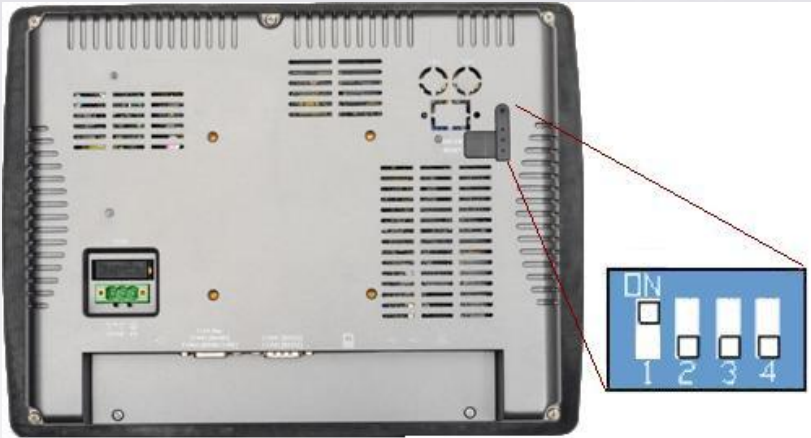
Step 1.Flip DIP Switch 1 to ON and the rest to OFF, and then reboot HMI.
HMI will switch to touch screen calibration mode
Step 2.A “+” sign appears on the screen, touch the center of the sign, after all 5 signs are touched, “+” disappears and the touch screen parameters will be stored in HMI system.
Step 3.After calibration, confirm to restore the default password, select [Yes].
Step 4.Confirm to restore the default password again by typing [yes] and clicking [OK]. The project files and history records stored in HMI will all be removed. (The default local password is 111111. However, other passwords, such as download/upload passwords have to be reset.)
2. To retain project but to clear data log, even / alarm log, RW and RW_A content stored in flash memory, the following provides four methods.
Method 1.
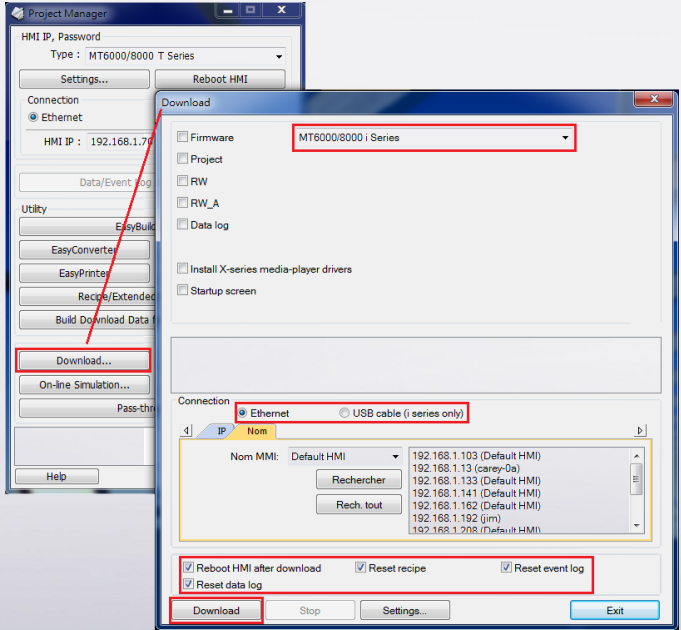
Open Project manager, click [Download], select [MT6000/8000 i series] and then select [Ethernet] or [USB cable]. Select [Reboot HMI after download], [Reset recipe], [Reset event log], and [Reset data log] check boxes and click [Download].
Method 2
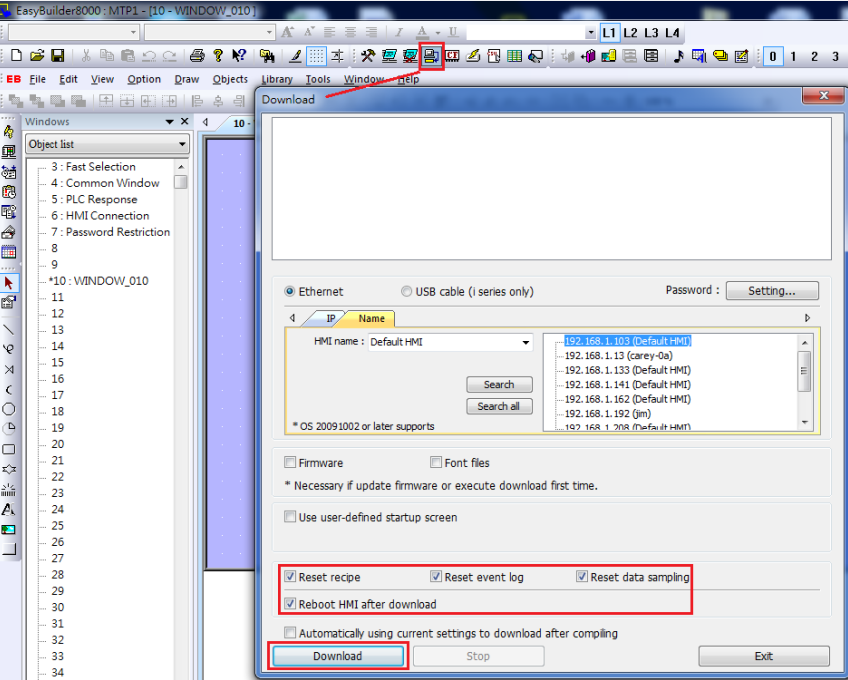
Open project in EasyBuilder8000, click [Download] and then select [Ethernet] or [USB cable]. Select [Reboot HMI after download], [Reset recipe], [Reset event log], and [Reset data log] check boxes and click [Download].
Method 3
Use the following system registers to clear data on HMI.
LB-9023: delete all event log files on HMI memory when ON
LB-9026: delete all data sampling files on HMI memory when ON
LB-9028: reset all recipe data when ON
Method 4
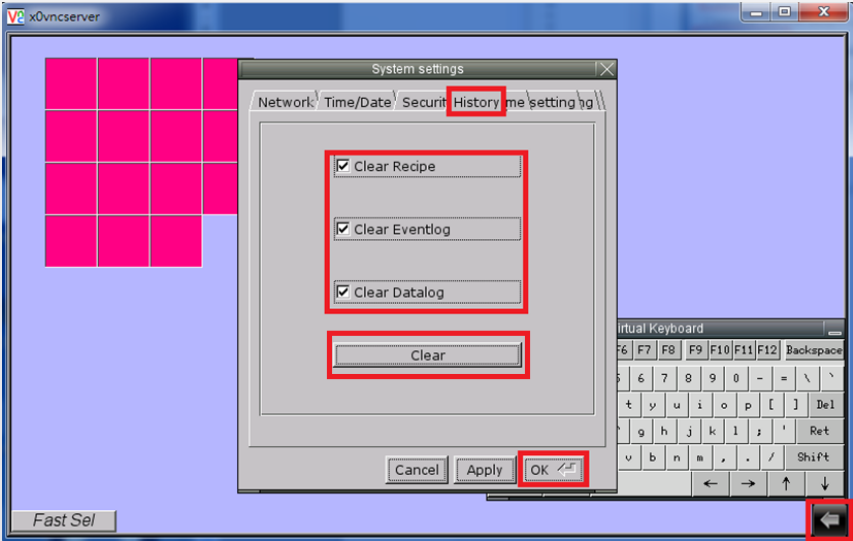
On HMI, open [System settings] > [History] tab to clear data. Press the button on the lower-right corner of HMI screen, select System Settings, enter default password 111111 or user defined password. Go to [History] tab and check [Clear Recipe], [Clear Eventlog], and [Clear Datalog] check boxes and then click [Clear].
When finish, click [OK].
No comments to display
No comments to display