
45. How to Download Startup Screen to HMI
After the BMP picture file used as startup screen is downloaded to HMI, the HMI will reboot. The picture will show on HMI during boot-up before entering the project. Startup screen isn’t compatible with BMP 32bit color.
There are two ways to download startup screen to HMI:
Way 1 Download using Utility Manager
Step 1. Launch Utility Manager.
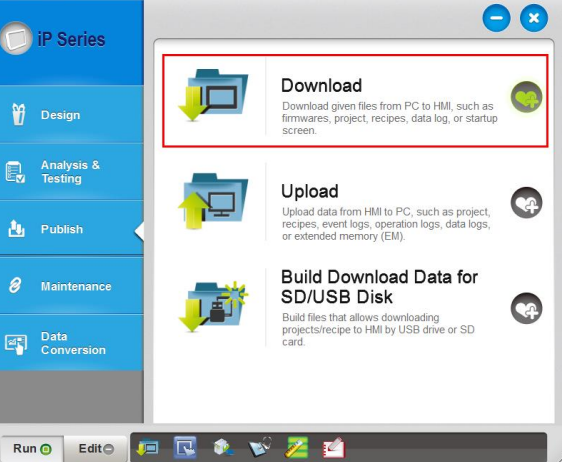
Step 2. Select [Download].
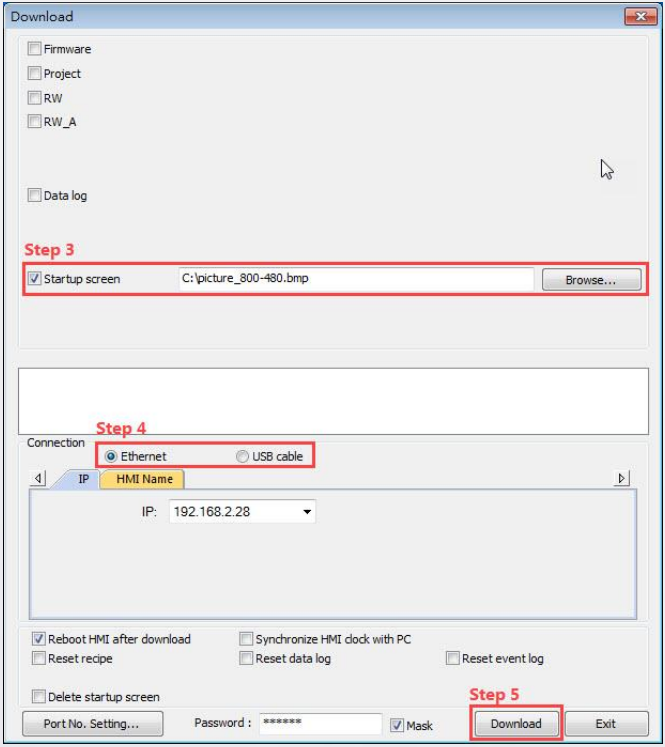
Step 3. Select a BMP file that matches the HMI screen size. Ex: Use an 800 x 480 file or smaller one for eMT3070.
Step 4. Download the picture file by using Ethernet or by connecting a USB cable. Designate an IP address when Ethernet is used.
Step 5. Click [Download]. The picture should show during HMI reboot when it is successfully downloaded.
Way 2 Download using EasyBuilder Pro
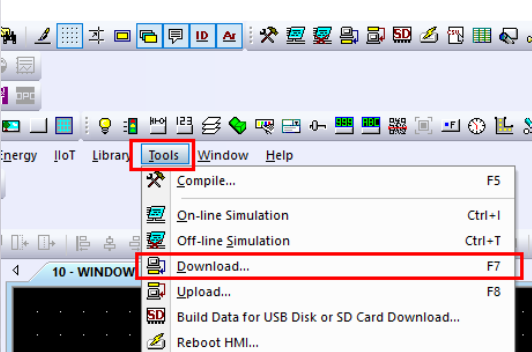
Step 1. Launch EasyBuilder Pro and click [Tools] > [Download].
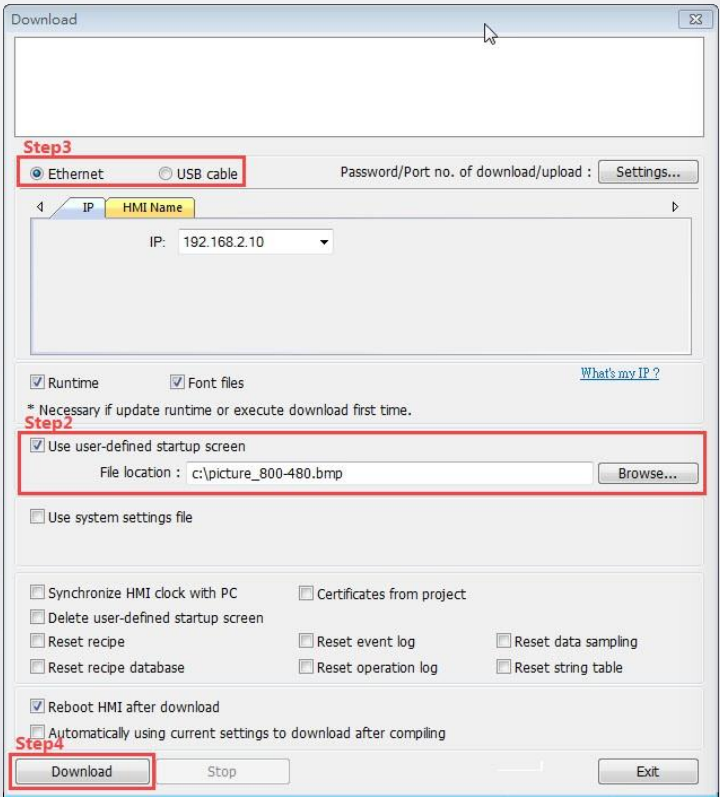
Step 2. Select a BMP file that matches the HMI screen size. Ex: Use an 800 x 480 file or smaller one for eMT3070.
Step 3. Download the picture file by using Ethernet or by connecting a USB cable. Designate an IP address when Ethernet is selected.
Step 4. Click [Download]. The picture should show during HMI reboot when it is successfully downloaded.
No comments to display
No comments to display