
63. How to update HMI system setting by using USB drive or SD card?
System Setting Editor allows updating HMI system settings by using USB drive or SD card. The feature is available for HMI OS version 20131106 or later. The supported models are: eMT3000, MT8000iE, MT8000XE, and mTV. The following explains how to get HMI data by using EasySystemSetting tool, and then save the HMI data and the project to USB drive or SD card.
Step 1. On EasyBuilder Pro toolbar click [Tools] » [Build Data for USB Disk or SD Card Download] » [System Settings]. Or, directly run EasySystemSettings.exe under EasyBuilder Pro installation directory.
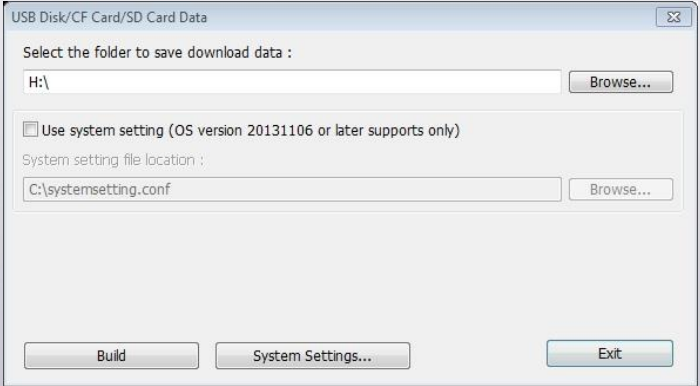
Step 2. Click [System Settings] to open System Setting Editor.
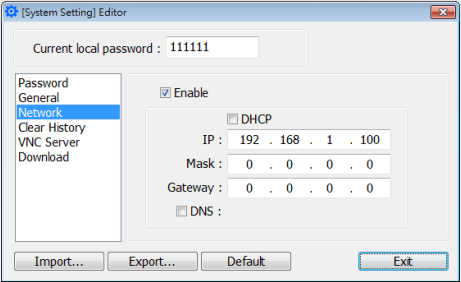
Step 3. Specify HMI information and click [Export] to generate a .conf file. Click Exit.
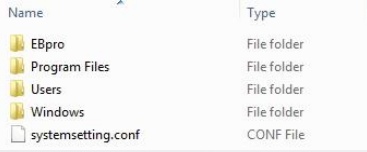
Step 4. Select [Use system setting] check box and select the .conf file generated in previous step
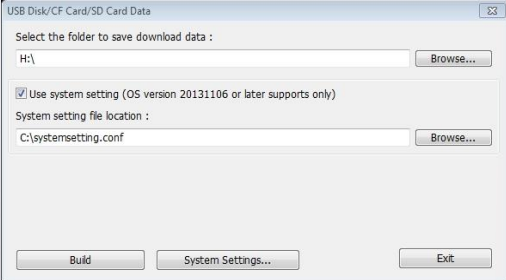
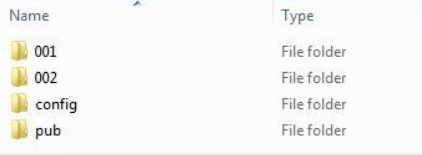
Step 5. Click [Build] button to generate the file for download by using USB drive or SD card. A “config” folder can be found as shown below.
Step 6. Insert the storage device that stores the download file to HMI and the Download/Upload dialog box appears.
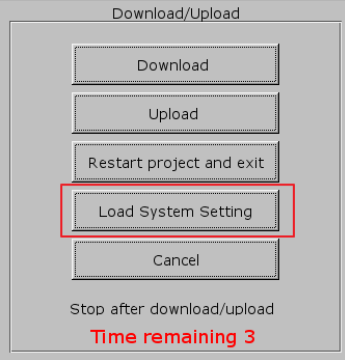
Step 7. Press [Load System setting] and then the [Download Config Settings] message appears. The project file will be updated after finishing system settings.
Note:
The description of System Setting Editor buttons:
| Setting | Description |
| Import | Import and edit an existing .conf file |
| Export | Export the configured data to a .conf file |
| Default | Restore default |
If USB drive and SD card are both inserted to HMI, the data saved in SD card will be used.
For more information about downloading project by using USB drive or SD card, see: FAQ13_How to download upload project with USB device
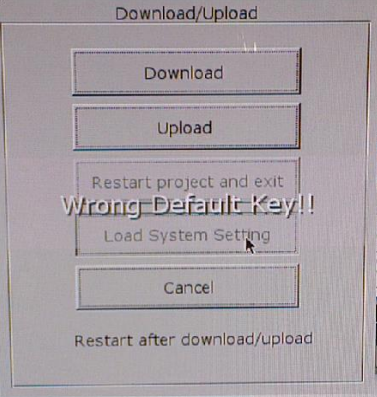
If “Wrong Default Key!!” is displayed during download, please check local password
No comments to display
No comments to display