
74. How to Check OS Update Status?
When updating HMI OS, the update status can be viewed by monitoring COM1 RS232 serial port. To do so, different tools can be used for different Windows versions.
Windows XP: Hyper Termanal (Built-in)
Window 7 & 8: Tera Term (Free serial port monitor)
This FAQ explains how to check OS update status by using these tools.
On PCs Running Windows XP
Step 1. Go to: [StartMenu] » [Programs] » [Accessories] » [Communications] » [HyperTerminal].
Step 2. Click [File] » [New Connection] and enter a name.
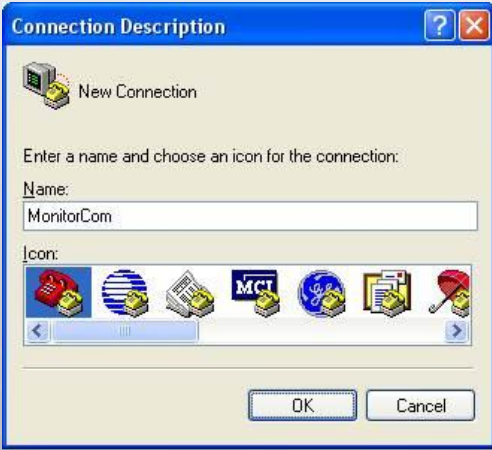
Step 3. Select the serial port to connect to.
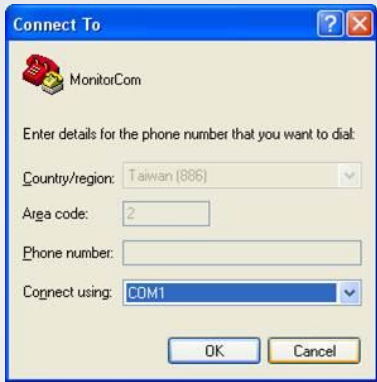
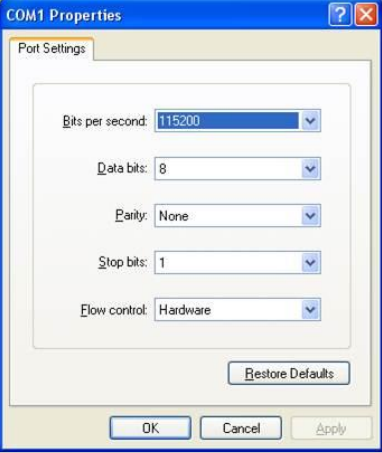
Step 4. Set [Bits per second] to “115200”, click [Apply], and then click [OK].
Step 5. Connect HMI with PC via the selected serial port and then reboot the HMI. Hyper Terminal will display the update data
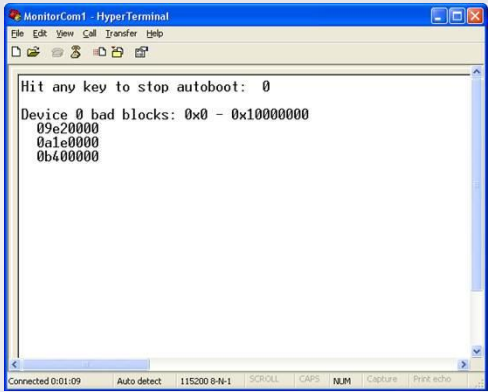 Step 6. If update succeeded, “Starting Kernel” is displayed; otherwise, “Fail” is displayed.
On PCs Running Windows 7 & Windows 8
Step 1. Download Tera Term 4.83: http://ttssh2.sourceforge.jp/
Step 2. Select [Serial] and select the serial port to connect to.
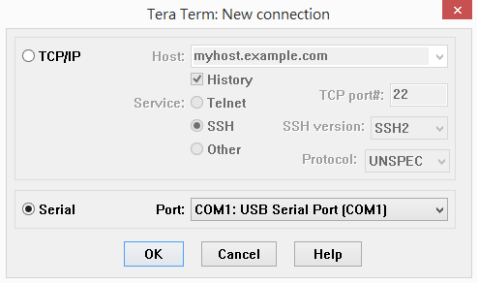
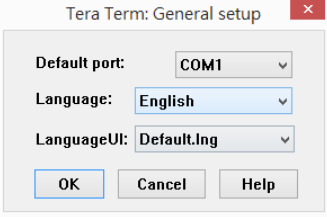
Step 3. Go to [Setup] » [General] and set [Language] to “English”.
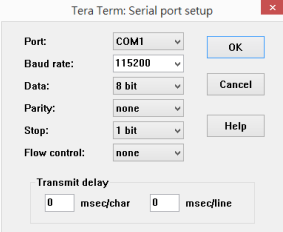
Step 4. Go to [Setup] » [Serial Port] and set [Baud rate] to “115200”.
Step 5. Connect HMI with PC via the selected serial port and then reboot the HMI. Tera Term will display the update data
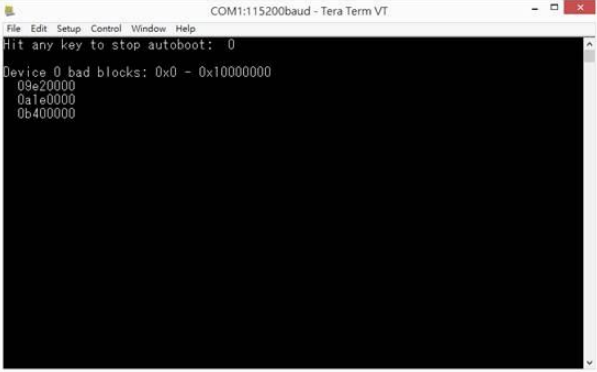
Step 6. If update succeeded, “Starting Kernel” is displayed; otherwise, “Fail” is displayed.
No comments to display
No comments to display