
62. How to use the fonts not supported in EasyBuilder?
Certain fonts can be used in Microsoft Office but cannot be used in EasyBuilder. The possible reason is that these fonts have different names in Control Panel on PC and in Windows Registry. Therefore in EasyBuilder these fonts cannot be selected and used. This document explains the solution to use these font files in EasyBuilder.
Supported software version:
EB8000 V465.05 and later versions
EBPro V300.03 and later versions
Step 1. Use Microsoft Office Word to check if the font can be displayed correctly. If not, copy the font file to Control Panel\Fonts and restart EasyBuilder to check again.
Step 2. If the font is still not displayed in EasyBuilder, check if it works in Word. If it displays correctly in Word, copy the font file from Control Panel\Fonts to EasyBuilder\Windows_font folder and restart EasyBuilder to check again.
When finished, if the font still cannot be displayed in EasyBuilder, the reason would be the difference in font names. For example, the font name in Word is in double-byte characters (As in Traditional Chinese, Simplified Chinese, Korean, Japanese etc.) where in Windows Registry it uses an English name, or, it uses English name in Word where a double-byte character name is used in Windows Registry.
The following steps explain the solution.
Example 1
The Korean font “휴먼옛체” uses a Korean font name in Word but an English font name in Windows Registry.
Step 1. Copy “휴먼옛체” font file from Control Panel\Fonts to the desktop to see the font name.
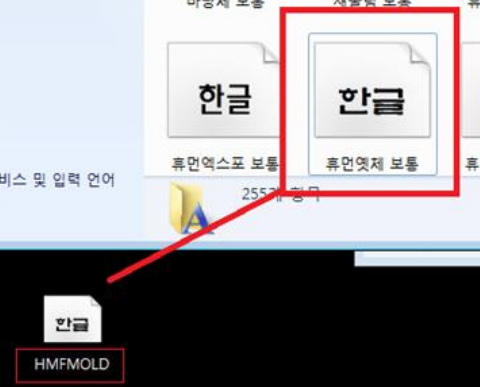
Step 2. Run Microsoft Registry Editor (Regedit). Under the directory:
\HKEY_LOCAL_MACHINE\SOFTWARE\Microsoft\Windows NT\CurrentVersion\Fonts, find the corresponding name of the font. As shown in the following figure, the corresponding font name of “휴먼옛체” is Yet R.

Step 3. Open the FontTableName.xls file under EasyBuilder installation directory and enter the English font name in column A, and the Korean font name in column D.

Step 4. Restart EasyBuilder to select the font.
Example 2
The Chinese font “方正大标宋繁体” uses an English font name in Word but a Chinese font name in Windows Registry.
Step 1. Copy “方正大标宋繁体” font file from Control Panel\Fonts to the desktop to see the file name.
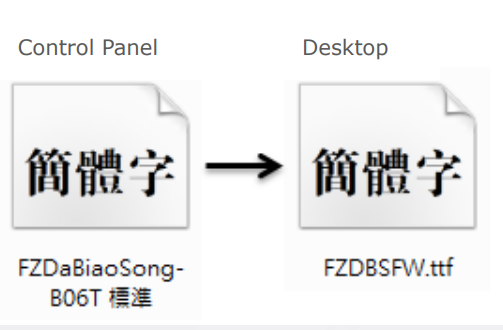
Step 2. Run Microsoft Registry Editor (Regedit). Under the directory:
\HKEY_LOCAL_MACHINE\SOFTWARE\Microsoft\Windows NT\CurrentVersion\Fonts, find the corresponding name of the font.

Step 3. Open the FontTableName.xls file under EasyBuilder installation directory, enter the English font name in column A, and the Chinese font name in column B. (If the Simplified Chinese OS is used, enter the Chinese font name in column C.)

Step 4. Restart EasyBuilder to select the font.
Note:
The columns in FontTableName.xls correspond to specific languages and therefore cannot be modified or deleted.
When using Simplified Chinese font file in Traditional Chinese OS, the Chinese font name entered in FontTableName.xls should be in column B, not column C.
No comments to display
No comments to display