
91. How to download project and history data using USB disk or SD card?
Utility Manager can build download data and save the data in USB disk or SD card. The data such as project file, recipe data, and history data can be downloaded to HMI using the USB disk or SD card, as a way to update HMI data.
Please note that the described methods are not applicable for cMT Series.
In this document, “USB/SD” refers to USB drive or SD card.
[Build Download Data for SD/USB Disk]
In Utility Manager click [Publish] » [Build Download Data for SD/USB Disk] to create downloadable data including project file, recipe data, or history data…etc. into USB/SD.
Step 1. Launch Utility Manager and click [Publish] » [Build Download Data for SD/USB Disk].
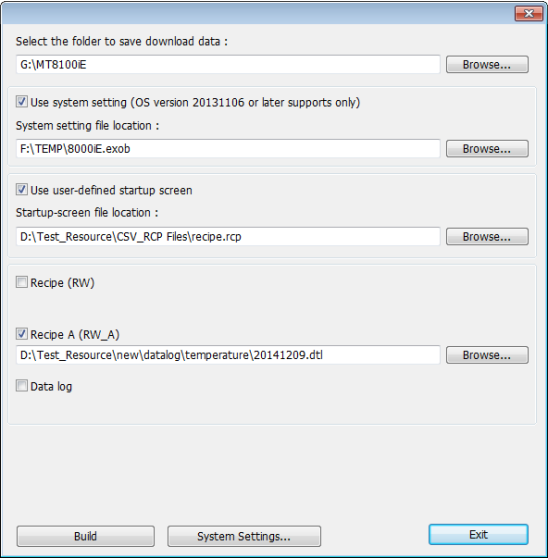
Step 2. Specify the directory of the USB disk or SD card, and the directory of data files, and then click [Build]. For ease of file management, it is recommended that a dedicated folder be created in the USB/SD. You can use a folder name that’s easy to identify, for example, the HMI name or model name. As shown in the following figure, the folder to save download data is: G:\MT8100iE
Step 3. If the data is successfully built, a notification message ‘creating successful!’ will show.
[Download to HMI]
Step 4. Insert USB disk or SD card into HMI, the following window will be displayed.
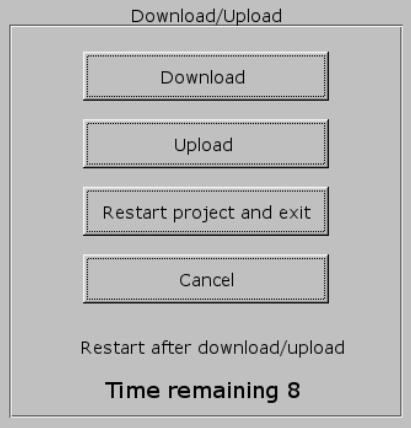
Step 5. Hit [Download], enter HMI download password, select [Download project files] or [Download history files], and then hit [OK]
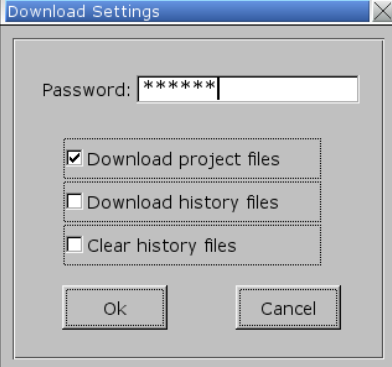
Note: History file includes recipe data (RW, RW_A), and data sampling.
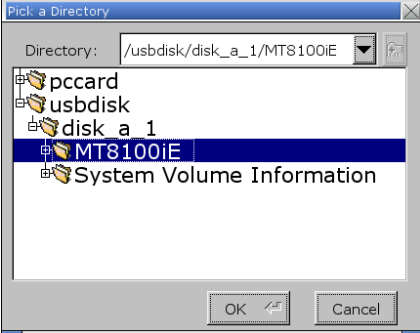
Step 6. Select the directory that has the download file and then hit [OK]. Choose the same directory whether downloading only the project file, only the history data, or both. As shown in the following figure, select the MT8100iE folder created in step 2.
Step 7. During download, the message: “Download Project Files…” or “Download History Files…” is displayed.

Step 8. After download, HMI program will start again.
No comments to display
No comments to display