
53. How to edit recipe database from ftp?
Users can copy HMI Recipe.db to PC using FTP, and then edit Recipe.db in
C:\EBPro\DatabaseEditor. The edited Recipe.db can be downloaded to HMI using Utility Manager.
The following describes the steps:
1. Before login FTP Server, please check HMI IP address
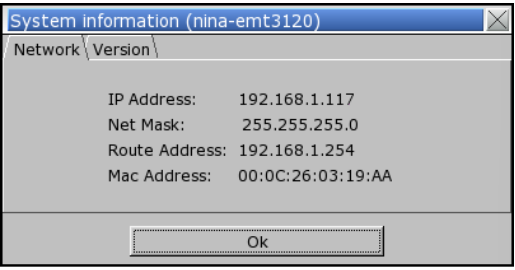
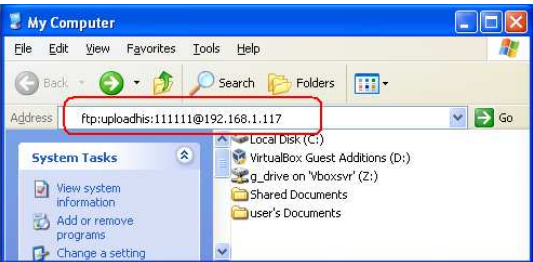
2. Enter HMI IP: ftp://192.168.1.117/ (example), login user name: uploadhis, and the HMI history upload password (if not changed, the default is 111111). Or, directly enter ftp://uploadhis:111111@192.168.1.117/.
3. After entering IP, ftp://192.168.1.117/ is shown, and the “datalog”, “eventlog”, and “recipe” folders can be found.
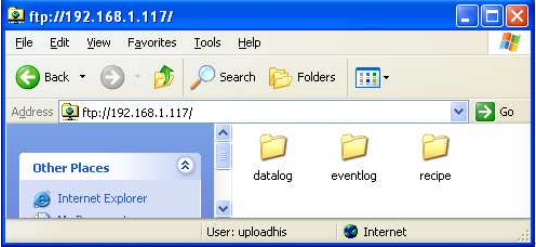
4. Click “recipe” folder to copy recipe.db file in PC.
5. Use “Recipe Database Editor” to “Import” recipe.db and then after editing the file, click “Export” to save the file to *.db format.
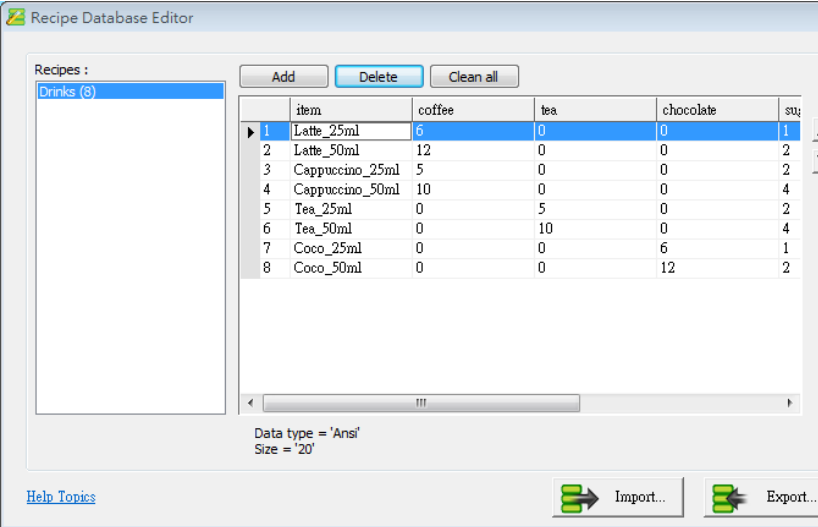
Note: Please go to C:\EBPro folder for executing “Recipe Database Editor”
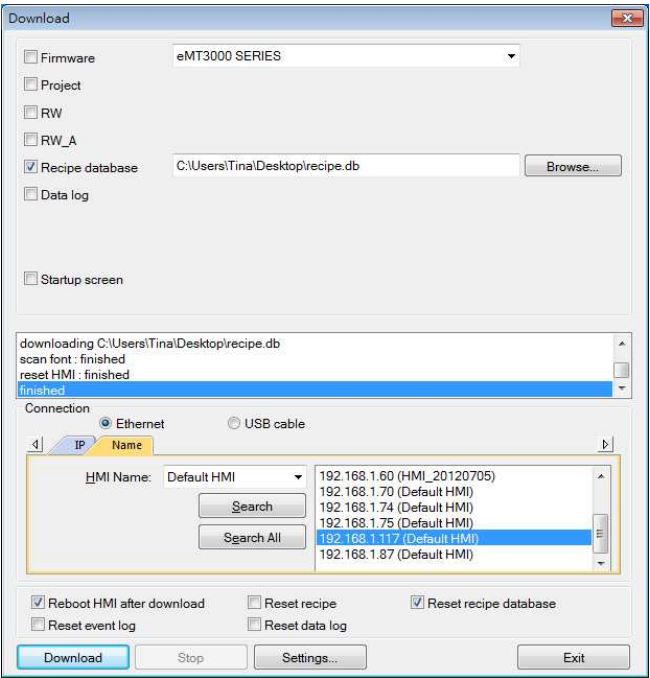
6. Download Recipe Database using Utility Manager. Tick [Reset recipe database] the Recipe database in HMI will be overwritten with the new settings
No comments to display
No comments to display