
44. Label library Translation Manual
EasyBuilder Pro Label Library Language Translation Manual (English to Italian and Simplified Chinese)
1. Export EXCEL File
Click on [Export EXCEL File] then select the location and file name to save.
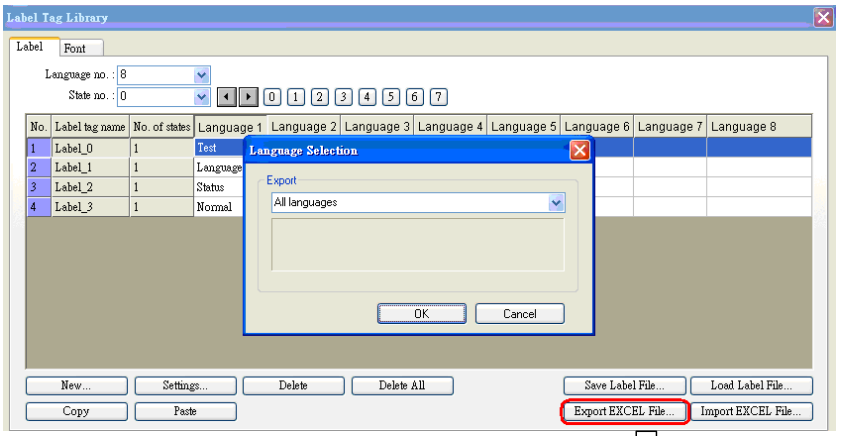

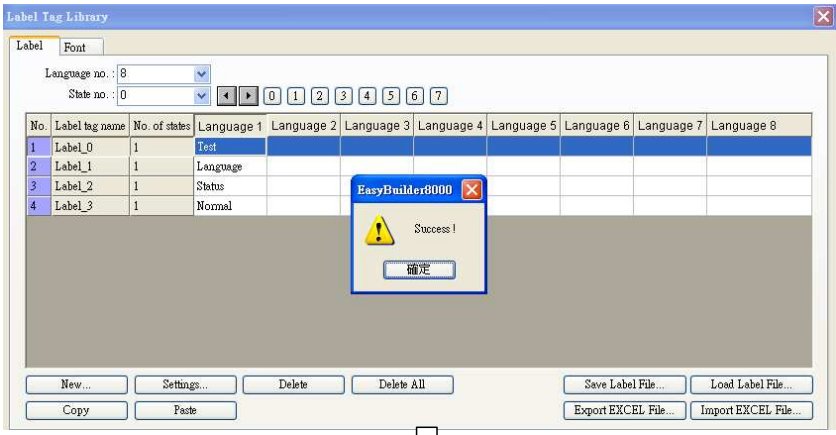
A [Success!] message is shown upon completion of the export.

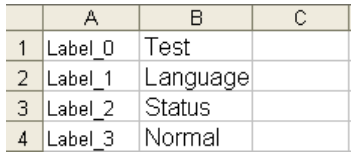
The selected labels are exported to EXCEL file.
2. Translate
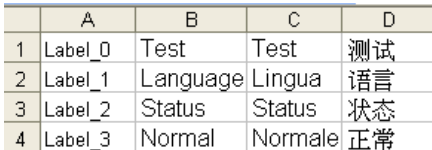
Open the EXCEL file to add the following items, and copy the items to translate to Italian or Simplified Chinese.
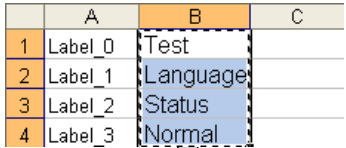
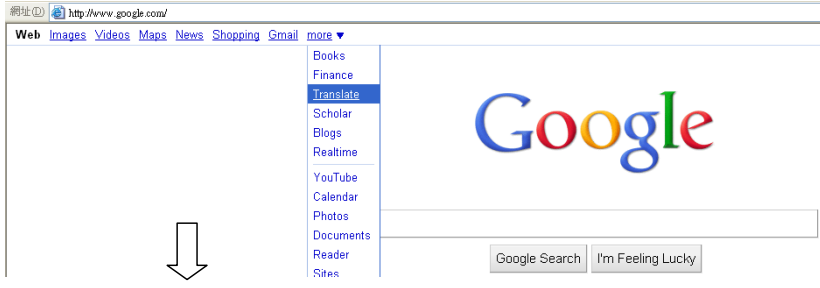
To translate using Google, link to Google homepage first: http://www.google.com/.
Click [more]/ [Translate].
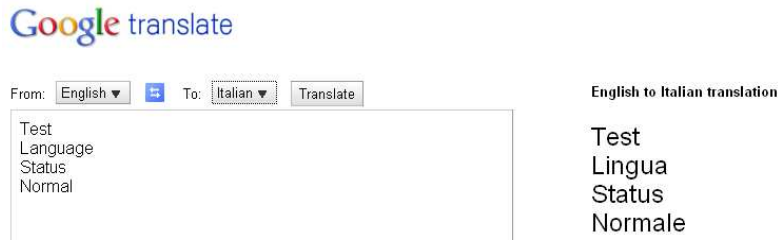
Paste the copied items to the translating field of Google, select from and to which language, click [Translate], and see the result on the right side. For Example:
a. English->Italian
b. English->Simplified Chinese
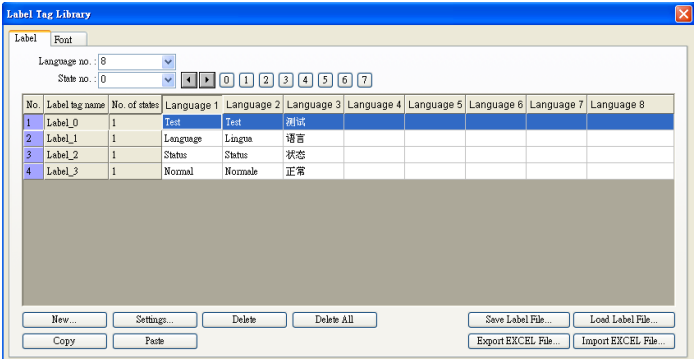
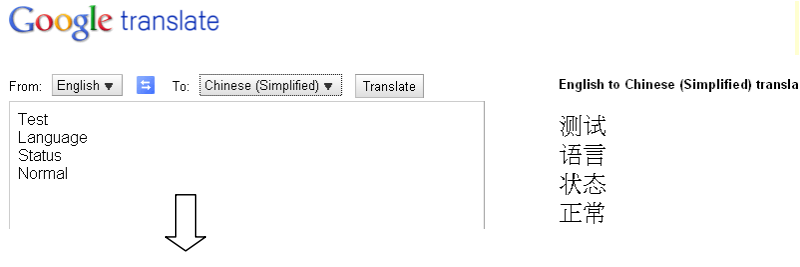 This demonstration shows how to translate English to Italian and Simplified Chinese. Copy the translated items and paste to the EXCEL file columns [Language 2] and [Language 3].
 3. Import EXCEL File
Open EB8000 [Library]/ [Label].
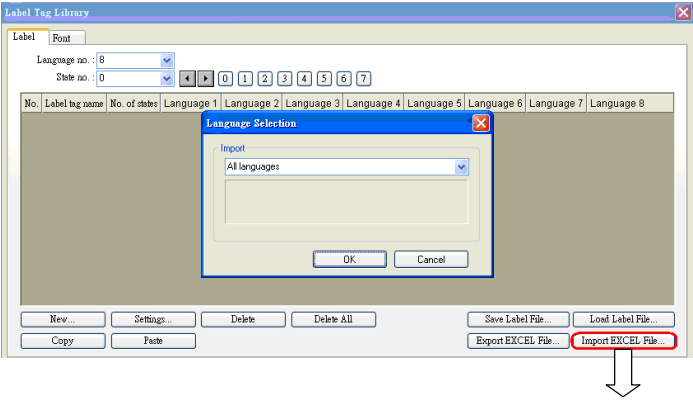
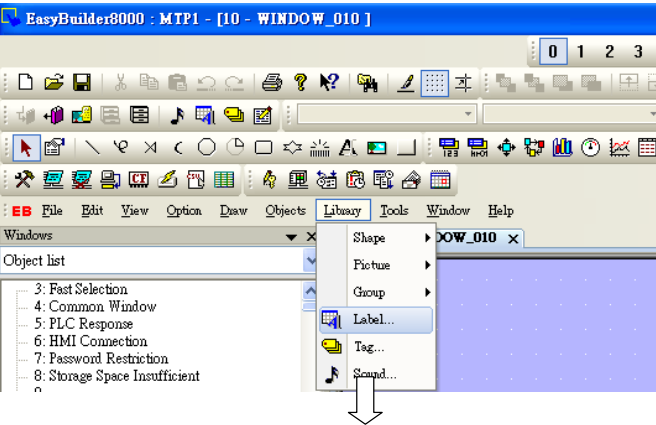 Click [Import EXCEL File] and select the file to be imported
 The EXCEL file is then successfully imported.
No comments to display
No comments to display