
29. How to install USB driver of HMI i Series
HMI i Series support the function of using a USB to mini USB cable to download/upload projects from PC. When using the USB cable to download project, PC is viewed as Master and HMI as Client. It is necessary to install EB8000 V2.0.0 or newer version (EasyBuilder Pro) and USB driver of HMI on PC at the first time using this function. (The HMI models: MT6050i / MT6056i / MT6070iH / MT6100i / MT8070iH / MT8100i)
Note: USB driver is compatible with Windows XP service pack 3, Vista, and 7.
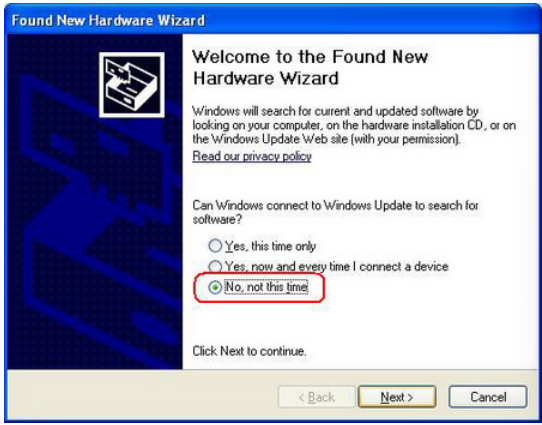
1. Using USB cable mini side plug to HMI and another side plug into PC. The PC will display “Found New Hardware Wizard” dialog. Select “No, not this time” and click “Next”.
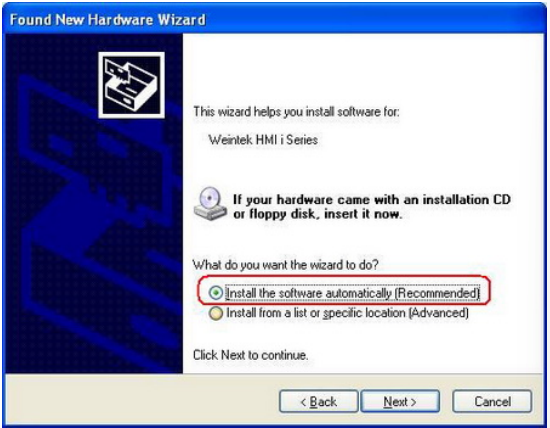
2. Select “Install the software automatically (Recommended)” and click “Next”.
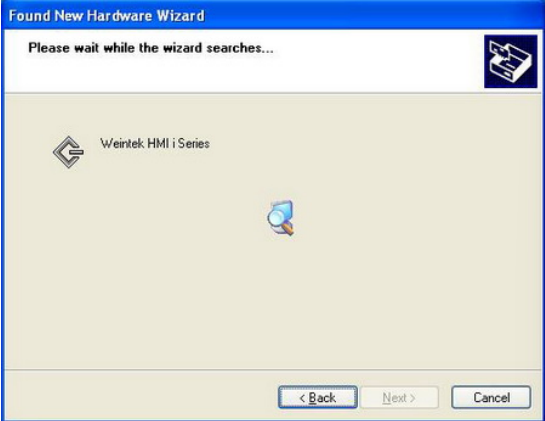
3. Waiting for the system to search for USB driver.
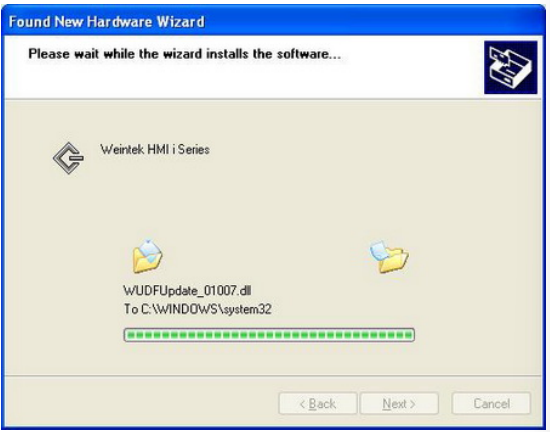
4. After that, it will automatically install Weintek HMI i Series driver from
C:\EasyBuilder Pro\usbdriver.
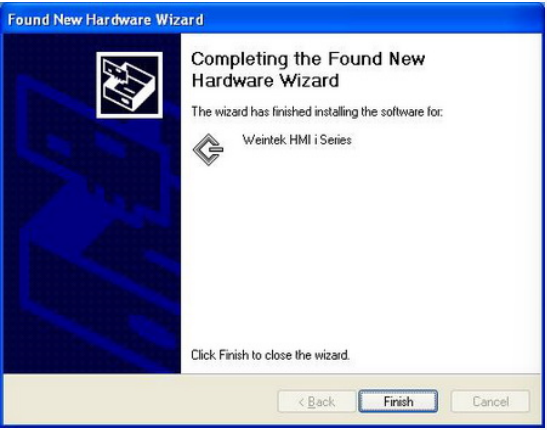
5. The USB driver will be successfully installed after clicking “Finish”
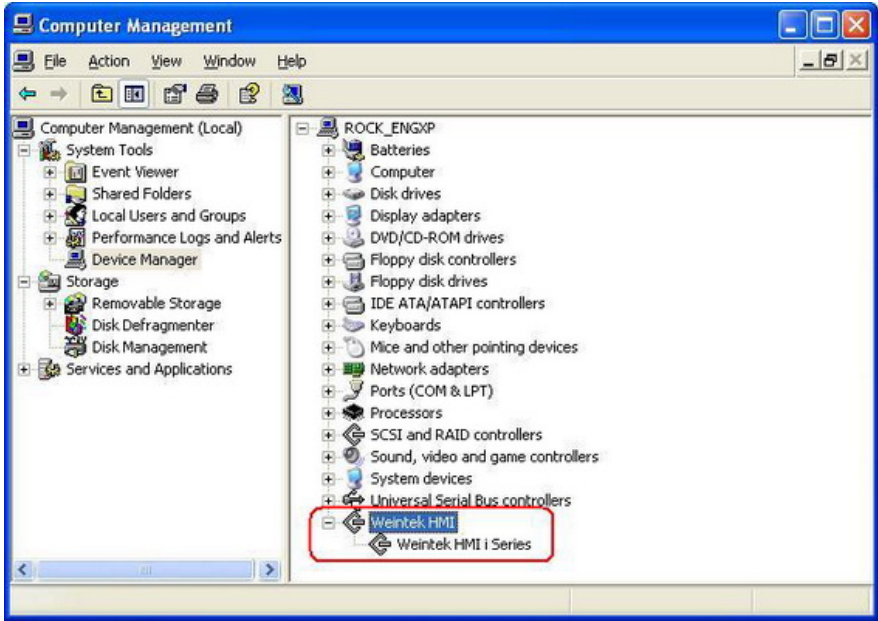
6. User can go Computer Management / Device Manager to check if the
Weintek HMI i Series is successfully installed.
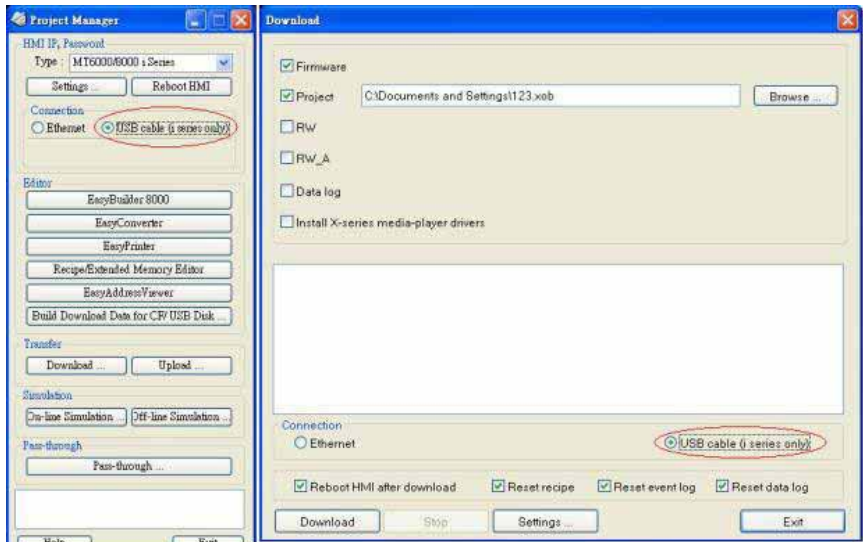
7. User can download project to HMI i Series through USB cable.
Troubleshooting:
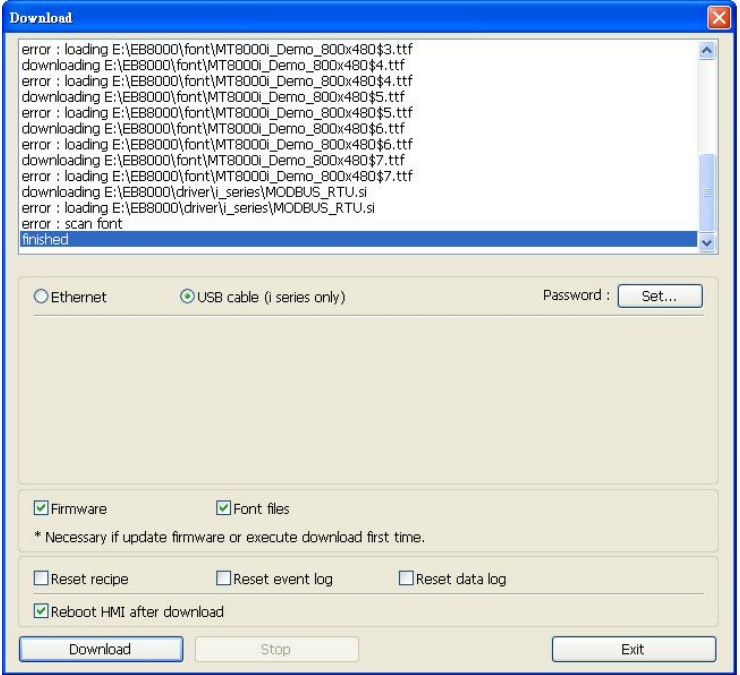
If error messages appear as picture below when downloading project via USB cable, please check the following points:
1. The USB port of PC must be USB2.0 standard.
2. Go to Computer Management/Device Manager for checking if USB driver is installed correctly. The USB driver is supported by Windows XP SP3, Vista, and 7.
3. Change another USB cable and test again, the USB cable should be shielded with 2 layers:Aluminium foil shield + net shield
4. If a desktop is used, the USB cable should be plugged into the back panel instead of the front, since that the extension line connected between main board and the front panel USB port is usually not shielded.
No comments to display
No comments to display